Custom Fields Configuration
Custom Fields Configuration is where you add fields of your own to the Beas entities. You define any number of named fields and say where each one gets its value from: a column of the entity's own table that is not shown yet, a field of a related record, or a value calculated from other fields. Each field can then be shown as a column in that entity's list, as a field on its detail screen, or both.
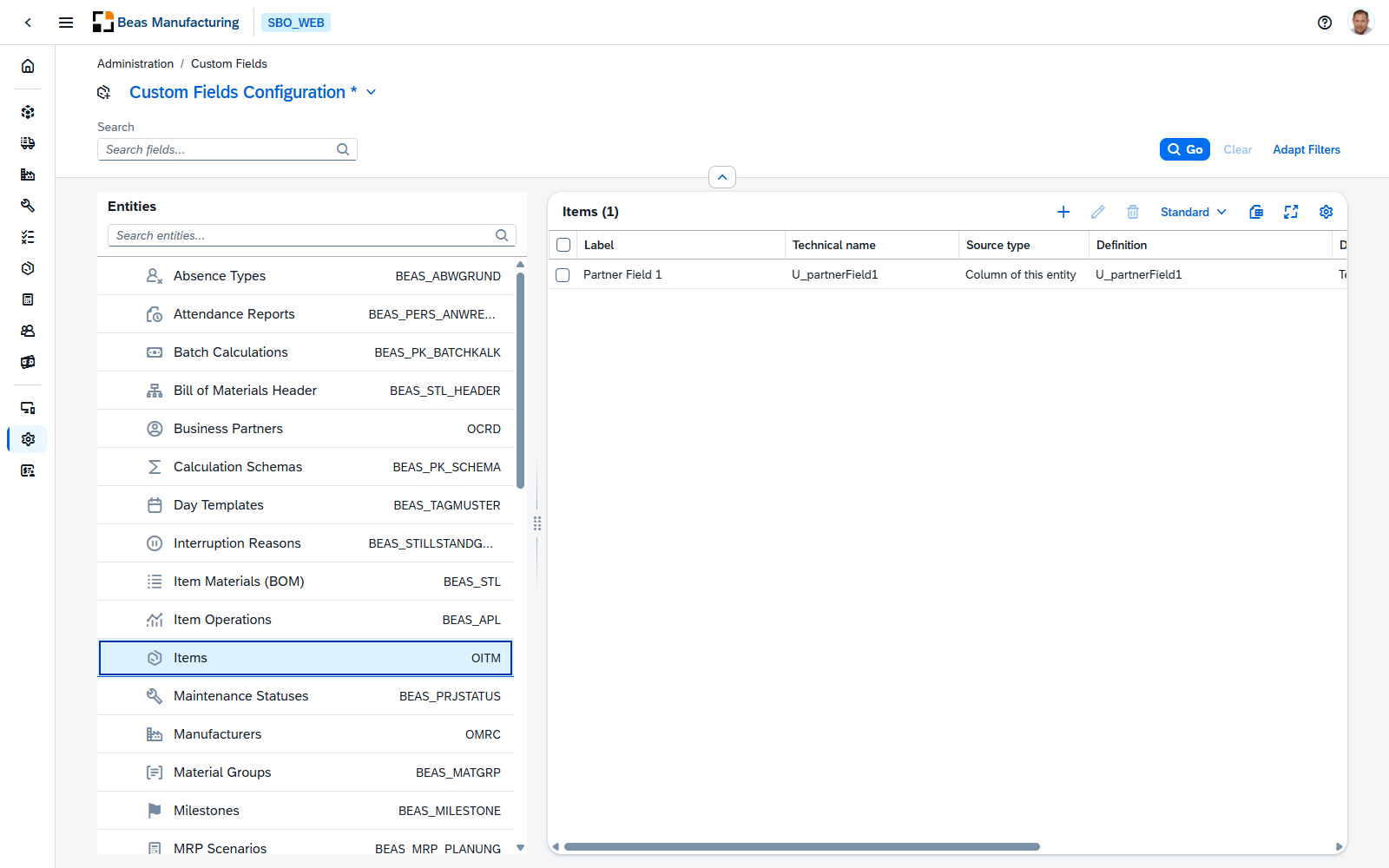
The view is split in two: a list of entities on the left, and the fields of the entity you pick on the right. It is only available to users whose permissions allow custom field configuration; if your permission is view-only, a banner says so and the add, edit and delete buttons stay disabled.
This is not the same screen as UDF Configuration, and the two do different jobs — see Custom fields and UDFs below.
Entities (left panel)
The left panel, titled Entities, lists every Beas entity that supports custom fields, in alphabetical order, with a search box above it. Each row names the entity and, on the right, the database table behind it. Select a row to load that entity's fields into the panel on the right; only one entity is selected at a time, and the first entity in the list is selected when the view opens.
An entity can carry a warning:
| Sign | Meaning |
|---|---|
| A warning icon next to the entity name | "Custom fields can be defined here, but no data can be read for this entity." The right panel explains it in full: the entity has no database table behind it, so the fields can be defined but stay empty. |
The fields of an entity (right panel)
When an entity is selected, the panel header names it with the number of fields it has (for example "Items (1)") and the toolbar shows the add (+), edit and delete buttons, next to the view picker and the usual grid controls. Below it is one row per custom field, with these columns:
| Column | Description |
|---|---|
| Label | The name shown as the column header. |
| Technical name | The field's internal identifier, generated by the system when the field is created from the source you chose, with the CF_ prefix (for example CF_XXX_PARTNERFIELD1). It never changes afterwards, even if the definition is edited, because formulas, extensions and saved views refer to it. Hidden by default; show it from the table settings. |
| Source type | Where the value comes from — see Sources. |
| Definition | A summary of the exact source: the column name, the relation and field, or the formula. If something is wrong with the definition, a warning is shown here. |
| Data type | How the value is displayed — see Data types. |
| Visible in list view | Check mark to show the field as a column in the entity's lists. |
| Visible in edit view | Check mark to show the field on the record's detail screen. |
| Editable | Check mark to make the value changeable on the detail screen. |
Tick a row to work on it: edit opens the field dialog for the one row you ticked, and delete removes every row you ticked. When an entity has no fields yet, the panel shows "No custom fields yet" with the hint "When there is, you'll see it here."
Deleting a field removes the column from every grid that shows it. The data in the underlying column itself is not touched — only the definition of the column is deleted. You are asked to confirm first.
Sources
Every field reads its value in one of three ways, picked in the Source type list at the top of the field dialog. The choice decides which further fields the dialog asks for.
Column of this entity
"Reads a column that exists on this entity's own table but is not shown yet — typically a customer or partner field."
Pick the column in the Column list. The list shows every column of the table with its database type, and marks the ones you cannot use:
| Note next to a column | Meaning |
|---|---|
| already available as … | The column is already part of the entity under that name, so there is nothing to add. |
| already used by … | Another custom field already reads that column. |
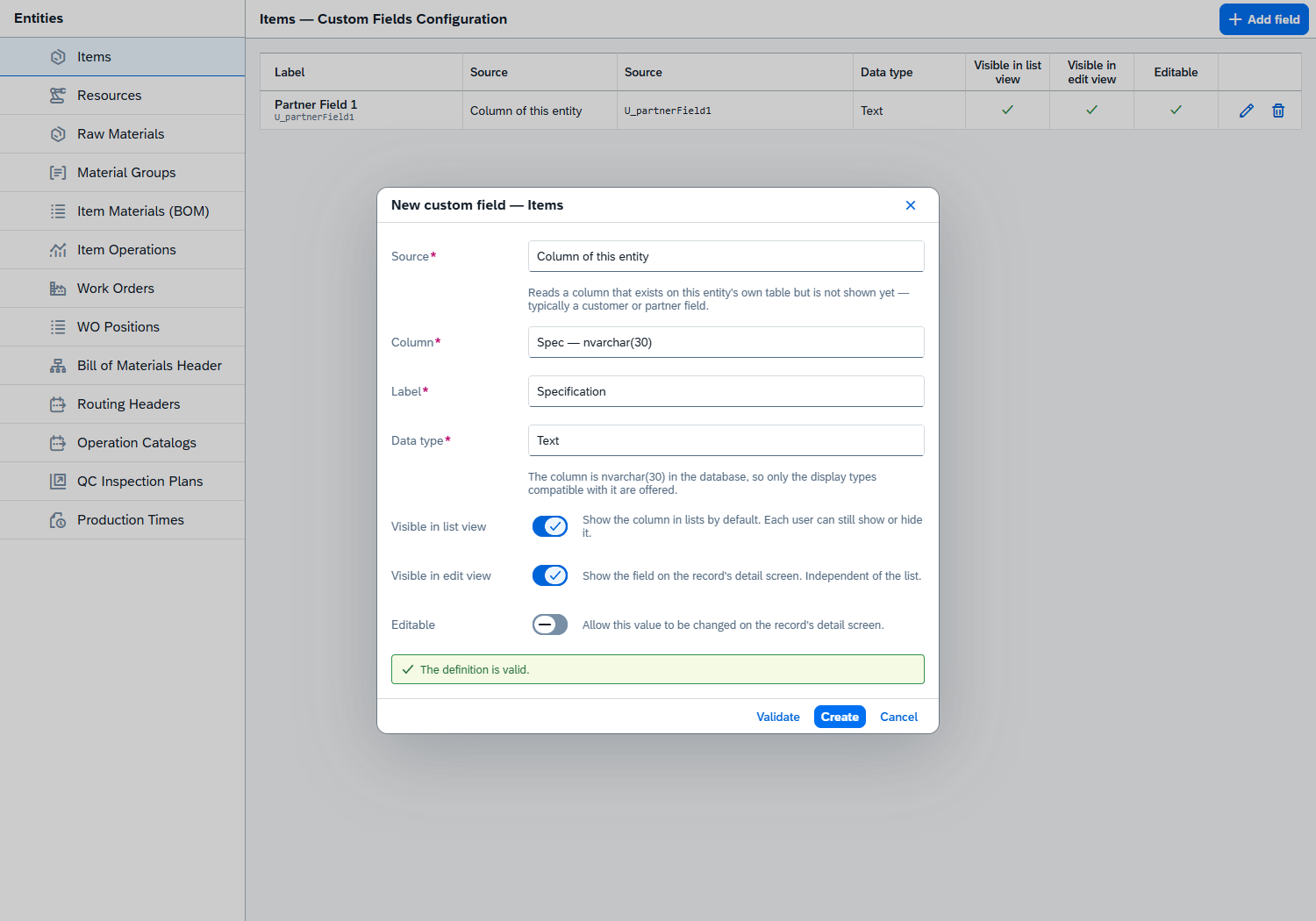
If the column list cannot be loaded, the dialog says so and lets you type the physical column name by hand instead.
Field from a related record
"Reads a field from a record linked to this one. Relations that return several records need an aggregation."
Pick the link in the Relation list — each entry shows the relation, the record it points to, and "(several records)" when it can return more than one — then the field to read in the Field list. When the relation returns several records, an Aggregation is required to reduce them to one value.
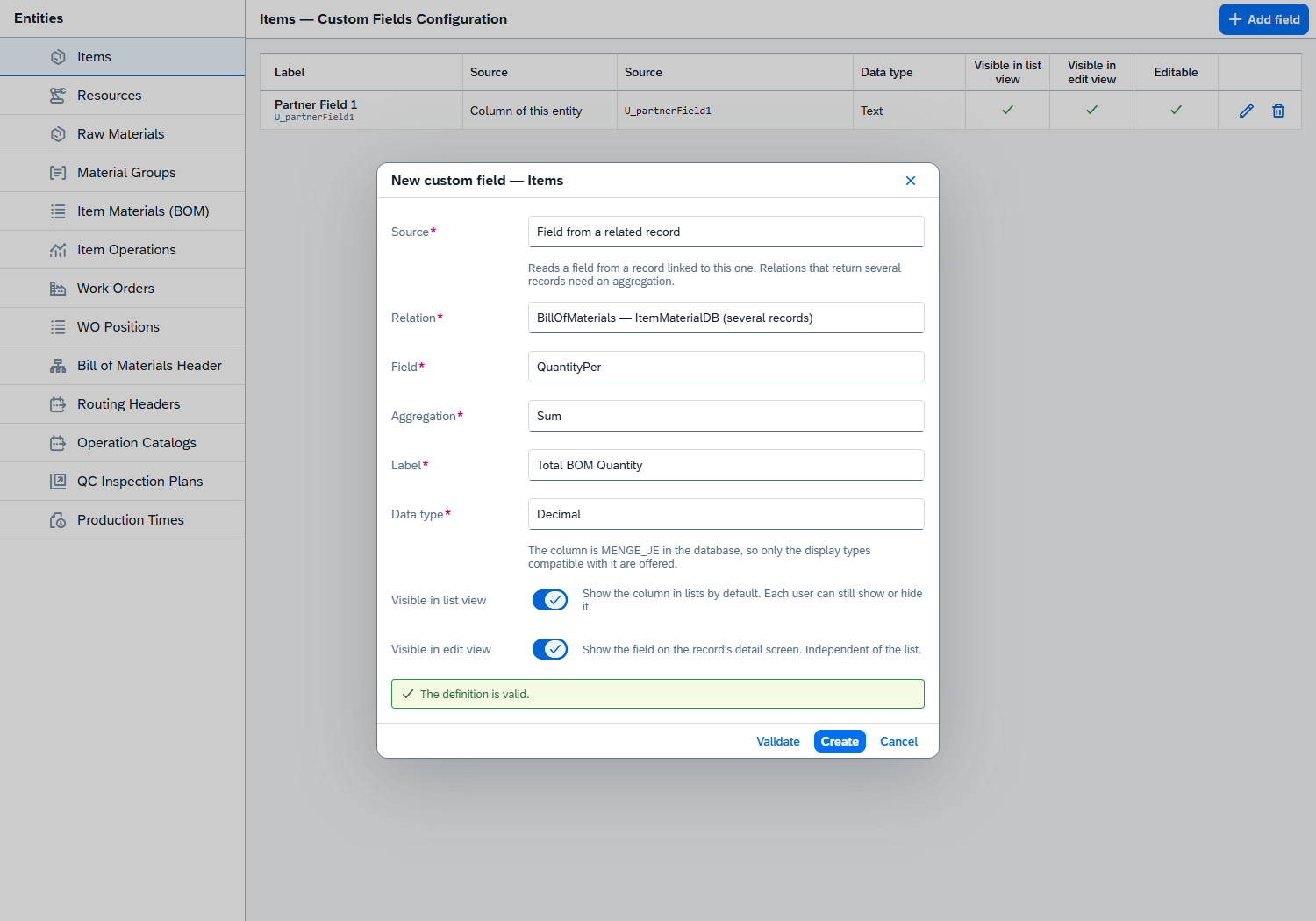
The aggregations available are:
| Aggregation | Result |
|---|---|
| First | The value of the first related record. |
| Count | How many related records there are. |
| Sum | The total of the field across all related records. |
| Min | The lowest value. |
| Max | The highest value. |
| Average | The average value. |
Sum, Min, Max and Average need a numeric field. If the field you picked is not numeric, the dialog warns you.
Calculated formula
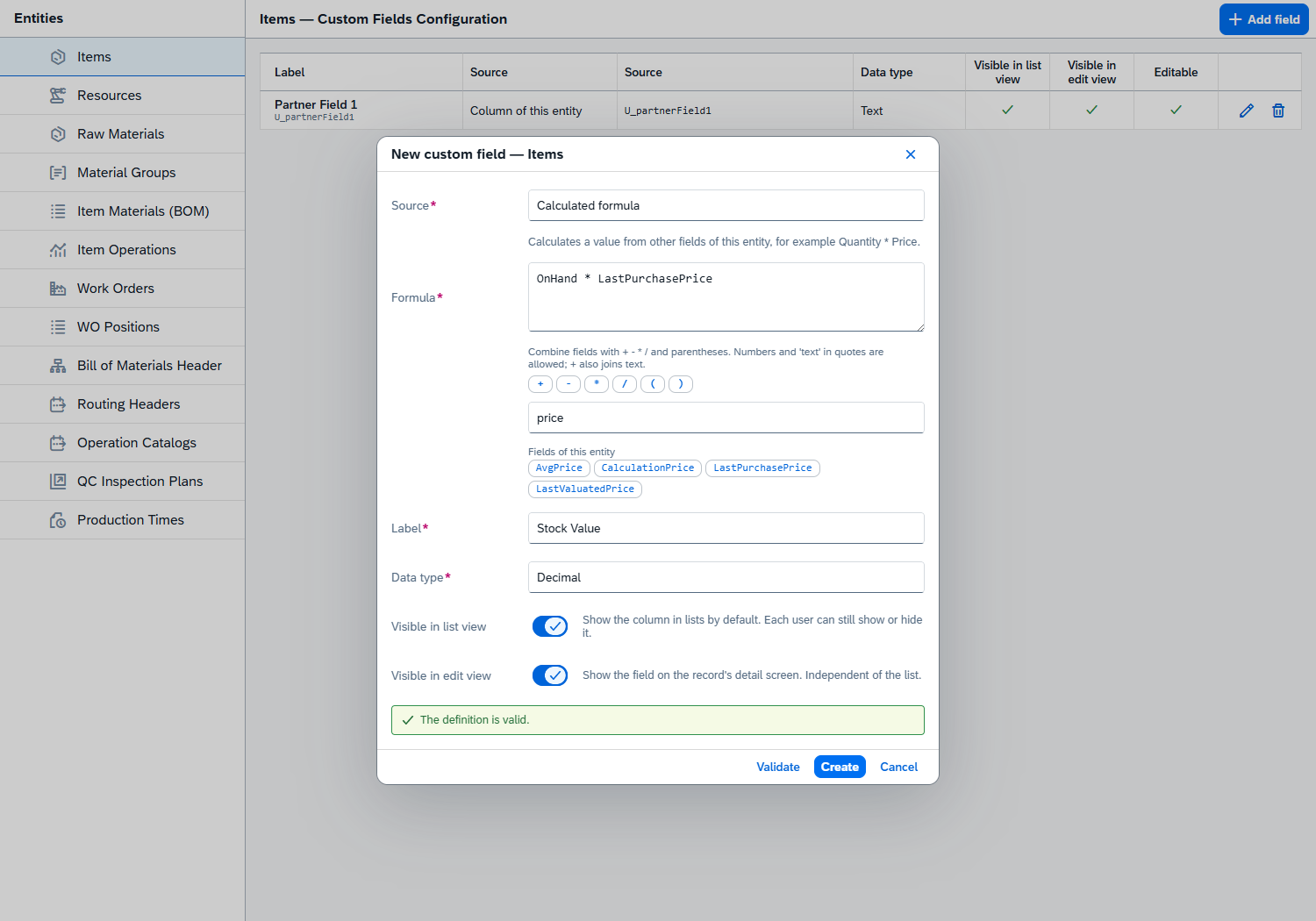
"Calculates a value from other fields of this entity, for example Quantity * Price."
Type the expression in the Formula box. Below it, a builder helps you write it without typing field names:
- The operator buttons
+ - * / ( )insert that character at the cursor. - The search box filters the field list; Fields of this entity and Custom fields list the available operands as chips. Click a chip to insert that field at the cursor.
- The syntax is stated above the buttons: "Combine fields with + - * / and parentheses. Numbers and 'text' in quotes are allowed; + also joins text."
Naming and showing the field
Whichever source you pick, the lower half of the dialog is the same:
| Field | Description |
|---|---|
| Label | The name shown as the column header. Required. |
| Data type | How the value is displayed — see Data types. |
| Visible in list view | "Show the column in lists by default. Each user can still show or hide it." |
| Visible in edit view | "Show the field on the record's detail screen. Independent of the list." |
| Editable | "Allow this value to be changed on the record's detail screen." Only offered for a column of the entity itself, and only while Visible in edit view is on. |
The Data type list only offers the types that suit the selected source, so it can change from one field to the next:
- A column or related field can only be shown in a way that fits how it is stored. An
intcolumn, for example, can be shown as Number or Decimal, but not as Text or Date. - With the Count, Sum or Average aggregation the value is always a number, so only Number and Decimal are offered, whatever field is aggregated.
- A formula, and a field whose source has not been chosen yet, can use any type.
The ? icon next to Data type explains the reason for the current selection — for example the column's type in the database and the types it can be shown as.
The two visibility switches are independent. A field can be a list column only, a detail-screen field only, or both.
Data types
| Data type | Description |
|---|---|
| Text | Free text. |
| Number | A whole number. |
| Decimal | A number with decimals. |
| Date | A date. |
| Date & time | A date together with a time. |
| Yes/No (text flag) | A yes / no value stored as a text flag in the column. |
| Yes/No (true/false column) | A yes / no value stored as a true / false column. |
Validating and saving
The dialog footer has Create (Save when you are editing an existing field) and Cancel.
Create / Save always checks the definition against the database first. While the check runs the banner shows "Checking…". If the definition is rejected, the dialog stays open with the reason in an error banner and nothing is saved; change the definition and save again. When the error message points at a place in a formula, the banner offers Go to error — click it to put the cursor on the token that broke.
For a Calculated formula or Field from a related record, the check also reads the value from the entity's real data (the first 1,000 records). A definition that is correct but fails on the data — for example a formula that divides by zero — is reported as "The definition is valid, but reading it from the data failed: …" followed by the database's own message, so it is never saved or shown on a screen. A problem that only occurs in records beyond that sample can still appear later, as a warning next to the field's definition in the list.
When the check passes, the field is stored and the dialog closes; the message "Custom fields saved" is shown and the entity's fields are reloaded. If the save fails, the message "The custom fields could not be saved." is shown instead.
Fields are stored per entity. Switch to another entity in the left panel to define its fields separately.
Where the fields appear
A field with Visible in list view on becomes an extra column in that entity's lists, at the end of the column set. Each user can still show or hide it from the list's own column settings — see General Controls — so turning it on decides the default, not the final state.
A field with Visible in edit view on appears on the record's detail screen, in the record's Custom Fields section, and can be changed there when Editable is on as well.
Custom fields and UDFs
Beas has two ways of adding your own fields to an entity, and they are configured on two different screens:
| Screen | What it configures |
|---|---|
| UDF Configuration | The entity's fixed User-Defined Field slots (UDF 1, UDF 2, …). You choose which slots are used, name them, and pick their data type. The values are typed in by hand on each record. |
| Custom Fields Configuration (this screen) | Any number of named fields you define yourself. Each one reads its value from somewhere — a hidden column, a related record, or a formula — instead of being typed in, unless you mark it Editable. |
The Custom Fields section you see on a record's detail screen shows both: first the entity's UDFs, then the custom fields that have Visible in edit view on. So a field missing from that section may be waiting on either screen.
To work out which screen to use: if you want a free field to type your own value into, use UDF Configuration. If you want to surface a value that already exists somewhere — or compute one — use this screen.