Home Page
Logging in leaves you on the Home page. It is not a menu, it is your workbench. Instead of hunting for a screen down the navigation tree you have it in front of you as a tile, and many tiles hand you the figure you were going to look up anyway — how many work orders are open, how many are running late, which quality controls were created today.
Every user has their own. It is stored on the server against your user rather than in the browser, so it follows you to any machine or device you log in from, and nobody else sees it or can change it.
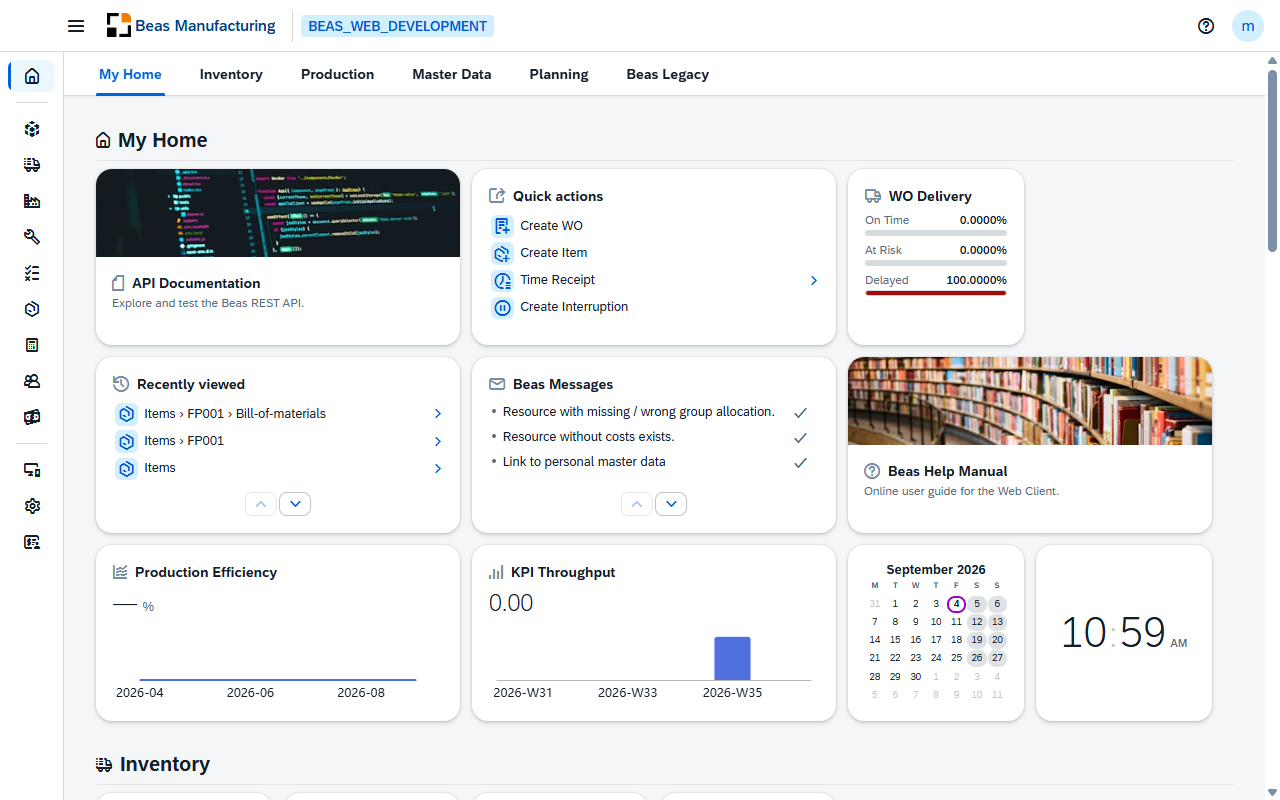
The page reads top to bottom in sections, and each section lays its tiles out in a grid. A sticky tab bar at the top takes you to any section in one click.
What you find the first time
The first time you log in, Beas builds you a starting page so that it is useful before you touch anything.
| Section | What's there |
|---|---|
| My Home (top) | The header of your day: quick-action shortcuts, items you viewed recently, current Beas messages, work order delivery figures, production efficiency and throughput, a month calendar, a clock, and links to the API documentation and to this manual. |
| Inventory, Production, Master Data, Planning | A starting selection of screen shortcuts — not a copy of the navigation menu — holding the screens a new user is most likely to want, in a deliberate order. |
| Beas Legacy | The older Beas documentation and access to the Terminal. |
| Not included | Service, Quality Control, Calculation, Attendance and Business Performance — still reached from the sidebar, and can be added here whenever you want them. |
The starting page is built once. From then on it is yours: your Home stays as you left it even when Beas adds screens in a later version. Only two things still adjust themselves — tiles whose screen no longer exists are dropped, and any new section Beas adds to the starting page is appended for you.
IMPORTANT: You only see the tiles you have permission for: each one inherits the permission of the screen it opens. A tile whose screen you cannot open is left out, and a section left with no visible tiles disappears along with its tab. That is why your Home and a colleague's on another role need not look alike.
Making it yours
Open the user menu (your avatar, top right) and choose Edit Home Screen. The page stays usable while you edit it.
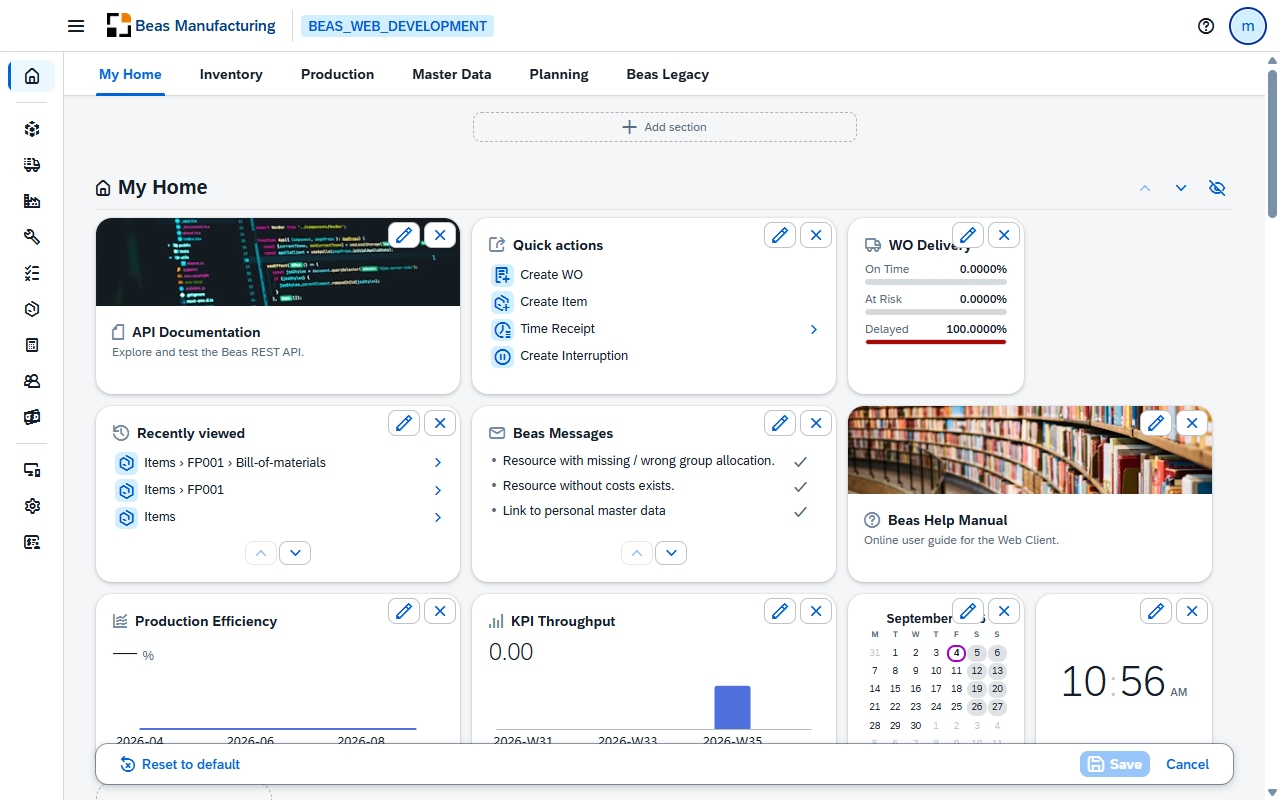
- Move a tile by dragging it, within its section or across to another.
- Change a tile with the pencil, which opens its settings; the cross removes it.
- Add a tile with the Add tile placeholder that closes every section.
- Create a section with Add section, and use the buttons to the right of each heading to move it up, move it down or hide it. A section you created can also be renamed and deleted; the six Beas built for you can be moved and hidden, but not renamed or deleted.
Nothing is saved until you say so: Save applies your changes, Cancel throws away everything you did since entering edit mode, and Reset to default returns to the starting page.
Hidden sections are not deleted: they stay on screen while you edit, dimmed, so you can bring one back when you need it. Leave edit mode and they are gone from both the page and the tab bar.
What you can add
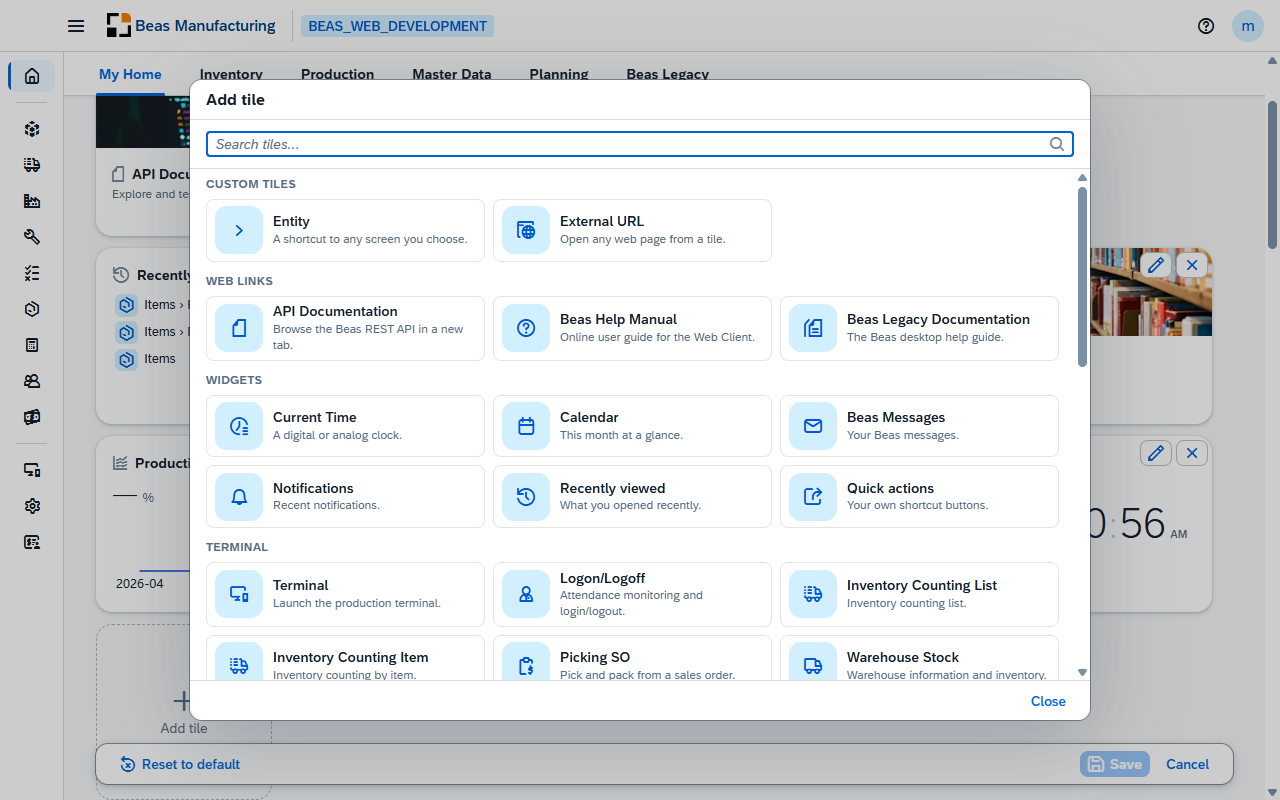
The Add tile placeholder that closes every section opens the catalogue, with a search box and five groups.
| Group | What it holds |
|---|---|
| Custom tiles | Entity — a shortcut to any Beas screen you choose — and External URL, which opens a web page from a tile. |
| Web links | The API documentation, this manual, and the older Beas documentation. |
| Widgets | A clock, the month calendar, your Beas messages, your notifications, what you opened recently, and the quick actions you compose yourself. |
| Terminal | The production terminal and its screens — attendance, inventory counting, picking, goods receipt, quality control. |
| Insights | The production figures: work order delivery, production efficiency, throughput, and a generic number with a mini trend. |
To open a Beas screen, do not look for its name in the catalogue — screens are not listed one by one. Add the Entity tile and pick the screen in its settings; the tile then shows that screen's count and takes you to it.
Tiles with settings open their editor first and are only placed once you save it, so cancelling adds nothing. All of them ask for a title, a colour and one of four footprints in the grid — small (1×1), wide (2×1), tall (1×2) or large (2×2). Beyond that, each asks for what it needs: the target screen, the web address and whether it opens inside Beas or in a new tab, an image and where it sits on the tile, the rows of a shortcut tile, or how many months or weeks a chart reaches back.