Inventory History
The Inventory History page provides a comprehensive, real-time view of a single item's inventory across all warehouses, open documents, MRP plans, and key performance indicators.
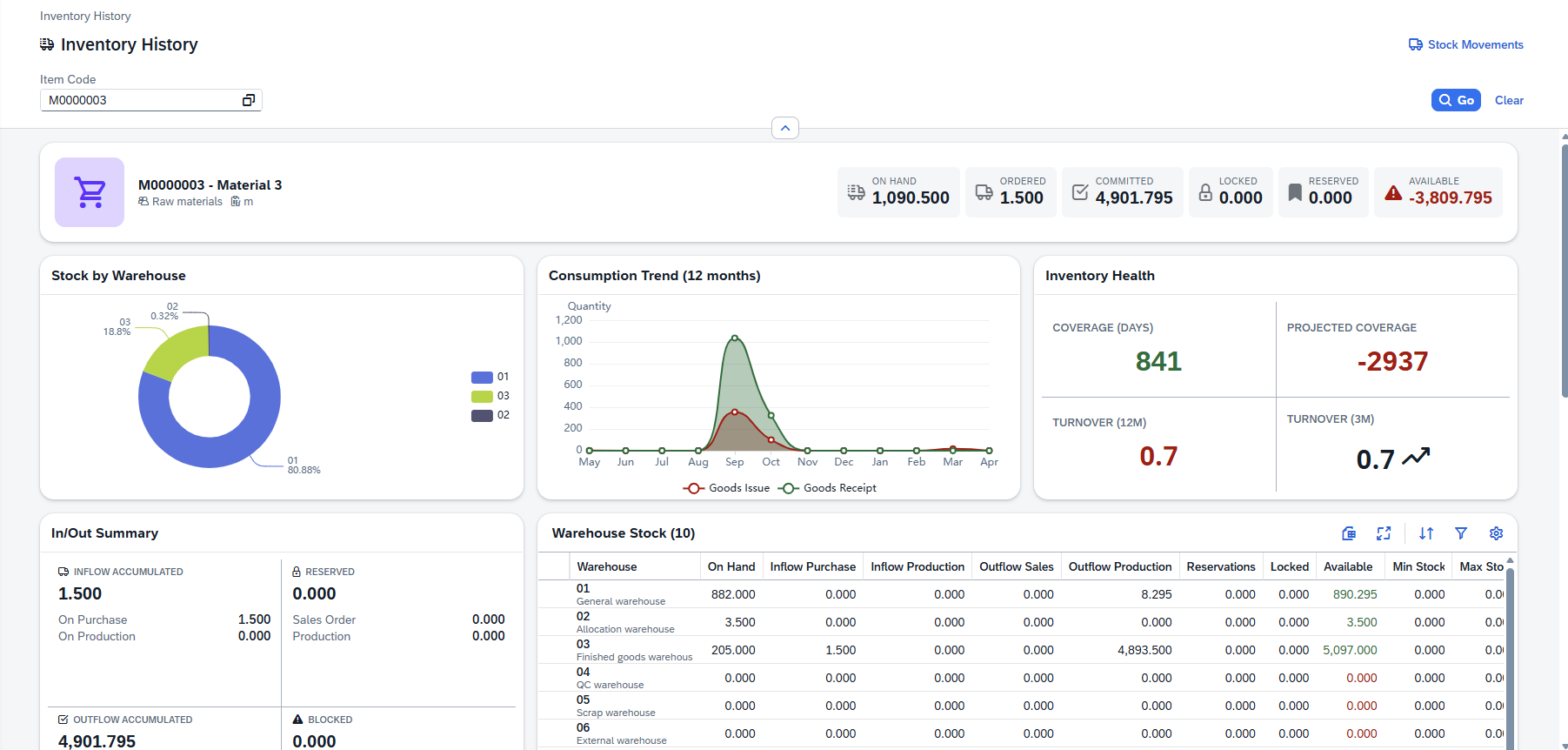
Searching for an Item
When you first open the page you will see an empty state prompting you to search for an item. Enter the item code in the top left corner.

Quick Search
- Type at least 2 characters of an item code or name into the search bar.
- A drop-down appears with up to 10 matching items (code + name).
- Click a result or press Enter to select it.
- Press Esc to close the drop-down without selecting.
Choose From List (Value Help) — click the Value Help button (at the right of the search field) to open a full dialog where you can browse, search, and filter all items:

Once an item is selected, click Go on the top right, and the page loads all inventory data automatically.
You can navigate directly to an item by using the URL /inventory-history/{ItemCode}. Bookmark it
for quick access.
Item Header Card
After selecting an item a header card appears showing the item's identity and six KPI tiles.

Item Information
| Element | Description |
|---|---|
| Item Type Icon | Automatically determined based on the procurement method (Buy / Make) and disposition type. Hover for a tooltip explaining the type. |
| Item Code & Name | The item's code (bold heading) and its description. |
| Item Group | The item group name, shown with a group icon. |
| Unit of Measure | The inventory unit of measure, shown with a measure icon. |
KPI Tiles — six key figures are displayed as tiles on the right side of the header:
| KPI | Description |
|---|---|
| On Hand | Current physical stock across all warehouses. |
| Ordered | Quantity on open purchase orders + open production orders (expected inflow). |
| Committed | Quantity committed to open sales orders + production orders (expected outflow). |
| Locked | Blocked / locked stock quantity. |
| Reserved | Reserved stock quantity. |
| Available | Calculated availability. Displayed in green when positive, red when zero or negative. |
Charts & KPIs
Three chart cards are displayed in a row below the header card.

Stock by Warehouse (Pie Chart) — the on-hand quantity distribution across warehouses. Shows the top 6 warehouses by stock; the rest are grouped under "Others". Hover a segment for the warehouse code and percentage. If there is no warehouse stock, "No warehouse stock data" is shown.
Consumption Trend (Line Chart) — the last 12 months of consumption and production activity:
| Line | Color | Description |
|---|---|---|
| Consumed | Red | Monthly outflow / consumption quantities. |
| Ordered | Green | Monthly inflow / production quantities. |
Both lines have shaded area fills. The X-axis shows month abbreviations; the Y-axis shows quantity.
Inventory Health KPIs — four health metrics in a 2×2 grid with automatic color coding:
| Metric | What it measures | Green | Red |
|---|---|---|---|
| Coverage (days) | How many days current on-hand stock will last, based on 12-month average daily consumption. | ≥ 30 days | < 7 days |
| Projected Coverage | Same as Coverage but uses the total available quantity (on-hand + on-order − committed). | ≥ 30 days | < 7 days |
| Turnover (12M) | Inventory turnover ratio over the last 12 months (outflow ÷ average inventory). | ≥ 4.0 | < 1.0 |
| Turnover (3M) | Inventory turnover ratio over the last 3 months. Includes a trend arrow comparing to the 12M rate. | ≥ 1.0 | < 0.25 |
In/Out Summary Panel
A summary card showing accumulated order and reservation quantities, organized in two columns.
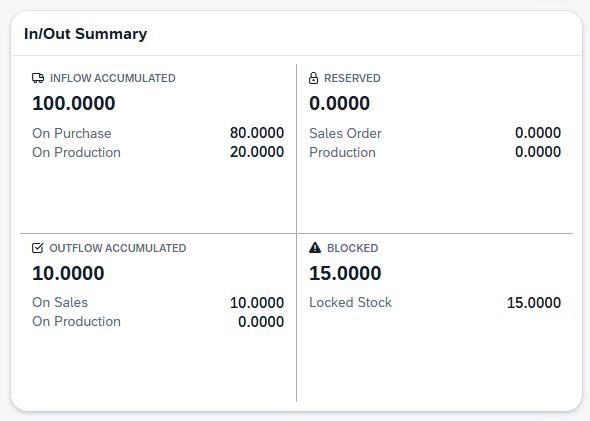
- Inflow (Accumulated) — total on-order quantity. Breakdown: On Purchase + On Production.
- Outflow (Accumulated) — total committed quantity. Breakdown: On Sales + On Production.
- Reserved — total reserved quantity. Breakdown: Sales Order + Production.
- Blocked — total blocked stock (in red when greater than zero). Breakdown: Locked Stock.
Warehouse Stock Table
A detailed table showing stock levels per warehouse, displayed alongside the In/Out Summary panel.
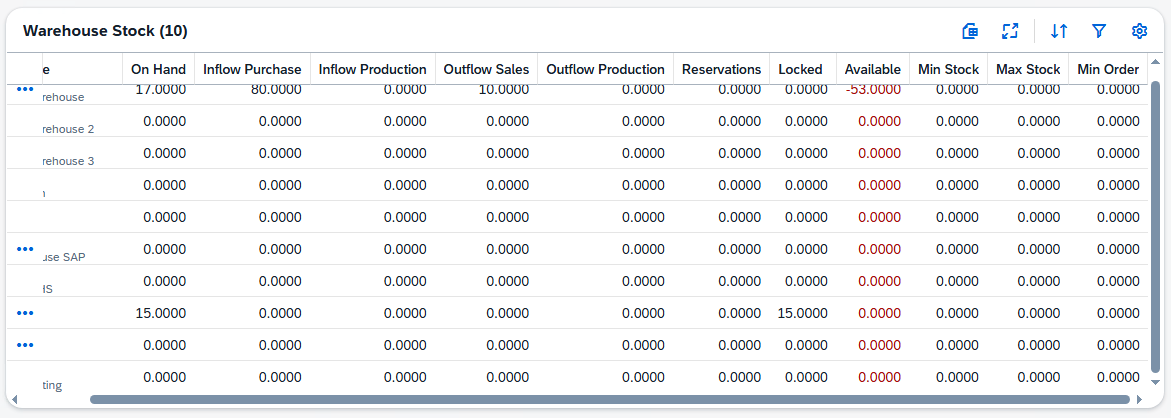
| Column | Description |
|---|---|
| Warehouse | Warehouse code and name. |
| On Hand | Physical stock in this warehouse. |
| Ordered Purchase | Open purchase order quantity for this warehouse. |
| On Order Prod | Open production order quantity for this warehouse. |
| Committed Sales | Committed to sales orders from this warehouse. |
| Committed Prod | Committed to production orders from this warehouse. |
| Reservations | Reserved quantity in this warehouse. |
| Locked | Locked / blocked stock in this warehouse. |
| Available | Calculated availability. Green when positive, red when zero or negative. |
| Min Stock | Minimum stock level configured for this warehouse. |
| Max Stock | Maximum stock level configured for this warehouse. |
| Min Order | Minimum order quantity configured for this warehouse. |
| Actions | Context-sensitive action buttons (see below). |
Action Buttons — appear only when applicable for each warehouse row; access them by clicking the three dots left of the relevant field:
| Button | Condition | Opens |
|---|---|---|
| Bin Locations | Warehouse has bin locations enabled. | Dialog showing stock per bin location. |
| Batch Numbers | Item uses batch management and on-hand > 0. | Dialog listing batches with quantity, expiration date, manufacturing date, and status. |
| Serial Numbers | Item uses serial management and on-hand > 0. | Dialog listing serial numbers with status, manufacturing date, and expiration date. |
| Reservations | Warehouse has reservations > 0. | Dialog listing reservations with quantity, lock level, and type. |
Open Work Orders

Shows all open production orders (work orders) related to the selected item.
| Column | Description |
|---|---|
| Flow | Arrow icon indicating direction: green down arrow = Inflow (item is produced); red up arrow = Outflow (item is consumed as material). |
| WO / WOPos / Pos | Work order ID, position ID, and (for material lines) the material position ID. |
| Status | Order status badge: Open (green) / In Progress (blue). |
| Planned | Planned quantity. |
| Actual | Actual produced / consumed quantity. |
| Required Date | The date the material or output is needed. |
Open Sales Orders
Shows all open sales order lines for the selected item.
| Column | Description |
|---|---|
| Doc # | Sales order document number. |
| Customer | Customer name (or customer code if name is unavailable). |
| Open Qty | Remaining open quantity on the order line. |
| Ship Date | Expected shipping date. |
Open Purchase Orders
Shows all open purchase order lines for the selected item.
| Column | Description |
|---|---|
| Doc # | Purchase order document number. |
| Vendor | Vendor name (or vendor code if name is unavailable). |
| Open Qty | Remaining open quantity on the order line. |
| Ship Date | Expected delivery date. |
MRP Results
Shows the Material Requirements Planning projection for the selected item.

A drop-down in the table toolbar lets you choose from available MRP plans (displayed as
{Plan Number} – {Description}). The system automatically selects the default MRP plan. The Last
Calculation Date is displayed next to the selector.
| Column | Description |
|---|---|
| Type | Document type icon with tooltip (Sales Order, Purchase Order, BOM, Stock, etc.). |
| Name | MRP line item name. |
| Info | Additional information for this MRP line. |
| On Hand | Running on-hand quantity at this point in the plan. |
| Inflow | Incoming quantity (green). Includes purchase orders and production orders. |
| Outflow | Outgoing quantity (red). Includes sales orders and production consumption. |
| Balance | Running balance. Green when positive, red when negative. |
| Date | The date of the planned transaction. |
Open Transfer Requests
Shows all open transfer requests involving the selected item.
| Column | Description |
|---|---|
| Doc # | Transfer request document number. |
| Doc Date | Document creation date. |
| From Warehouse | Source warehouse code. |
| To Warehouse | Destination warehouse code. |
| Quantity | Transfer quantity. |
Inventory Movements List
Navigates to the Inventory Movements List page, pre-filtered for the current item. Only visible when an item is selected.
Dialog Windows
The following dialogs are opened from the Warehouse Stock Table action buttons (the three dots left of the Warehouse field):
Bin Locations — all bin locations within the selected warehouse and the on-hand quantity per bin (Bin Code, On Hand Qty; a total row at the bottom).
Batch Numbers — all batches in the selected warehouse:
| Column | Description |
|---|---|
| Batch Number | The batch identifier. |
| Quantity | Quantity in this batch. |
| Expiration Date | Batch expiration date. |
| Manufacturing Date | Batch manufacturing date. |
| Status | Batch status (color-coded badge). |
Serial Numbers — all serial numbers in the selected warehouse (Serial Number, Status, Status Description, Manufacturing Date, Expiration Date; a total-count row at the bottom).
Warehouse Reservations — all reservations for the selected warehouse:
| Column | Description |
|---|---|
| Item Code | Reserved item code. |
| Description | Item description. |
| Warehouse | Warehouse code. |
| Bin | Bin location (if applicable). |
| Dist. Number | Distribution number (batch/serial). |
| Quantity | Reserved quantity. |
| Lock Level | D = Detail, B = Batch, I = Item. |
| Created By | User who created the reservation. |
| Reservation Type | Type of reservation. |