Inventory Movements
With this app you can browse through all inventory transactions — receipts, issues, transfers, invoices, and production movements — in a single filterable list. The Inventory Movements List view is the unified journal of inventory transactions in Beas Web. Every posted movement — regardless of the source document — is shown as a row with its in and out quantities, value, warehouse, and traceability information (batch, serial, bin location). The grid replaces the legacy Inventory Movements list with a single, searchable, exportable page. Opening it from an item's Inventory History page pre-filters the grid to that item, with the date range already applied, so it loads straight away. Active filters are saved in the page URL, so bookmarking or sharing the URL brings back the same search.
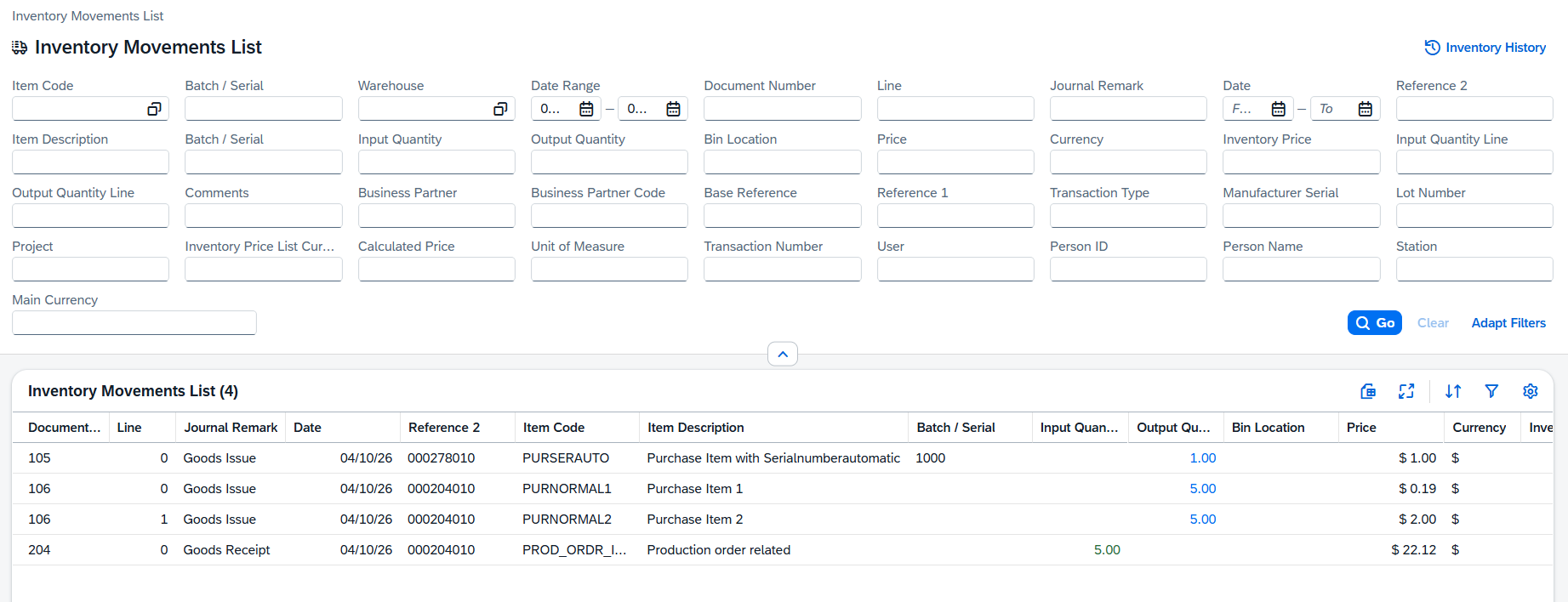
Reading the Grid
The grid lists one row per stock movement. Quantities are color-coded so inflows and outflows are distinguishable at a glance:
- +15.000 — green numbers indicate stock entering the warehouse (receipts, returns, production output, positive transfer legs).
- −4.000 — blue numbers indicate stock leaving the warehouse (issues, deliveries, production consumption, negative transfer legs).
Default columns
| Column | Description |
|---|---|
| Date | Posting date of the movement. Sortable, filterable, supports between ranges; defaults to the last 30 days when the view is opened without a deep link. |
| Document | Type / Number (e.g. GR 12034). Click to open the source document. |
| Type | Colour-coded badge for the transaction class — see Type Colors below. |
| Item | Item code and description on two lines. |
| Warehouse | Code and name of the warehouse impacted. |
| Bin Location | Bin code if the warehouse uses bin management; otherwise blank. |
| Batch | Batch number; click to open batch details. |
| Serial | Serial number; click to open serial details. |
| Input Quantity | Quantity entering stock (green). |
| Output Quantity | Quantity leaving stock (blue). |
| UoM | Unit of measure of the quantity. |
| Value | Monetary value of the movement in company currency. |
| User | User who posted the movement. |
Additional columns
| Column | Description |
|---|---|
| Counterpart Warehouse | For transfers, the other leg of the move. |
| Business Partner | Customer or supplier linked to the source document. |
| Project | Project code if assigned. |
| Cost Center | Beas cost center on the line. |
| Reference | Free-text reference, BP reference, or delivery note number. |
| Balance After | Running stock balance right after the movement (only meaningful when filtered by a single item+warehouse). |
Type Colors
The Type badge classifies the movement by its source document:
| Badge | Source documents |
|---|---|
| Receipt | Goods Receipt PO, A/R Return, Positive Inventory Adjustment, Production Receipt. |
| Issue | Goods Issue, Delivery, A/P Return, Production Consumption. |
| Transfer | Inventory Transfer and Transfer Request fulfillment (both legs shown as separate rows). |
| Invoice | A/R and A/P Invoices that post stock directly without a preceding delivery / receipt. |
| Reversal | Cancellations and reverse postings; quantity sign is always the opposite of the original. |
Traceability Drill-down
Batch and serial cells are clickable. Clicking a batch opens the batch master with its full movement history; clicking a serial opens the serial card with status and last location. Bin locations jump to the bin definition and current quantities. Document links open the source document in the appropriate view (SAP Web Client or Beas Web Client, depending on the document type).
Empty States and Messages
- "Search Stock Movements" — shown before you click Go without any filter. Apply at least a date range or an item.
- "No movements found" — the filters returned no rows. Widen the date range or untick a document type.
- Red message strip — a backend error occurred; dismiss the message and retry the search.
Tips
- For traceability audits, start from the Batch or Serial filter — it instantly narrows the grid to every posting that touched the unit.
- Group by Document (grid settings → Group) when investigating a single PO or SO — all its movement lines collapse into a single expandable group.
- Turn on the Balance After column when you filter by a single item+warehouse to reconstruct the stock curve without leaving the page.
- Use the Type filter set to Reversal to quickly locate cancellations during month-end reconciliation.
- Export to Excel when sharing the full audit trail with finance or auditors.