Item Structure
Item Structure lets you explore how a manufactured item is built up — its Bill of materials (the materials it consumes) and its routing (the operations needed to make it) — as a single expandable tree. Expand any item to drill down level by level into its sub-assemblies, their materials and operations.
Search and filters
Set what you want to see and press Search.
| Field | Description |
|---|---|
| Search | Free text. Matches both the item code and the item name, so you can look up an item either way. This is the only field that loads results — the filters below just narrow what is loaded. |
| Procurement Method | Limit the top-level items to a sourcing type: All (default), Make (produced in-house) or Buy (purchased). |
| Breakdown | Further narrows by the item's disposition. The available choices depend on the Procurement Method: Make — Storage Related, Order Related, Phantom Assembly Group, Set Item, Template. Buy — Non-Breakdown, Provision Parts. Changing the Procurement Method resets this list to the matching options. |
The structure tree
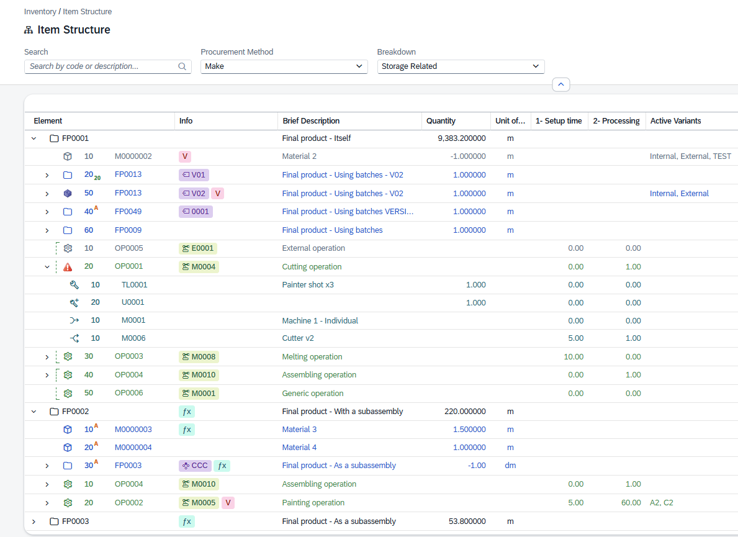
Results are shown as an expandable tree. Click the arrow on a row to load and reveal its children; children are fetched only when you expand a row, so even large structures open quickly. Each level of the tree is one of these:
| Level | Description |
|---|---|
| Item | The top-level master item you searched for. |
| Material | A material consumed by the item or version. A made material can be expanded further into its own materials and operations. |
| Operation | A routing step needed to produce the item. Expand it to see the resources it uses: Tool, Utility, Parallel operation, Alternative. |
| Version | A Bill-of-materials / routing version of the item, when the item is version-controlled. Each version holds its own materials and operations. |
Columns
All columns are visible by default. There are no hidden columns in this view.
| Column | Description |
|---|---|
| Element | The tree column. Next to the indentation and the expand/collapse arrow it shows: • a type icon (item / material / operation / tool, utility…) — hover it to see what the row is; • a small disposition badge over the icon, shown on Make items (produced in-house) with a special disposition: "S" order-related and "P" phantom (hover to see the full disposition); • the position within its parent, with a superscript (breakdown disposition — how the material is issued) and, for a material, a subscript (the linked operation that consumes it); • the code of the element. Overlapping operations are marked with a green dashed bracket down the left edge. |
| Info | Status badges that summarize the row. Depending on the type you may see: • Version — on an item or material row: which bill-of-materials / routing version it comes from; • Status — on a version row: that version's status; • Resource — on an operation row: the resource assigned to it; • Variant — on a material row: the variant it applies to; • Alternative materials — shown when the material has alternatives defined; • "V" — shown when the row has variant-specific entries; • "ƒx" — shown when the row uses a formula or script. |
| Brief Description | Description of the item, material or operation. |
| Quantity | Material quantity used. Decimals follow the material's unit of measure. |
| Unit | Unit of measure of the material. |
| Setup Time | Setup duration of an operation. |
| Process Time | Processing duration of an operation. |
| Active Variants | The variants for which the row applies, when the item is variant-driven. |
| Drawing Number | Engineering drawing reference of the item, if any. |
| Match Code | Match / cross-reference code of the item. |
| DIN | DIN / standard reference of the item, if any. |
| Material Group | Material group the item belongs to. |
| Raw Material | Raw material reference linked to the item, if any. |
Row colors
The text of each row is tinted by its type so the tree is easy to scan (items and versions keep the default colour):
| Indicator | Description |
|---|---|
| Blue | Material. |
| Green | Operation (routing step). |
| Teal | Tools, utilities and the like used by an operation. |
| Gray | Row outside its validity dates — currently inactive. |
Open detail
Double-click a row to jump to its master record: a material opens the item's Bill of Materials position, an operation opens the Routing position.