Material Groups - Detail
Click a group code in the Material Groups list to open its Object Page detail view. This view follows the SAP Fiori Object Page pattern and is divided into a header area and multiple form sections. The page opens in display mode by default; click the Edit button (pencil icon) to switch to edit mode.
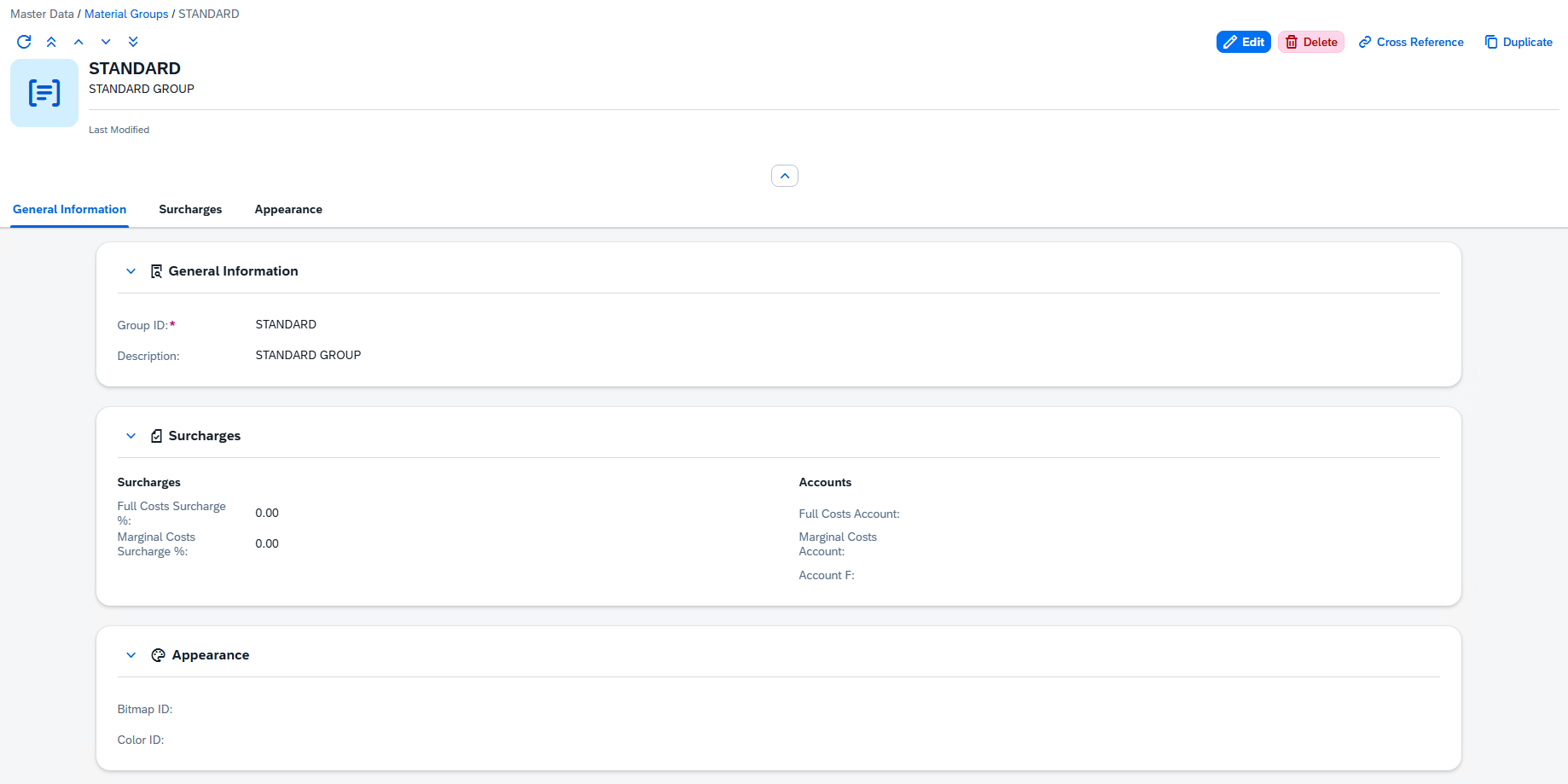
Header
The header displays at a glance the most important information about the material group:
- Last Modified — A facet showing the date and time of the most recent modification.
The header also contains action buttons for Cross Reference and Duplicate (visible in display mode only, and only for existing records — not when creating a new group).
Body
The form has four sections: General Information, Surcharges, Appearance and Custom Fields.
General Information
The first section contains the fundamental identifying fields for the material group.
| Field | Description |
|---|---|
| Group | The unique identifier code for this material group. This is the primary key used throughout the system to reference the group. It is set when the group is first created and cannot be changed afterward. Required, up to 20 characters. |
| Description | A free-text description field. Use this to provide a human-readable explanation of what the group represents — for example, "Ferrous metals and alloys". This description appears in the list view and in the Choose-from-List dialogs. Up to 255 characters. |
Surcharges
This section controls cost surcharges and G/L account assignments for the group. It is divided into two sub-groups: Surcharges and Accounts.
Surcharges — surcharge percentages are applied during cost calculations for items belonging to this group. They allow you to add a markup at the group level that is factored into cost roll-ups.
| Field | Description |
|---|---|
| Full Costs Surcharge % | The percentage surcharge added to the full cost calculation. For example, a value of 10.50 means a 10.5% surcharge is applied on top of the base full cost. From 0 to 100, up to 2 decimal places. |
| Marginal Costs Surcharge % | The percentage surcharge added to the marginal cost calculation. From 0 to 100, up to 2 decimal places. |
Accounts — these fields link the material group to specific General Ledger (G/L) accounts. They are used during cost postings to route financial entries to the correct accounts.
| Field | Description |
|---|---|
| Full Costs Account | The G/L account number used when posting full cost entries for items in this group. Up to 15 characters. |
| Marginal Costs Account | The G/L account number used when posting marginal cost entries for items in this group. Up to 15 characters. |
| Fixed Costs Account | The G/L account number used when posting fixed cost entries for items in this group. Up to 15 characters. |
Appearance
The Appearance section lets you assign visual identifiers to the material group. These are displayed in the list view and in the detail header, making it easier to distinguish groups at a glance.
| Field | Description |
|---|---|
| Icon | An icon or image for visual identification. Click the field to open the Icon Picker, which lets you choose from SAP Icons, Beas Icons or Custom Images. The selected icon appears as the avatar in the header and as a small graphic in the list view. |
| Color ID | A numeric color identifier. Click the field to open the Color Picker and select a color. This color is used for visual distinction in lists, charts, and anywhere the group is displayed with color coding. |
Custom Fields (UDF 1 – 4)
The Custom Fields section provides up to four User-Defined Fields (UDF 1 through UDF 4). These are general-purpose text fields that you can use to store any additional information specific to your business needs. Each field supports up to 50 characters of text. Their labels and visibility are managed centrally through the UDF Configuration screen.
A material group cannot be deleted while it is assigned to an item or a raw material. The error says how many records depend on it; reassign or clear the group on those items first — Cross Reference is the quickest way to find them.
Cross Reference
The Cross Reference feature shows which Items are currently assigned to a specific material group — invaluable for understanding the impact of changes (such as modifying surcharge percentages) and for verifying that items are correctly categorized.
- Open the material group in display mode.
- Click the Cross Reference button (chain-link icon; only shown for existing records).
- A dialog opens listing all Items that have this material group assigned, with columns:
| Column | Description |
|---|---|
| Code | The item code (primary identifier of the item). |
| Description | The item name / description. |
You can search within the dialog across both the code and the name. The dialog queries live Items data every time it is opened — to change an item's material group, open the item in the Items detail view.
Linking Items to a Material Group
The connection between an Item and a Material Group is established on the Item side. Each item has a Material Group field (in the Item's detail view under Production Data › Materials & Scrap) that stores the code of the material group it belongs to.
- Navigate to Master Data › Items and open the item.
- Click Edit to enter edit mode.
- In the Material Group field, type the group code directly, or use the Choose-from-List button to browse all material groups (with Code and Description columns, searchable and filterable) and select one.
- Click Save. The item is now linked to the selected material group.
The link is visible from both sides: the item's Material Group field, and the group's Cross Reference dialog. To remove the assignment, clear the field and save; to change it, select a different group and save.