Resources - List
The Resources list is the entry point to the work centers production is carried out on — machines, work places and outsourcing points. Each row is one resource, with its code, description, classification and the shift schedule that drives its capacity. The columns on the right are live: who is clocked on, since when, how much of the resource's planned capacity is already booked. Under the grid, the Charts panel turns the same figures into capacity against workload for the days ahead.
A resource's calendar, cost rates, interruptions and maintenance orders are reached from the resource detail page, not from this list.
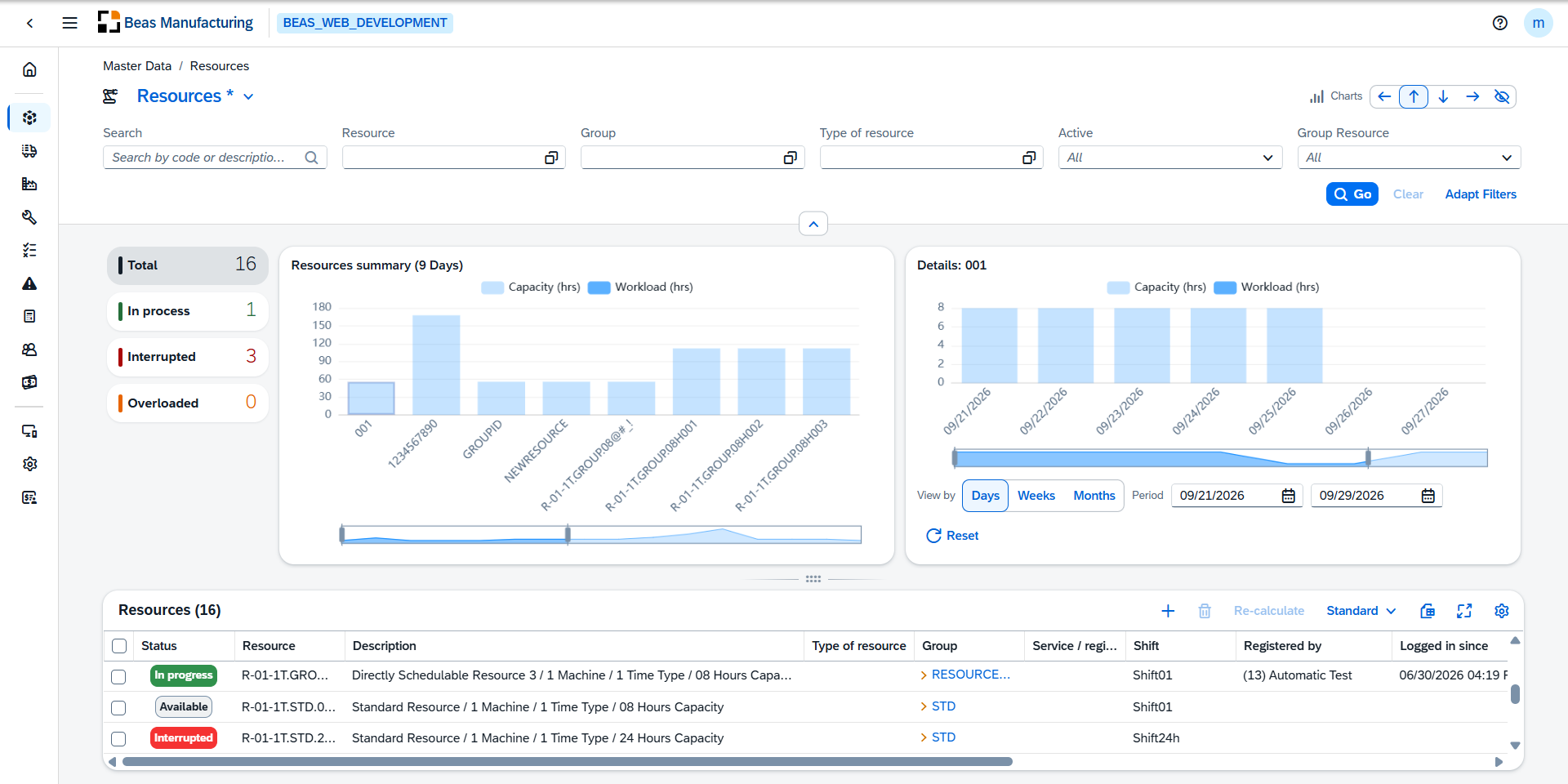
The screenshots in this topic come from the SBO_TechBuild company.
Default Columns
| Column | Description |
|---|---|
| Status | What the resource is doing right now — see Status. |
| Resource | The resource code. Shown in the resource's own color. |
| Description | Description of the resource, in the same color. |
| Type of resource | The type the resource is classified as. Click the value to open the type of resource. |
| Group | The group the resource belongs to. Click the value to open the resource group. |
| Service / register costs | Check mark when the resource is an outsourced work center — its operations are processed externally. |
| Shift | The shift schedule that drives the resource's capacity. |
| Registered by | The person currently clocked on to the resource. |
| Logged in since | When that person clocked on. |
| Utilization | Hours booked against the hours planned over the company's planning horizon, as a bar that fills with the ratio and shows the two figures. The bar turns red once the resource counts as overloaded. |
| Reservation | The hours booked on the resource by dispatched operations up to the end of the period — the backlog before today included. |
| Scheduling | The hours the resource's calendar plans from today to the end of the period. |
Status, Registered by, Logged in since, Utilization, Reservation, Scheduling and Overloaded are worked out from the shop floor rather than stored on the resource. They arrive a moment after the rest of the row. Status reads Available while nothing is clocked; the others stay empty while nothing is clocked or planned.
Additional Columns
Hidden columns are available in the tool bar settings ().
| Column | Description |
|---|---|
| Image | The icon or picture saved for the resource. |
| Branch | The business place the resource belongs to. |
| Active | Check mark when the resource is in use. |
| Marginal Costs | The marginal processing cost rate. |
| Full Costs | The full processing cost rate. |
| Planned Capacity in hrs. / day | The daily capacity used when no shift schedule drives the resource. |
| No. of machines/persons | How many machines or people the resource stands for. |
| Employee planner | The employee responsible for planning the resource. |
| Consider resource limits | Check mark when the capacity check applies a limit to this resource. |
| Cost Center | The cost center the resource is booked to. |
| Personal allowance % | The percentage added to processing time. |
| Recovery time % | The percentage added to setup time. |
| Setting up Full Costs | The full setup cost rate. |
| Setting up Marginal Costs | The marginal setup cost rate. |
| Efficiency Rate | The factor applied to the resource's times. |
| Location | Where the resource physically stands. |
| Transit time | The days allowed for moving work on after the operation. |
| Pool limit | The pool limit, in hours, for a pool resource. |
| Lot Size Minimum | The smallest lot the resource is planned for. |
| Lot Size Maximum | The largest lot the resource is planned for. |
| Labor costs | Check mark when labor costs are valued separately from the processing rate. |
| Cost elements | How many cost levels the resource's rates are expanded to (1 to 4). |
| Work order grouping | Check mark when the resource may process several orders at once. |
| View in APS | Check mark when the resource appears in advanced planning and scheduling. |
| Capacity planning | Check mark when the resource is capacity-planned and carries a calendar. |
| Resource optimization | Check mark when the resource takes part in automatic optimization. |
| Branch ID | The numeric id of the business place. |
| Overloaded | Check mark when more than 90 % of the hours the calendar plans are already booked. |
Status
The Status column carries a badge with what the resource is doing at this moment:
| Indicator | Meaning |
|---|---|
| Available | Nothing is running on the resource. |
| In progress | An operation is being worked on. |
| Interrupted | An interruption is running on the resource right now. One planned ahead, or one whose start has not come yet, does not count. |
Charts
The panel under the grid reads the same period as the Utilization column and shows it as figures. That period is the company's planning horizon — a number of days from today set in the company settings — and the summary chart's title prints it. The Charts control in the top right of the page moves the panel to the top, bottom, left or right, or hides it.
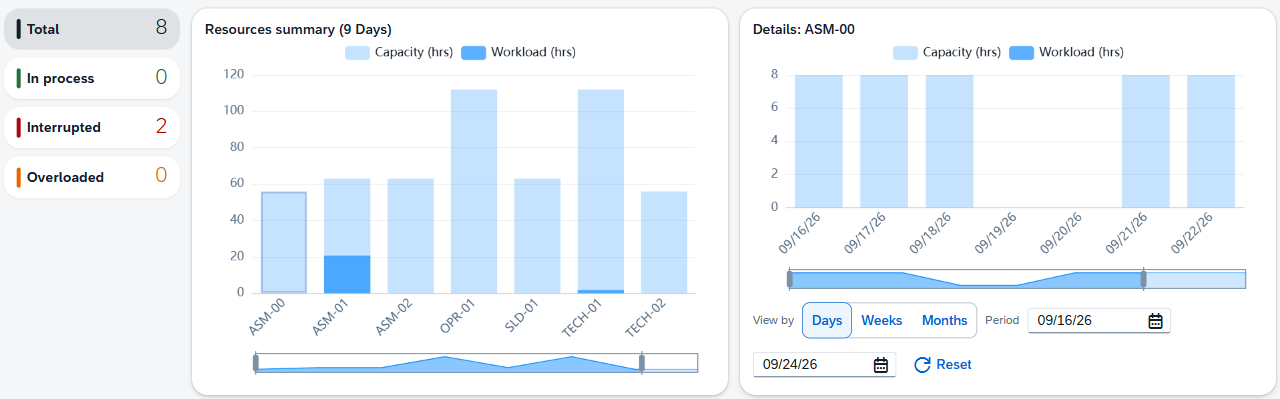
| Tile | Counts |
|---|---|
| Total | Every resource. The tiles count the whole catalog, whatever the grid is filtered to. |
| In process | Resources with an operation running on them. |
| Interrupted | Resources with an interruption running right now. |
| Overloaded | Resources with more than 90 % of their planned hours already booked. |
Click a tile to narrow the grid to those resources, and click it again to release it.
Resources summary
Puts the resources that have planned hours side by side, one bar each.
| Element | Description |
|---|---|
| Title | Names the chart and shows the period it covers, e.g. Resources summary (9 Days). |
| Capacity (hrs) | A pale bar behind each resource, showing the hours its calendar plans for the period. |
| Workload (hrs) | A darker bar in front, showing the hours already booked. Turns red once the resource counts as overloaded. |
| Bar | One per resource with planned hours. Click a bar to move the Details chart onto that resource. |
| Range slider | Below the chart. Drag its handles to narrow the resources shown. |
Details
Breaks the selected resource down over time.
| Element | Description |
|---|---|
| Title | Names the resource currently shown, e.g. Details: 001. |
| Capacity (hrs) / Workload (hrs) | Same legend and bars as Resources summary, plotted per period instead of per resource. |
| View by | Switches the chart between Days, Weeks and Months. |
| Period | Two date fields setting the start and end of the window shown. |
| Reset | Puts the window back around today without changing View by. |
Examples
A resource you know exists is not in the list. Group placeholders — the stand-in resources created from a resource group so the group itself can be planned against — are left out of the list unless you ask for them. Set the Group Resource filter to Yes and press Go to bring them in.
Re-calculate rebuilds planned capacity for the resources you pick. It stays disabled until at least one row is ticked, so it never runs over the whole catalog by accident, and it needs the resources permission at full control. Tick the resources, press Re-calculate and confirm; their calendars are rewritten immediately from today on, without waiting for anything else to be saved. Saving a resource already regenerates its own calendar, so run this after a shift schedule's definition or the factory calendar changed, or when a calendar looks stale.