Resource - Detail
Open a row in the Resources list to see a work center's full master data. The page opens in display mode; press Edit to make changes.
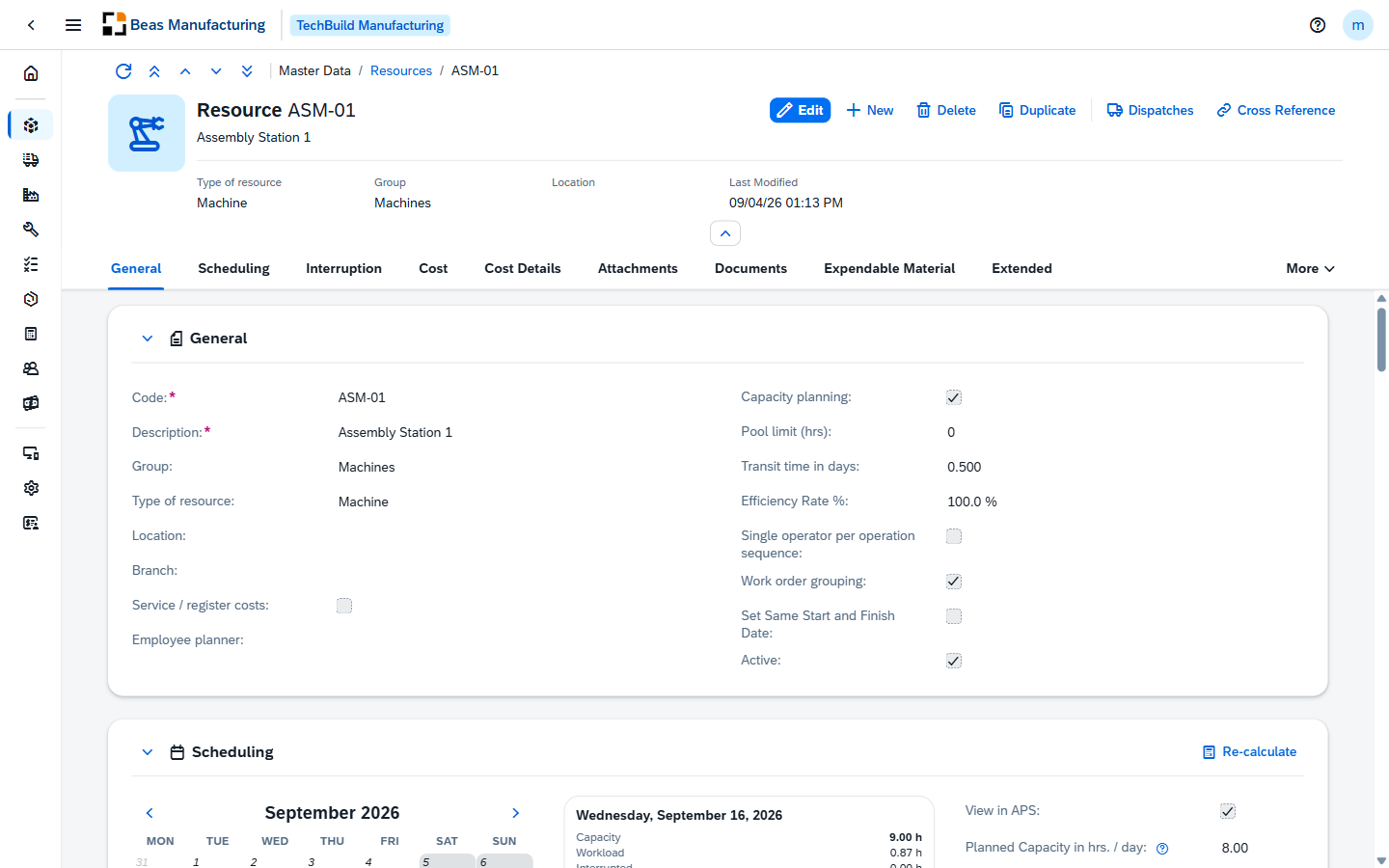
Header
The resource's code and description, its own icon or picture, and the classification at a glance:
| Field | Description |
|---|---|
| Type of resource | The type the resource is classified as. |
| Group | The resource group it belongs to. |
| Location | Where the resource group is physically located. |
| Last Modified | When the record was last changed. |
The action buttons:
| Field | Description |
|---|---|
| Duplicate | Starts a new resource pre-filled from this one, including its documents, consumables and transit times. |
| Dispatches | Lists the operations currently scheduled on the resource — see Dispatches. |
| Cross Reference | Lists everywhere the resource is used — see Cross Reference. |
Duplicate needs the resources permission at full control — as do Cost Rate, Cost Elements Update, Start Interruption / Stop Interruption and Re-calculate further down the page.
Dispatches
Dispatches opens the work the resource is currently scheduled for, one row per operation, above the same calendar and capacity chart the list's Charts panel uses. Planned interruptions are listed too — a planned maintenance occupies the resource like an order does; a running one is not.
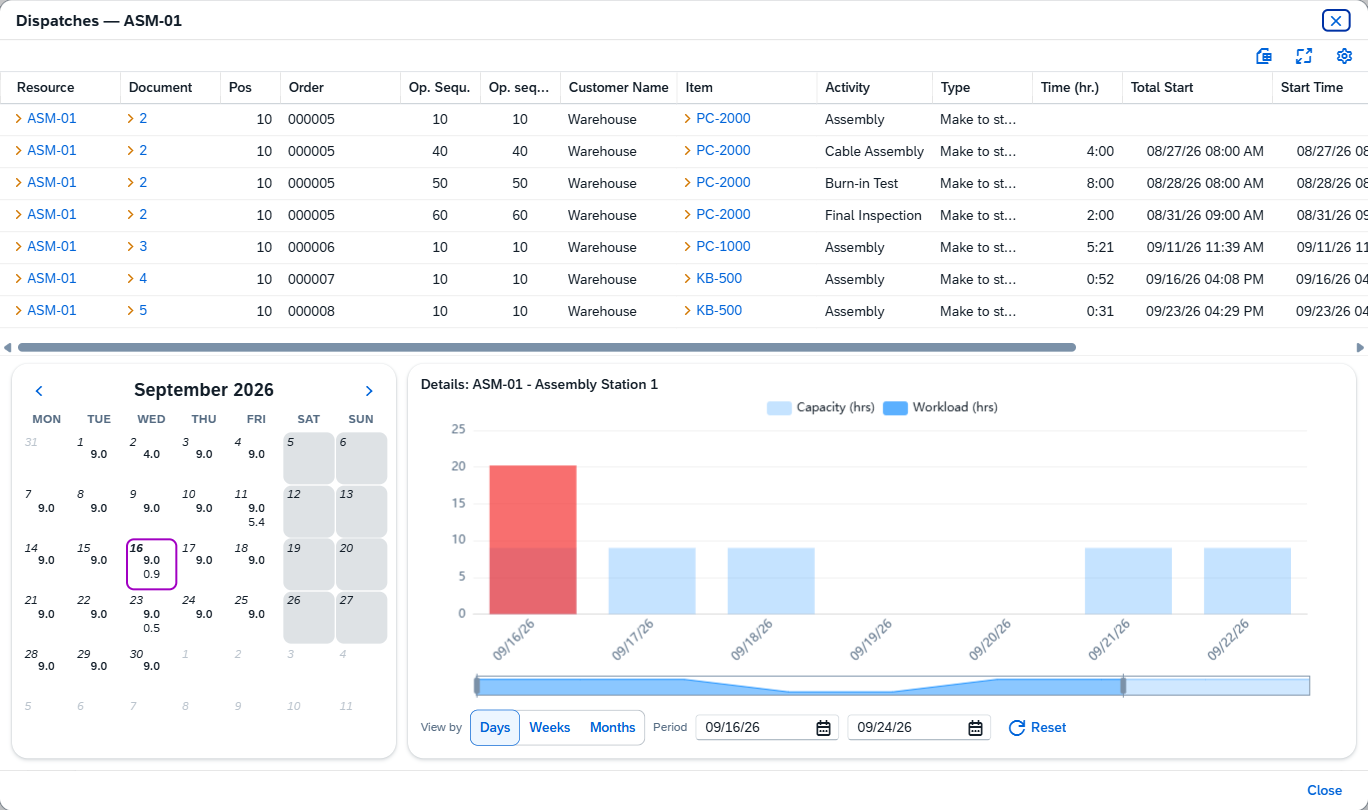
| Field | Description |
|---|---|
| Resource | The resource the operation runs on. Click it to open that resource. |
| Document | The work order. Click it to open the order. |
| Pos | The position within the work order. |
| Order | The work order's Reference — free text on its header, often the sales order it came from. The work order itself is the Document column. |
| Op. Sequ. | The operation's sequence number in the routing. |
| Op. sequ. Internal | The internal sequence the scheduler uses. |
| Customer Name | The customer the order is for. |
| Item | The item being produced. Click it to open the item. |
| Activity | What the operation does. |
| Type | The order's production type. |
| Time (hr.) | How long the operation is scheduled to take. |
| Total Start | The start including transit and idle time. |
| Start Time | When work on the operation starts. |
| End | When the operation finishes. |
| Total End | The finish including transit and idle time. |
Further columns — the customer code, the item's description, match code and group, quantities, project, drawing number, raw material and the transit and idle boundaries — are available in the tool bar settings ().
The chart under the grid works exactly like the one on the list: View by days, weeks or months, Period for the window, Reset to return to today. Click a day in the calendar beside it to move the Period onto that day.
Cross Reference
Cross Reference lists everywhere the resource is referenced, so you can see what a change to it would touch before you make it.
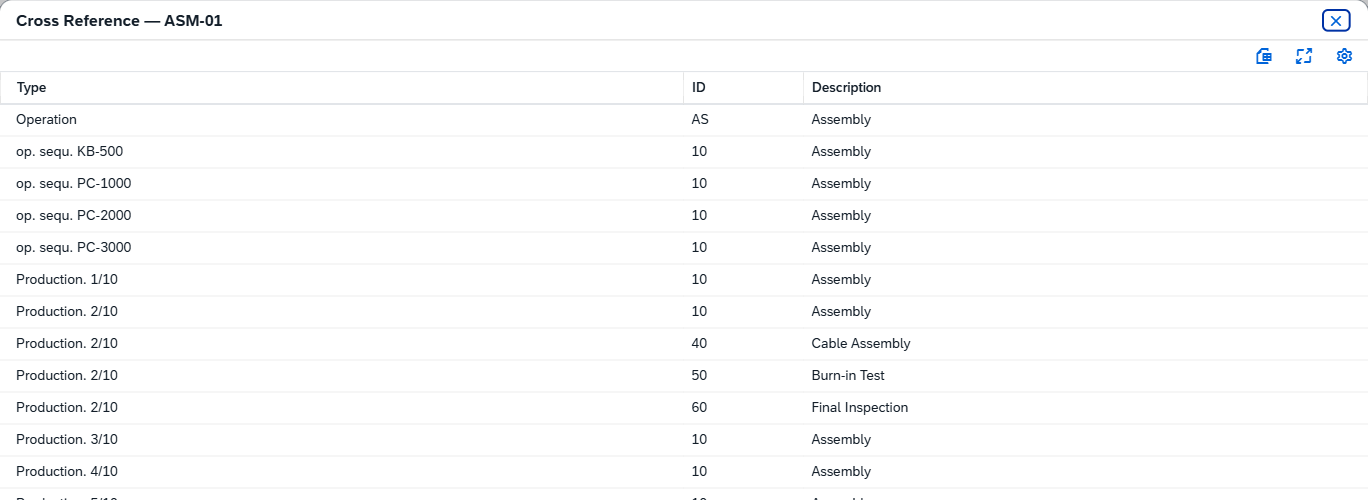
| Field | Description |
|---|---|
| Type | Where the reference lives — Operation for an operation catalog entry, op. sequ. followed by an item code for that item's routing, Production. followed by an order and position for a work order operation. |
| ID | The operation or step within that record. |
| Description | What the referencing operation is called. |
Body
The record is split into tabs: General, Scheduling, Interruption, Cost, Cost Details, Attachments, Documents, Expendable Material, Extended, Maintenance Orders, Transit times to resources and Custom Fields.
The grids on this page — day planning, interruptions, documents, expendable material, maintenance orders and transit times — collect your changes without writing them. A row you add or delete shows up straight away and counts towards the figures on the page, but it only reaches the database when you press Update, and Cancel throws it away with everything else. Some things act at once instead: Start Interruption / Stop Interruption, Re-calculate, the Cost Rate and Definition dialogs, deleting a Documents row — the uploaded file is removed when you confirm — and editing an interruption reason through its Reason ID link.
A placeholder created from a resource group stands in for the group in planning, so the parts that describe a physical machine are not shown: the Interruption, Attachments, Documents and Expendable Material tabs disappear, Service / register costs, Pool limit (hrs), the lot size fields, Planned Capacity in hrs. / day and Number of machine / person are hidden, the Group field is fixed, the day planning grid is gone, and the calendar shows the group's combined hours. New and Duplicate are not offered either.
General
| Field | Description |
|---|---|
| Code | Required. The resource's unique code. It is set when the resource is created and cannot be changed afterwards. |
| Description | Required. What the resource is called. |
| Group | The resource group this resource is planned as part of. |
| Type of resource | The type that classifies it. |
| Location | Where it physically stands. |
| Branch | The business place it belongs to. |
| Service / register costs | Marks the resource as an outsourced work center — its operations are processed externally. |
| Employee planner | The employee responsible for planning it. |
| Capacity planning | Gives the resource a calendar and makes the Scheduling tab available. Without it the resource is not capacity-planned at all. |
| Pool limit (hrs) | The hours a pool resource may carry. |
| Transit time in days | The days allowed for moving work on after an operation here. |
| Efficiency Rate % | The factor applied to the resource's times — below 100% the same work takes longer. |
| Single operator per operation sequence | Restricts the resource to one operator per operation sequence. |
| Work order grouping | Lets the resource process several work orders at the same time. |
| Set Same Start and Finish Date | Makes the grouped orders share one start and finish date. Appears once Work order grouping is on. |
| Active | Takes the resource in and out of use. |
Scheduling
Available when Capacity planning is on. It puts the resource's calendar, the breakdown of the day you select in it, and the settings that produce those hours side by side.
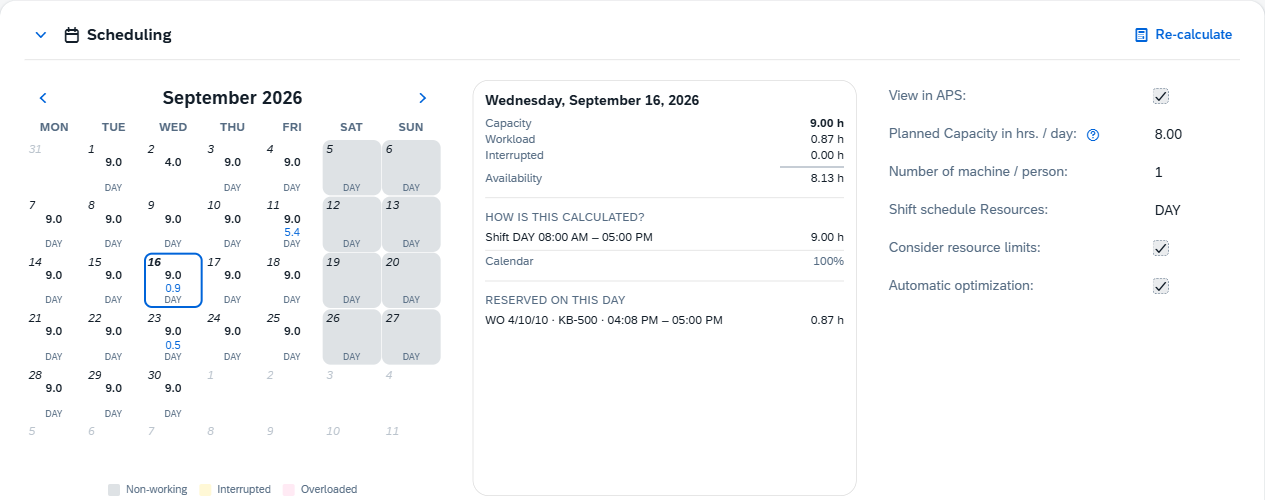
Re-calculate, beside the tab's title, rebuilds the calendar from the day selected in it. Saving the resource already regenerates its calendar, so this is for changes made elsewhere — a shift schedule's definition, the factory calendar. It writes as soon as you confirm and does not wait for Update — you can run it without entering edit mode.
The planning calendar
-
One cell per day.
Hours Color Available Black Already booked Blue Nothing booked Only the available figure is shown, in black -
A day driven by a named shift schedule shows the schedule at the foot of the cell; a day covered by a day planning entry shows none.
-
Rest the mouse on a cell for its date, workload, capacity, shift and any interrupted hours with their reasons.
-
Move through the months with the arrows beside the month name.
-
Click a day to break it down beside the calendar.
The calendar runs from today to the last day of the factory calendar, which is maintained in the BEAS desktop. Beyond it a day says No planning data for this day — extend the factory calendar first, and the resources follow.
| Fill | Meaning |
|---|---|
| Gray | Non-working — the day carries no hours. |
| Yellow | Interrupted — an interruption covers part or all of the day. |
| Red | Overloaded — more than 90 % of the day's capacity is booked. |
The selected day
The panel beside the calendar breaks the selected day down.
| Field | Description |
|---|---|
| Capacity | The day's capacity figure, shown at the top of the panel. |
| Workload | The hours already booked on the day. |
| Interrupted | The hours taken up by interruptions on the day. |
| Availability | The hours left over once Workload and Interrupted are taken off Capacity. |
| How is this calculated? | The arithmetic behind the Capacity figure: the shift the day starts from, each interruption taken off it, other reservations, the factory calendar's percentage, and the day planning entry that overrides the day when there is one. |
| Work orders | The work orders reserved on the day, listed below the figures. |
| Interruptions | Any interruptions covering the day, listed below the work orders. |
A day the resource has no calendar row for says so instead of showing zeros.
Capacity
| Field | Description |
|---|---|
| View in APS | When check mark active, it includes the resource in the advanced planning and scheduling view. |
| Planned Capacity in hrs. / day | The hours a day the resource works. Used only while no shift schedule is assigned — assigning one takes the field over. |
| Number of machine / person | How many machines or people the resource stands for, which multiplies the daily hours. |
| Shift schedule Resources | The shift schedule that drives the capacity, and with it the working window of every day. |
| Consider resource limits | When check mark active, it applies the capacity check's limit to this resource. |
| Automatic optimization | When check mark active, it lets automatic optimization move work on this resource. |
View in APS, Consider resource limits and Automatic optimization appear only with the advanced planning and scheduling licence.
Day Planning
Dated exceptions to the standard capacity — a Saturday shift, a week at half strength. Each entry overrides the calendar for the days it covers.

| Column | Description |
|---|---|
| Check Calendar | Checks the entry against the factory calendar, so a company holiday inside the period still counts as non-working. |
| Date From | First day the override applies to. |
| Date To | Last day it applies to. |
| Shift Start | When the working window opens. |
| Shift End | When THE working window closes. |
| Planned Capacity | The hours a day for the period. |
| No. of persons | The machines or people for the period. |
| Reason | Why the exception exists. |
Check Calendar is ticked by default, and on a non-working day it keeps the factory calendar's 0 % in force: a Saturday override of 6 hours yields 0 hours and the cell stays grey. Untick it to make the day count.
Interruption
Everything that has stopped the resource, open or closed.
An interruption with an end — Planned, or Active with both dates — takes its hours off every day it covers, clipped to the day's shift window. An Active interruption without an end, which is what Start Interruption creates, paints every day from its start onward yellow and blocks the resource, but books no hours. A Completed interruption stays listed and takes nothing: stopping gives the hours back, and stopping one that has not started yet closes it at its own start.
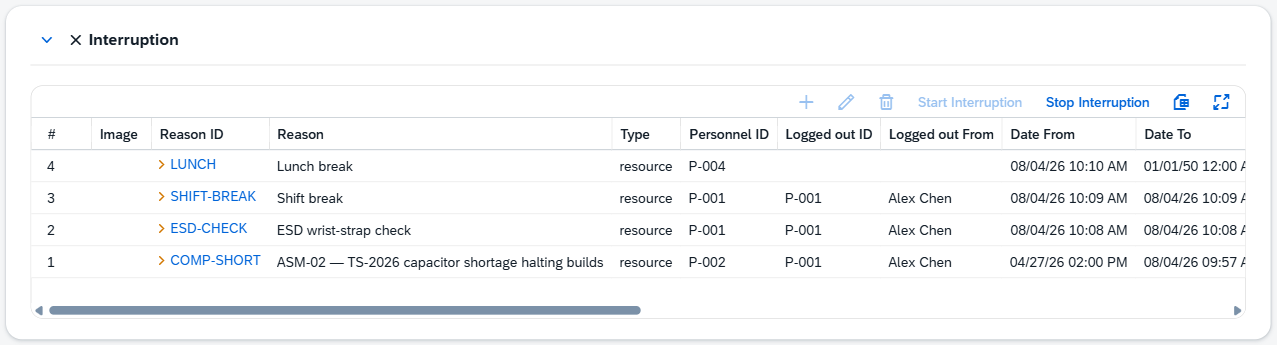
| Column | Description |
|---|---|
| # | The interruption's number on this resource. |
| Image | The icon of the interruption reason. |
| Reason ID | The reason the resource stopped, in the reason's color. Click it to open the reason's own record, where its description and color are kept. The lookup offers only the reasons whose filter includes this resource, its type or you; a reason missing here is restricted in Interruption Reasons. |
| Reason | The reason's description, in the same color. |
| Type | Whether the interruption is against the resource or a tool. |
| Personnel ID | The person the interruption is recorded for. |
| Logged out ID | The ID of the person who closed it. |
| Logged out From | The name of the person who closed it. |
| Date From | When the interruption started. |
| Date To | When the interruption ended. A running interruption without a planned end shows 01/01/50. |
| Status | Active while it is running, Planned for one booked ahead, Completed once it is closed. |
| Registered by | Who recorded the interruption. |
| Origin | Where the interruption came from when another document raised it — a maintenance order, for instance. |
| Origin Document | The document that raised the interruption. |
| Origin Line | The line within that document. |
| Origin Line 2 | The sub-line within that line. |
| Time continues | Keeps the time counter running through the interruption instead of stopping it. |
Unlike the other grids on this page, this one always shows the four user-defined columns your company has configured for interruptions.
Start Interruption and Stop Interruption in the tool bar record what is happening on the shop floor right now: Start is unavailable while an interruption is already running, Stop while there is none. Both need a saved resource and the resources permission at full control.
Start and Stop take effect the moment you confirm them and are available without entering edit mode. They describe the shop floor, so they cannot sit waiting for Update.
Cost
What an hour — or a minute — on this resource costs. The caption beside each rate group names the currency and the unit the rates are expressed in.
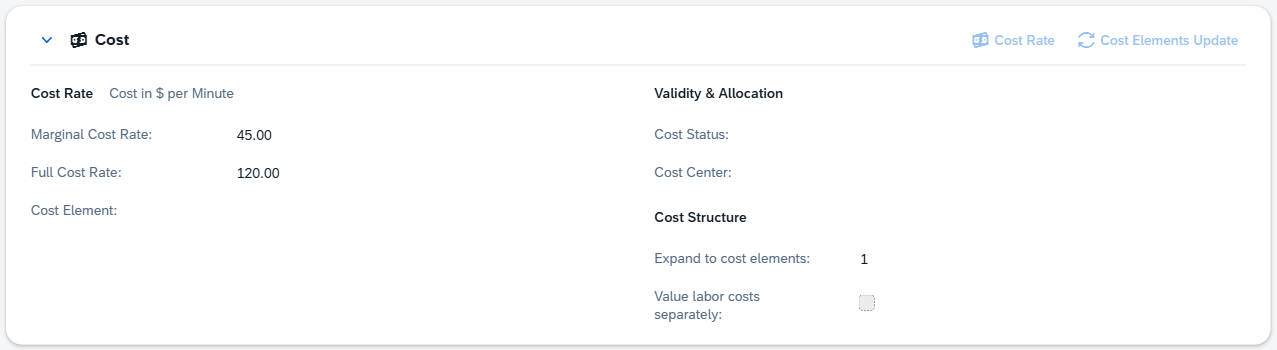
Cost rates
Every rate group holds the same three values.
| Field | Description |
|---|---|
| Marginal Cost Rate | The marginal, or direct, rate. |
| Full Cost Rate | The full rate, marginal plus fixed. |
| Cost Element | The time type the rate is booked to. |
Which groups you see depends on Expand to cost elements, in this order on the screen:
| Group | Shown |
|---|---|
| Setup Cost Rate | From 2 upwards. |
| Cost Rate | Always. The rate for the work itself. |
| Post-Processing Cost Rate | From 3 upwards. |
| Auxiliary Cost Rate | At 4. |
| Personal Cost Rate | When Value labor costs separately is on. |
From 2 upwards the headings of the first four groups are replaced by the names of your company's time types, so the rates read as the activities they pay for rather than as generic stages. Personal Cost Rate keeps its name.
Validity & Allocation
| Field | Description |
|---|---|
| Cost Status | The date the rates take effect from. |
| Cost Center | The cost center the resource's costs are booked to. |
Cost Structure
| Field | Description |
|---|---|
| Expand to cost elements | How many cost levels the resource is split into, 1 to 4. Each step adds another rate group — Setup above the Cost Rate group, the others below it. |
| Value labor costs separately | Values labor apart from the machine, adding the Personal Cost Rate group. |
Cost Rate
Cost Rate opens the resource's dated rates: one row per cost rate definition, with the period it covers and the marginal and full rate the resource carries under it. A definition is a dated price list for post-calculation: scheduling and precalculation always price with the rates on this tab. It is available in edit mode, and OK writes the assignments at once — they do not wait for Update.
| Field | Description |
|---|---|
| Cost Rate | The cost rate definition. |
| Description | What the definition is called. |
| Valid from | First day it applies. |
| Valid to | Last day it applies. |
| Save | Assigns the resource to that definition. Typing a rate ticks it for you; clear it and the resource carries no rate for that period — the two rate cells empty. |
| Marginal Cost | The resource's marginal rate under that definition. |
| Full Cost | Its full rate under that definition. |
The last four columns record who created and last changed each assignment.
Definition opens the definitions themselves — the periods every resource's dated rates are hung on — where they can be created, edited, duplicated and deleted.
Deleting a cost rate definition deletes the rates every resource carries under it, not only this one's.
Cost Elements Update
Cost elements chosen on this tab describe the resource from now on; structures already calculated keep the elements they were built with. Cost Elements Update pushes the resource's current cost elements into those structures, and asks how far to go: All replaces the cost element on every operation that uses the resource, empty fills in only the ones that have none. It is available in edit mode.
Cost Details
Shown while Expand to cost elements is 1, this tab builds the processing rate out of its labour components instead of asking for it as a single figure.
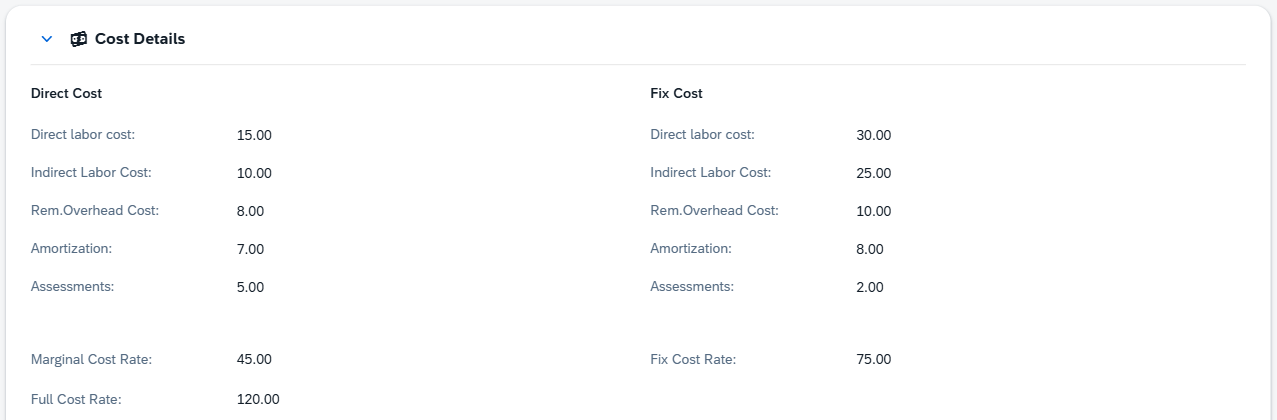
Direct Cost and Fix Cost each take the same five components:
| Field | Description |
|---|---|
| Direct labor cost | Wages for the work itself. |
| Indirect Labor Cost | Wages that support it without being spent on it. |
| Rem.Overhead Cost | Remaining overhead carried by the resource. |
| Amortization | The write-down of the machine over its life. |
| Assessments | Charges allocated to the resource. |
The row underneath adds them up: Marginal Cost Rate is the Direct Cost column, Fix Cost Rate the Fix Cost column, and Full Cost Rate the two together. Editing any component rewrites the rates on the Cost tab.
Attachments
Up to three pictures of the resource.
| Field | Description |
|---|---|
| 1 | The first picture. |
| 2 | The second picture. |
| 3 | The third picture. |
Documents
Drawings, work instructions and procedures that belong with the resource.
| Column | Description |
|---|---|
| Info | What the document is. |
| Version | Which version of it this entry points at. |
| Cross Reference | Where the document lives. A file path becomes a link with a button that copies the path so you can open it on your own machine; when the server cannot reach the path, clicking the link says so. A web address becomes a plain link. |
| Available | Ticked once the entry points somewhere. |
| Entry by | Who added the entry. |
| Entry on | When they added it. |
In display mode, clicking a row opens the document rather than the entry.
Expendable Material
The consumables the resource gets through — tips, paste, blades.
| Column | Description |
|---|---|
| Item | The consumable item. |
| Description | What that item is called. |
| Info | How it is used here. |
Extended
| Field | Description |
|---|---|
| Lot Size Minimum | The smallest lot the resource is planned for. |
| Lot Size Maximum | The largest lot it is planned for. |
| Personal allowance % | The percentage added to processing time. |
| Recovery time % | The percentage added to setup time. |
| Image | The icon shown for the resource, here and in the list. |
| Color | The color its code and description are printed in throughout the application. |
Maintenance Orders
The maintenance raised for the resource. Beas normally writes these itself when a maintenance plan falls due, but they can be kept by hand here as well.
| Column | Description |
|---|---|
| # | The order's number on this resource. |
| Document | The maintenance document number, assigned when the order is saved. |
| Date | When the maintenance is due. |
| Plan | The maintenance plan the order was raised under. |
| Remark | Anything worth noting about it. |
| Status | Plan, In Progress or Completed. |
| Work Order | The work order the maintenance is carried out on, when there is one. |
A maintenance order is one occurrence of a maintenance plan, so creating one starts by choosing the plan. If the resource's maintenance objects have no active plan, Create stays unavailable and says so. Editing an order changes its date, status and remark; the plan and document number it was raised under stay as they are.
Transit times to resources
How long work takes to reach another work center from this one. Where no entry exists, the resource's own Transit time in days applies.
| Column | Description |
|---|---|
| Target Resource | The resource the work moves to. |
| Transfer time | The days that move takes. |
A transfer time below the company's minimum is raised to it as soon as you leave the field.
Custom Fields
The extra fields your company has defined for resources. The tab is absent when none are configured.
Examples
A resource is capacity-planned but its calendar is empty. The hours come from the settings in this order, and a gap anywhere leaves the calendar blank. Switch Capacity planning on so the resource has a calendar at all. Give it a Shift schedule Resources, or — if it works to no schedule — a Planned Capacity in hrs. / day; the two are alternatives, and assigning a shift schedule takes the daily figure over. Set Number of machine / person to what the resource actually stands for, since it multiplies the hours. Press Update — every save that touches this tab regenerates the calendar, so it appears at once. A calendar that stays empty after that points outside the resource: the factory calendar has no days left, or the shift schedule's day templates carry no hours. Fix those, then press Re-calculate.
The Cost Details totals no longer match the rates on the Cost tab. The summary row adds up the ten components in front of you, while the Cost tab holds the rate that was last stored — and a rate typed straight into Marginal Cost Rate there, or edited in the desktop client, does not come back and redistribute itself over the components. When the two disagree, the total carries a warning icon naming the stored figure. Edit any component to settle it: the rates on the Cost tab are rewritten from the components, and the warning goes.
You raised the cost rate, but a work order's calculation still shows the old price. A work order copies each resource's marginal and full rate onto its operations when it is created and keeps that copy. Changing Marginal Cost Rate or Full Cost Rate here prices only the orders created from now on. Set the rates before the orders exist, or refresh the order's operation from master data.