Resource Groups - List
Resource Groups bundle several resources together so that operations can be planned against the group rather than a single machine. This master-data list shows every group; each row displays the group's code, its optional placeholder resource, a utilization indicator and its picture. Open any group to view the resources it contains, its planning calendar and its placeholder.
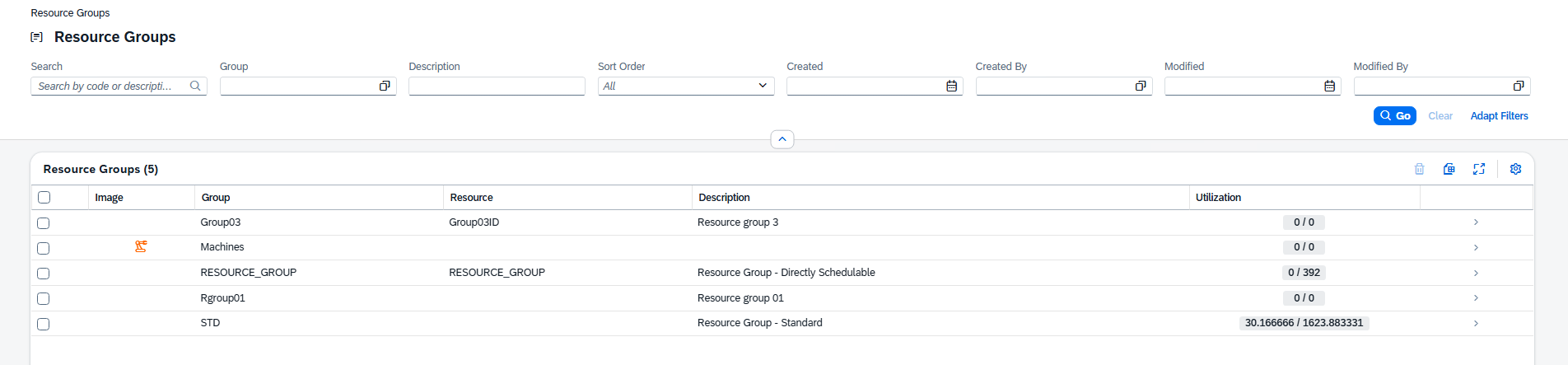
Opening the view
Resource Groups does not have its own launchpad tile. You reach the view from within the Web Client:
- From the Resources list, click a value in the Group column.
- Access the detail view of an individual resource group by clicking on it in the list.
Search and filtering
Type in the Search box to narrow the list by code or description. Each column also carries its own filter. Filters are reflected in the page URL so a filtered list can be shared as a link.
Columns
These columns are shown by default:
| Column | Description |
|---|---|
| Image | The group's picture or icon, tinted with its color. |
| Group | The resource group code. |
| Resource | The placeholder resource assigned to the group, if any. |
| Description | Description of the group. |
| Utilization | A visual utilization indicator for the group. |
Additional columns
The following columns are hidden by default. Open the column settings to switch on the ones you need.
| Column | Description |
|---|---|
| Color | Color assigned to the group. |
| Sort Order | The group's position in the optimization sequence. |
| Created | Date and time the group was created. |
| Created By | User who created the group. |
| Modified | Date and time the group was last changed. |
| Modified By | User who last changed the group. |
Any user-defined fields (UDF) configured for resource groups also appear here and can be switched on from the same column settings.