Routing - Detail
Open a row in the Routing list to see one operation in full: what is done, who does it, how long it takes and what it costs.
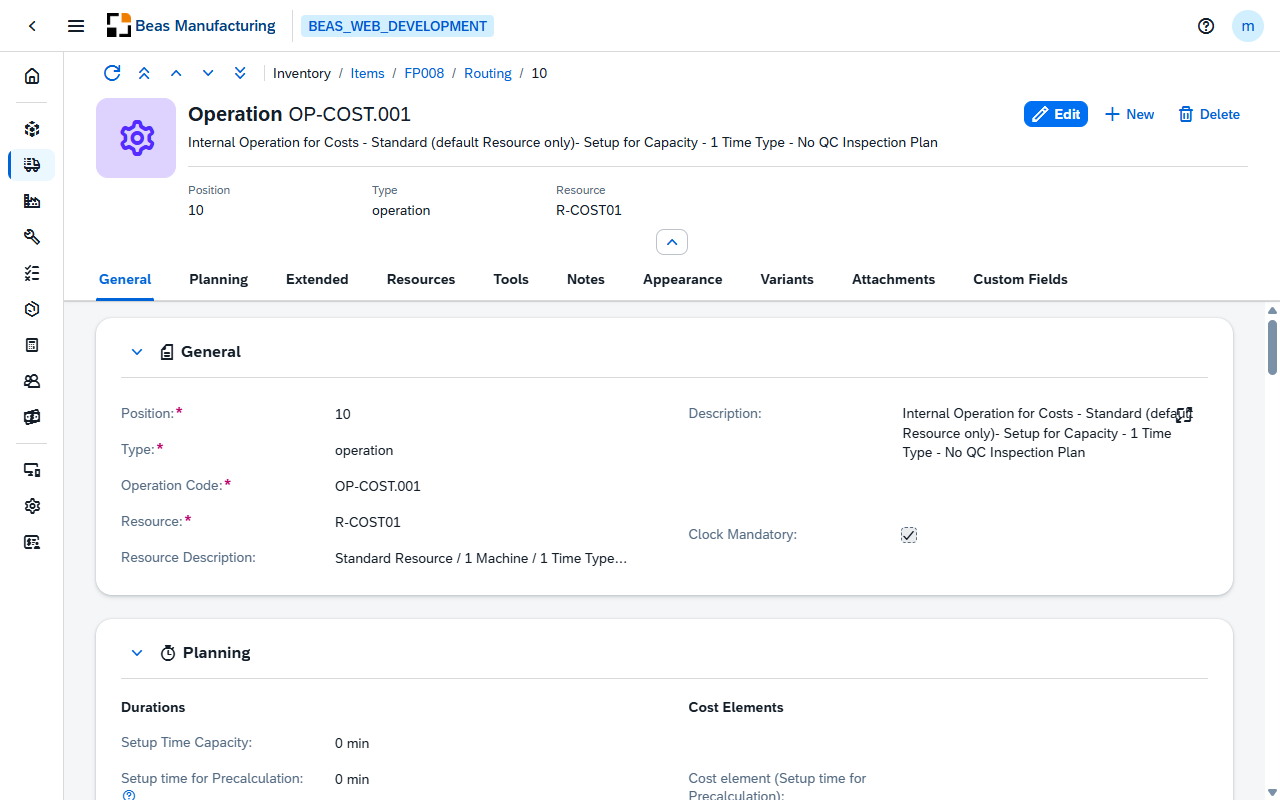
Header
The operation's code and description, its icon when one is set, and the three values that identify the position at a glance:
| Field | Description |
|---|---|
| Position | The position number inside the routing. |
| Type | The kind of step: operation, external operation, milestone or text. |
| Resource | The resource that performs the operation. |
Body
The sections come in the order the page renders them: General, then External for an external operation and Milestone for a milestone, then Planning, then Cost for an operation type that creates costs, and then Extended, Resources, Tools, Notes, Appearance, Variants, Attachments and Custom Fields. The three in the middle appear only when the position calls for them, so most operations show nine sections rather than twelve.
General
| Field | Description |
|---|---|
| Position | The position number. Required. New positions are numbered in steps of 10 by default, so an operation can later be slotted between two existing ones. |
| Type | The kind of step. Required. It decides which sections and fields the rest of the page offers. |
| Operation Code | The operation from the operation catalog. Required. Choosing it brings the description, the times and the cost elements across from the catalog. |
| Resource | The resource that performs the operation. Required. |
| Resource Description | The resource's description from the Resource Master. |
| Description | The operation's description. Editable. |
| Clock Mandatory | When check mark active, time has to be clocked on this operation before it can be closed. |
Changing the operation code overwrites the times and cost elements with the catalog's values. Enter the operation code first, then adjust the times — not the other way round.
External
Shown for an external operation — a step sent out to a supplier. Beas raises a purchase order for it instead of scheduling it on a resource. Two groups: who does the work, and what it costs.
Supplier
| Field | Description |
|---|---|
| Supplier | The supplier that performs the operation. |
| Item | The service item the purchase order is raised for. Choosing it brings the supplier's price across. |
| Currency | The currency of the prices below. |
| QC Inspection Plan | The inspection plan applied to the work that comes back. It is set here rather than under Planning, because an external step has no time of its own to inspect against. |
| Purchase order on Warehouse | The warehouse into which the purchase order is received. |
Pricing
| Field | Description |
|---|---|
| Price per unit | The agreed price, in the currency above. |
| Price List Consider | Takes the price from the supplier's price list instead of the price entered here. |
| Price factor | The number of units that price covers. Hidden while Price List Consider is on. |
| Minimum price | The minimum the supplier charges regardless of quantity. |
| Shipping price | The transport cost. |
| Shipment lot size | The quantity the transport cost covers, in the item's production unit. |
| Cost Element | The cost element the outsourced work books against. Offered only when the operation type carries no time of its own — with a time, the cost elements under Planning do this job instead. |
Milestone
Shown for a milestone — a position that marks a point in the routing rather than work to be done.
| Field | Description |
|---|---|
| Milestone | The milestone reached at this position. |
Planning
Durations
| Field | Description |
|---|---|
| Setup Time Capacity | The setup time charged against the resource's capacity. |
| Setup time | The setup time used for costing and scheduling. |
| Processing | The time the work itself takes. |
| Rework | The time reserved for reworking the output. |
| Quality Control | The time reserved for inspecting the output. |
These fields are named after the time types configured in your system, so their labels read differently from one installation to the next — Setup time, Processing, Rework and Quality Control are the default names.
Rework appears only when the resource expands to 3 cost elements or more, and Quality Control only when it expands to 4 — the resource's Expand to cost elements setting. On a resource that keeps a single rate, the group shows just the setup and processing times.
Cost Elements
One entry per duration above — the cost element each of those times books its cost against. They come from the operation catalog, and they are what turns a time into money in the calculation.
| Field | Description |
|---|---|
| Cost element (setup time) | The cost element the setup time books against. |
| Cost element (processing) | The cost element the processing time books against. |
| Cost element (rework) | The cost element the rework time books against. Appears with its duration, from 3 cost elements upwards. |
| Cost element (quality control) | The cost element the inspection time books against. Appears with its duration, at 4 cost elements. |
| Labor Costs on Cost Type | The cost element the labor cost books against, when it is kept apart from the machine cost. Shown only when the resource tracks personnel cost. |
Execution Parameters
| Field | Description |
|---|---|
| Use Factor | The share of the resource the operation occupies. Less than 1 lets the resource work on something else at the same time. |
| Work Steps | The number of work steps the operation represents. |
| Idle Time | Waiting time after the operation, before the next one can start — cooling, drying, curing. |
| Overlap Limit | How far the next operation may start before this one has finished. |
| Scrap Factor | The scrap expected on the operation, as a percentage. |
| QC Inspection Plan | The inspection plan applied to the operation's output. |
Production Control
| Field | Description |
|---|---|
| Quantity per Time | How many pieces the operation produces per time unit. Enter this instead of a processing time when the output is measured by rate. |
| Time Unit | Hour or minute. It is the unit the quantity per time refers to, and it also sets the unit shown next to every duration on this page. |
| Resource Allocation | How the resource is occupied: Simple, Quantity or Percent. Quantity and Percent put a second input next to the list — a quantity in the item's production unit, or a percentage. |
| Operation Active | Whether the operation runs, and on what condition: Yes, No, Quantity greater than, Quantity less than or Quantity between. The three quantity conditions put one threshold next to the list, and Quantity between puts two; both are then required, and the second has to be the higher one. Shown only when the routing settings enable it. |
Cost
Shown when the position's operation type is one that creates costs — the operation type carries that flag, so whether this section appears is decided by the type you chose under General, not by an own setting.
| Field | Description |
|---|---|
| Price per unit | The price the operation is charged at, with its currency. |
| Cost Element | The cost element the operation books against. Offered when the operation type carries no time of its own and is not an external operation — with a time, the cost elements under Planning do this job instead. |
Extended
Area of Validity
| Field | Description |
|---|---|
| Date From | The date the operation becomes valid. |
| Date To | The date the operation stops being valid. |
| I-Version From | The first item version the operation applies to. |
| I-Version To | The last item version the operation applies to. |
| I-Version Range | Individual item versions the operation applies to, when the range is not contiguous. |
Further settings
| Field | Description |
|---|---|
| Scrap of material % | The material scrap the operation causes, as a quantity in the item's production unit. Shown only when the routing settings enable scrap quantity. |
| Number of Payslips | The number of payslips the operation produces. It rides along to the work order and is read by the payslip layout, so it stays here rather than under Planning — a time-less operation keeps it. |
| Confirm in Units | Confirmations are entered in units rather than in time. |
| Factor per Production UoM | The conversion factor between the confirmation unit and the production unit. |
| Belongs to Master Operation | The operation is scheduled together with the one before it instead of on its own. |
| DIH Synchronization | Full Sync, Update Only or No Sync — how the operation behaves when the routing is synchronised from an external system. |
| Invisible in precalculation | The operation is not shown in the precalculation. |
| Value only in precalculation | The operation contributes its value to the precalculation but nothing else. |
| Login Block | Logging on to the operation is blocked. |
| Block closing with less quantity | The operation cannot be closed with less than the planned quantity. |
| Invisible in post calculation | The operation is not shown in the post calculation. |
| Resource optimization | The operation takes part in resource optimisation. |
Resources
Resources beyond the one in the header. Two tabs, and the difference between them is what the scheduling does with the rows.
Rows are added and changed in a dialog of their own, and each of the four has its own set of fields — they are not four views of the same record.
The user-defined fields configured for routing sub-tables are appended to every one of these four dialogs as a section of their own, up to fifteen of them. One configuration serves all four, and it is shared with the work order's routing. See UDF Configuration.
Parallel
Resources that work on the operation at the same time as the main one — a second machine, or an operator alongside a machine. Each row adds its own time and its own cost to the operation.
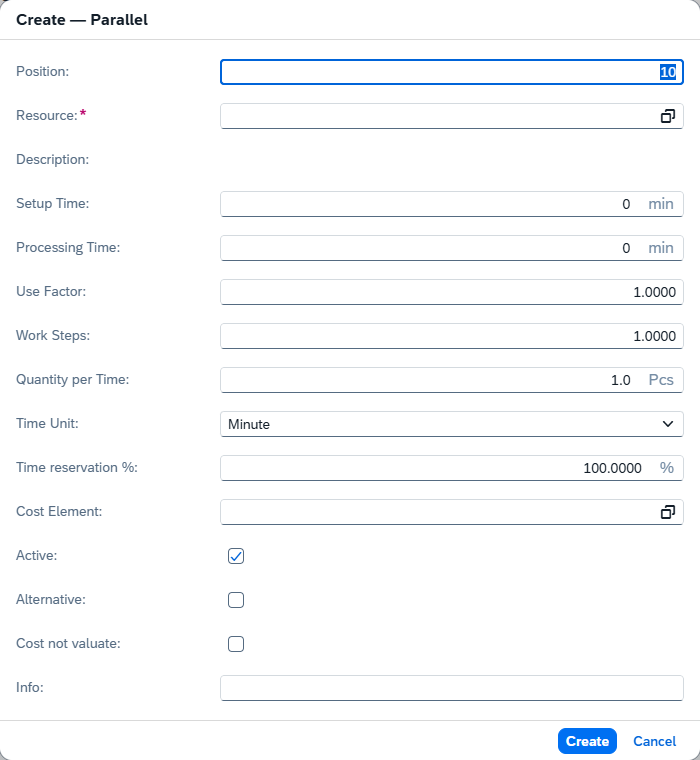
| Field | Description |
|---|---|
| Position | The row's position in the list. |
| Resource | The resource that works in parallel. Required. |
| Description | The resource's description, from its master record. |
| Setup Time | The row's own setup time, in minutes. |
| Processing Time | The row's own processing time, in minutes. |
| Use Factor | The share of that resource the row occupies. |
| Work Steps | The number of work steps the row represents. |
| Quantity per Time | The row's output per time unit. |
| Time Unit | The unit the quantity per time refers to — minute, hour, and so on. |
| Time reservation % | How much of the operation's time this resource is reserved for. |
| Cost Element | The cost element the row's time books against. |
| Active | Whether the row is used. |
| Alternative | Marks the row as belonging to an alternative group, so only one of the group is taken. |
| Cost not valuate | The row's time is scheduled but not costed. |
| Info | Free text for the row. |
| UDF1 … UDF15 | The user-defined fields configured for routing sub-tables. See UDF Configuration. |
The list itself carries one more column, Activate Optimization, which the dialog does not offer.
Alternative
Resources that can be used instead of the main one — what scheduling falls back to when the preferred resource is busy. Only one is ever chosen.
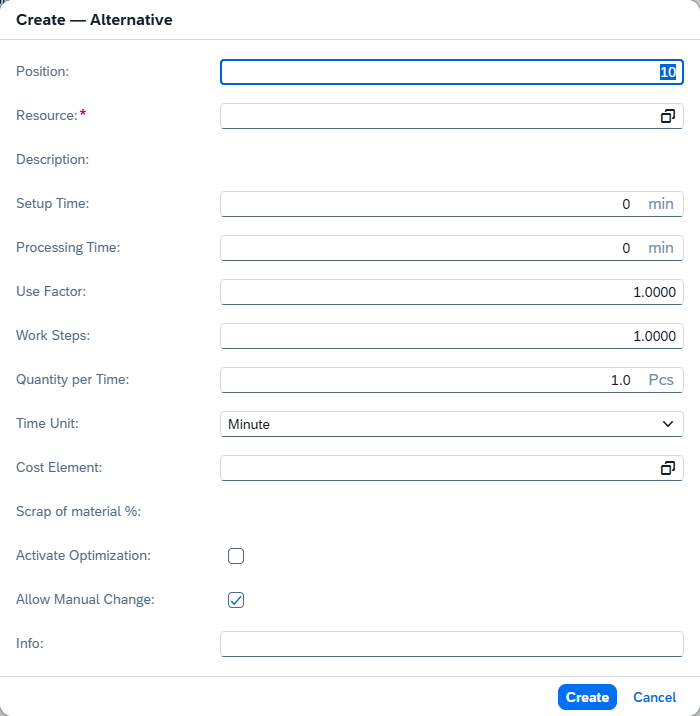
| Field | Description |
|---|---|
| Position | The row's position in the list. |
| Resource | The resource that can replace the main one. Required. |
| Description | The resource's description, from its master record. |
| Setup Time | The setup time on that resource, which is usually not the same as on the main one. |
| Processing Time | The processing time on that resource. |
| Use Factor | The share of that resource the row occupies. |
| Work Steps | The number of work steps the row represents. |
| Quantity per Time | The row's output per time unit. |
| Time Unit | The unit the quantity per time refers to. |
| Cost Element | The cost element the row's time books against. |
| Scrap of material % | The material scrap expected when the operation runs on this resource. |
| Activate Optimization | The row takes part in resource optimisation. |
| Allow Manual Change | Someone may switch to this resource by hand, rather than only scheduling choosing it. On by default. |
| Info | Free text for the row. |
| UDF1 … UDF15 | The user-defined fields configured for routing sub-tables. See UDF Configuration. |
There is no Active field here, unlike Parallel — the list shows an Active column, but a row is switched on and off from the list rather than from the dialog.
Tools
What the operation needs besides a resource. Two tabs: Tool for the things that take time, and Utilities for the things it consumes.
Tool
Tools the operation occupies while it runs. A tool is scheduled like a resource, so the operation waits for its tool the same way it waits for its machine.
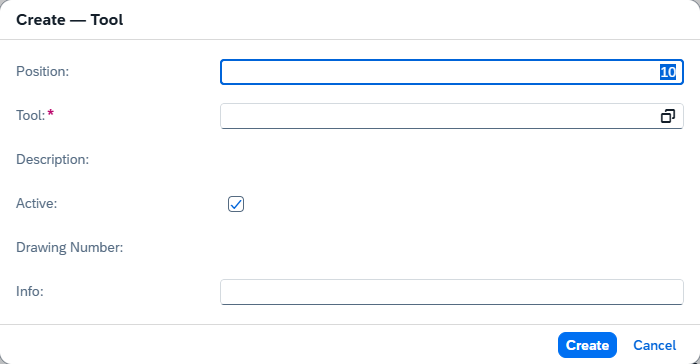
General
| Field | Description |
|---|---|
| Position | The row's position in the list. |
| Tool | The tool the operation needs. Required. |
| Description | The tool's description, from its master record. |
| Active | Whether the row is used. |
| Drawing Number | The tool's technical drawing reference, from its master record. |
| Info | Free text for the row. |
| UDF1 … UDF15 | The user-defined fields configured for routing sub-tables. See UDF Configuration. |
Planning
The times the tool occupies. They belong to the tool rather than to the resource, so they are scheduled on top of the operation's own times.
| Field | Description |
|---|---|
| Setup Time | The tool's own setup time. |
| Processing Time | The tool's own processing time. |
| Quantity per Time | The tool's output per time unit — the alternative to entering a processing time directly. |
| Time Unit | The unit the quantity per time refers to: Minute, Hour, or Default to follow the operation. |
| Use Factor | The share of the tool the row occupies. |
| Work Steps | The number of work steps the row represents. |
| Cost Element | The cost element the tool's time books against. |
This group appears only for a tool whose master record has Operating Time Determination switched on — a tool that is timed. For every other tool the dialog stops after General.
The setting travels with the tool, so it arrives when you pick the tool from the picker. Typing a tool code by hand clears it, and the group stays hidden until the code is resolved.
Setup Time and Processing Time are also columns of the list, which is where you see what the tools of the operation will occupy in total.
Utilities
Consumables and aids the operation needs. They carry a quantity rather than a time, so they do not affect the schedule.
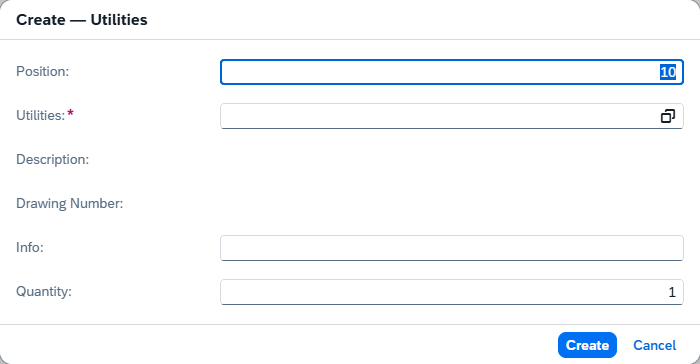
| Field | Description |
|---|---|
| Position | The row's position in the list. |
| Utilities | The utility the operation needs. Required. |
| Description | The utility's description, from its master record. |
| Drawing Number | The utility's technical drawing reference, from its master record. |
| Info | Free text for the row. |
| Quantity | How much of it the operation needs. |
| UDF1 … UDF15 | The user-defined fields configured for routing sub-tables. See UDF Configuration. |
Notes
| Field | Description |
|---|---|
| Instructions | The work instructions for the operation — what the shop floor reads on the terminal. |
Appearance
| Field | Description |
|---|---|
| Color | The color the operation is shown in, in the list and in the production cockpit. |
| Image | The icon or picture shown for the operation. |
Variants
For a configurable item, the variants this operation belongs to — 26 rows, A to Z. An operation with no variant ticked is used in every variant.
| Column | Description |
|---|---|
| Code | The variant's letter, A to Z. Hidden by default. |
| Name | The variant's name. |
| Active | Ticked on the variants the operation belongs to. |
Attachments
| Field | Description |
|---|---|
| Attachment 1 … Attachment 3 | The files attached to the operation — up to three, each a path or a document reference. |
Custom Fields
The user-defined fields configured for routing operations, when there are any. See UDF Configuration.
Examples
One routing for a step that only pays off on big lots. A second polishing pass is worth the setup above 100 pieces and pure waste below it. Set Operation Active under Production Control to Quantity greater than and put 100 in the threshold next to it. The position stays in the routing, and every work order below 100 explodes without it — no second routing to maintain, and nothing to delete by hand on each order. Quantity between does the same for a step that only applies to a middle range.
Sending one step out to a supplier without splitting the item. Set the position's Type to external operation. The External section appears, and the supplier, the service item and the price go on the position itself. The routing keeps its order, so the operations before and after still schedule normally — and the purchase order for the outsourced step is raised from the work order rather than being managed separately.