List Views
This topic is not part of the published manual for this version. It is kept in the repository but does not appear in the navigation, the search or the sitemap.
Most screens in the Beas Web Client are list views: a filter bar at the top, a results grid below it. Items, Work Orders, Material Requirements, Inventory History and the master-data lists all share the same frame, so once you know one you know them all.
This topic explains the parts every list view has in common. The individual topics only describe what is specific to their screen — which filters it offers and what its columns mean.
Anatomy of a list view
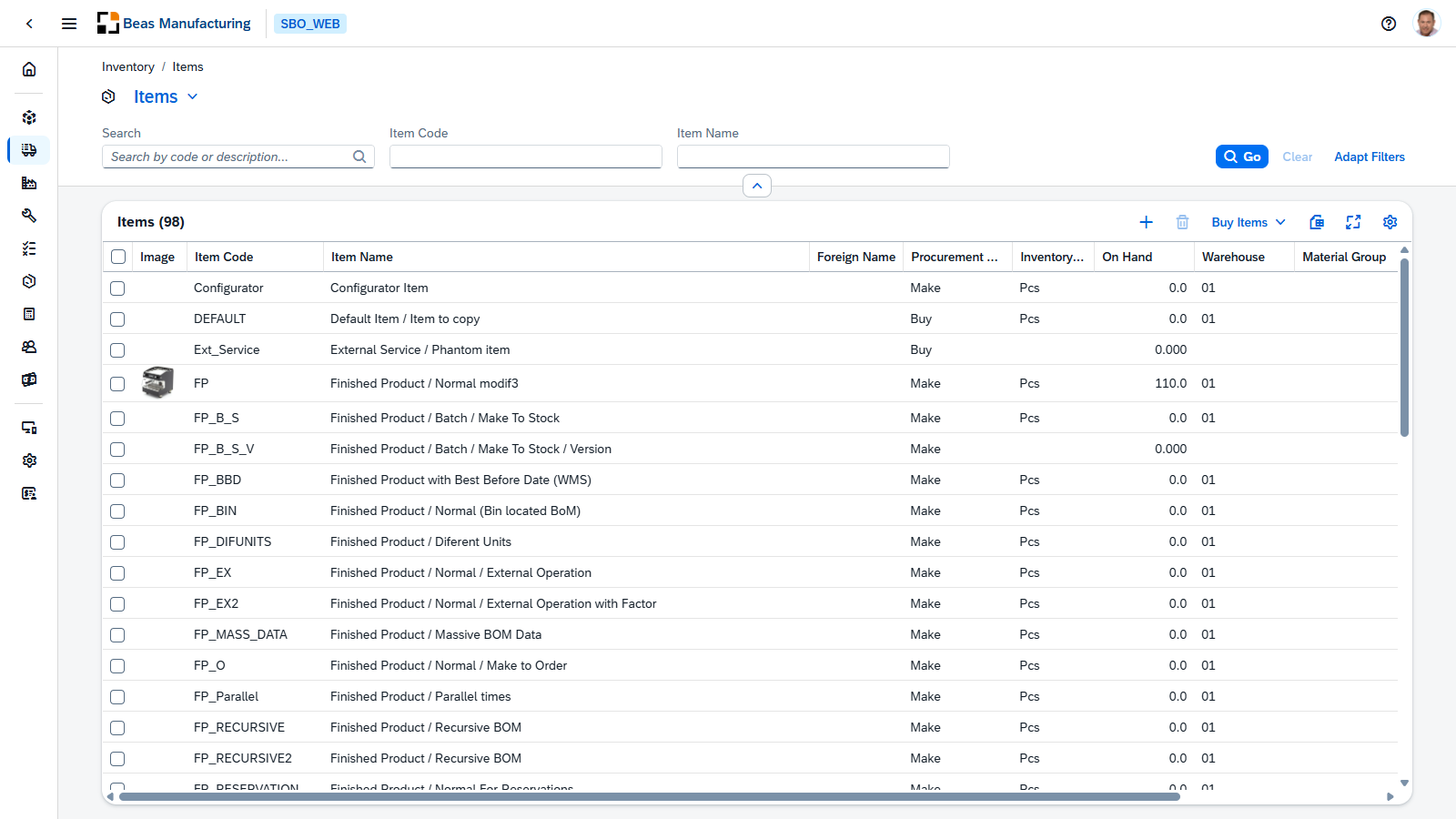
| Region | What it is for |
|---|---|
| Breadcrumb | Where you are, and a way back up. |
| Title | The name of the screen — and the filter view picker (see below). |
| Filter bar | The search field and the filter fields you narrow the list with. |
| Go / Clear | Run the search with the current filters, or empty them. |
| Adapt Filters | Choose which filter fields the bar shows. |
| Collapse | Fold the filter bar away to give the grid the whole screen. |
| Grid header | The screen name and, in brackets, how many rows the search returned. |
| Grid toolbar | Actions on the list, and the column template picker. |
| Results grid | The rows themselves. |
The filter bar
Type into the fields you care about and press Go. Filters combine: filling in two fields narrows the list to rows matching both.
- Search is a free-text field. What it searches is written in its placeholder — on Items, for example, Search by code or description…
- Clear empties every filter and the search field. It stays greyed out while there is nothing to clear.
- Some filters are single values, others accept several entries or a range. Where a filter offers a browse button , use it to pick from a list instead of typing.
Once you have the rows you want, use the collapse chevron above the grid to fold the filter bar away. Your filters stay active — you just get more room for the results.
Adapt Filters
A screen offers far more filters than the bar shows by default. Adapt Filters opens the full list so you can decide which ones you want in front of you.
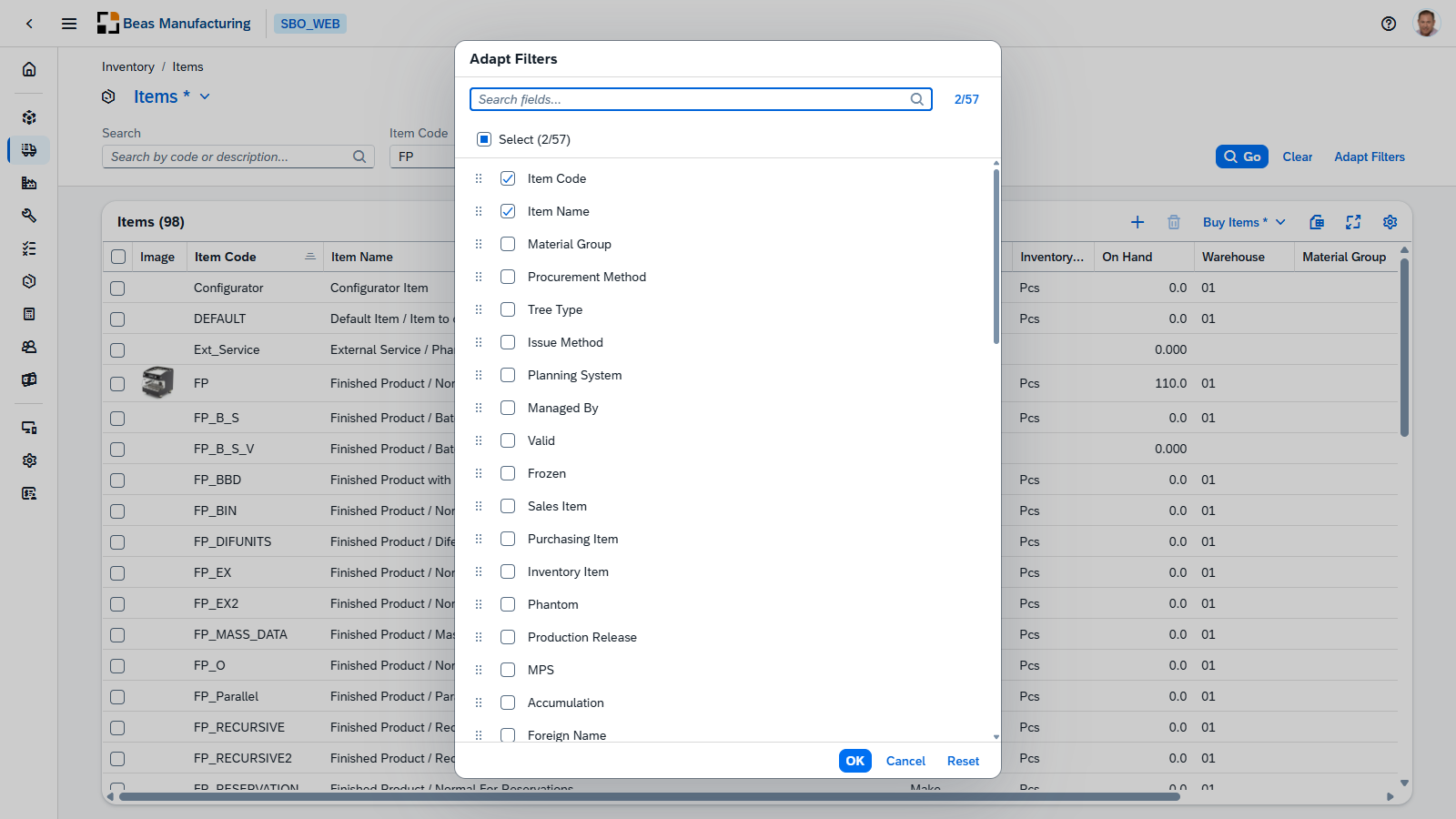
- Tick a field to add it to the bar, untick it to take it away. The counter at the top right shows how many of the available fields are currently shown.
- Drag a field by its handle to change the order the filters appear in.
- Search fields… finds a filter by name when the list is long.
- Reset puts the bar back to the fields the screen starts with.
- OK applies your choice; Cancel discards it.
Two things you can save: views and templates
A list view remembers two separate things, and each has its own picker:
| Filter view | Column template | |
|---|---|---|
| Picker | The screen title | The grid toolbar |
| Holds | Which filters are shown, what is typed in them, and the search term | Which columns are shown, their order and width, plus sort, column filters, grouping and frozen columns |
| Use it for | "The searches I run" | "The columns I want to see" |
They are independent, so you can look at the same filtered rows through different column templates. They are also linked in one direction: saving a filter view records the column template you were using, so picking the view brings both back together. See Filter views remember their template.
Filter views
The screen title is a dropdown. It names the filter view you are looking at and lets you switch, save or create one.
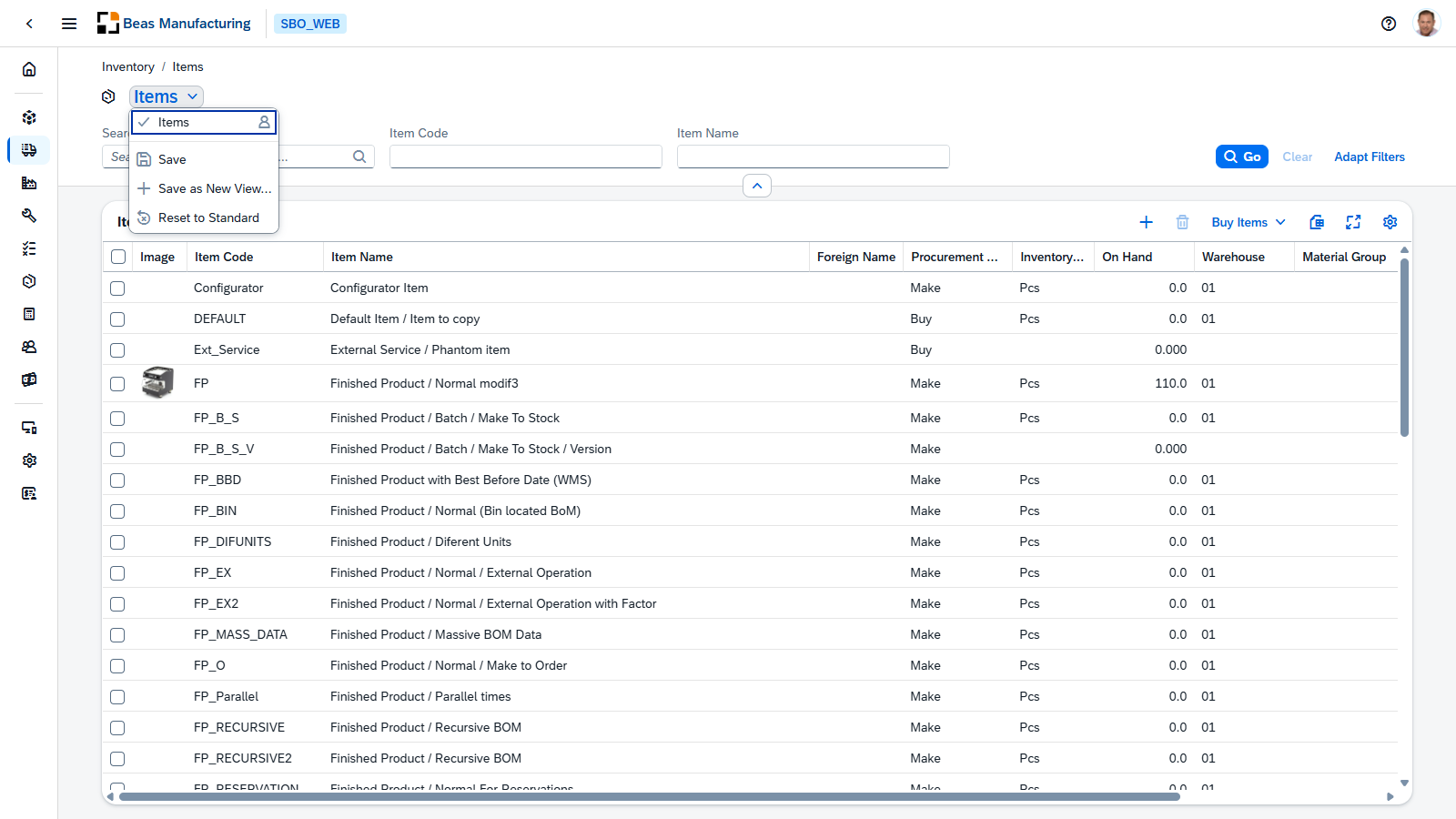
Every screen starts you on Standard, a view of your own. In the title picker it takes the screen's own name rather than reading "Standard". It cannot be renamed or deleted, but you can save into it and reset it.
Picking a view fills the filter bar with what that view stored, and runs the search when the view carries any filters — pick an unfiltered view and the rows on screen stay as they were until you press Go.
| Menu entry | What it does |
|---|---|
| The list of views | Switch to that view. A tick marks the one you are on. |
| Save | Write the filters currently on screen into the view you are on. |
| Save as New View… | Keep the current filters as a new view under a name you choose. |
| Rename View… | Change a view's name or who can see it. |
| Delete View | Remove the view. |
| Reset to Standard | Put Standard back to the screen's default filters. Only offered while you are on Standard. |
Column templates
The picker in the grid toolbar names the column template in use — here the starting one reads Standard. A template is a saved grid layout: which columns are shown, in what order, how wide, how sorted, how grouped, and which ones are frozen.
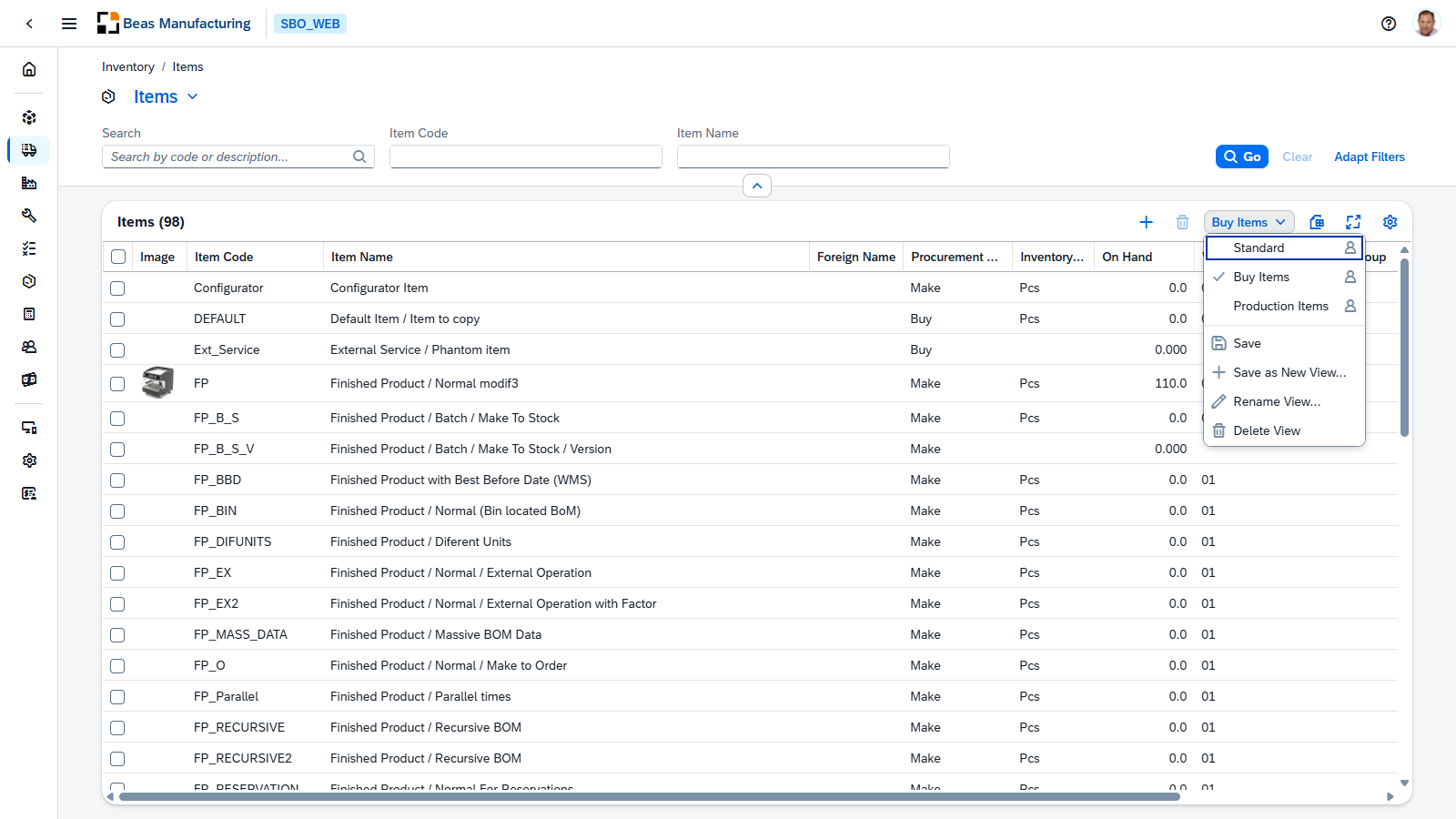
The menu works exactly like the filter view menu above — the same Save, Save as New View…, Rename View…, Delete View and Reset to Standard entries, applied to the grid layout instead of the filters.
Change a layout the ordinary way — click a column header to sort, drag a column edge to resize, use the toolbar's settings to show and hide columns — and then save it into a template when you are happy with it. See General Controls for the individual grid controls.
Saving is manual
Nothing you change is written until you ask for it. A list view is a scratch pad: filter, sort, hide a column, try again — none of it is stored until you choose Save.
While a view or template holds changes you have not saved, its name is marked with an asterisk:
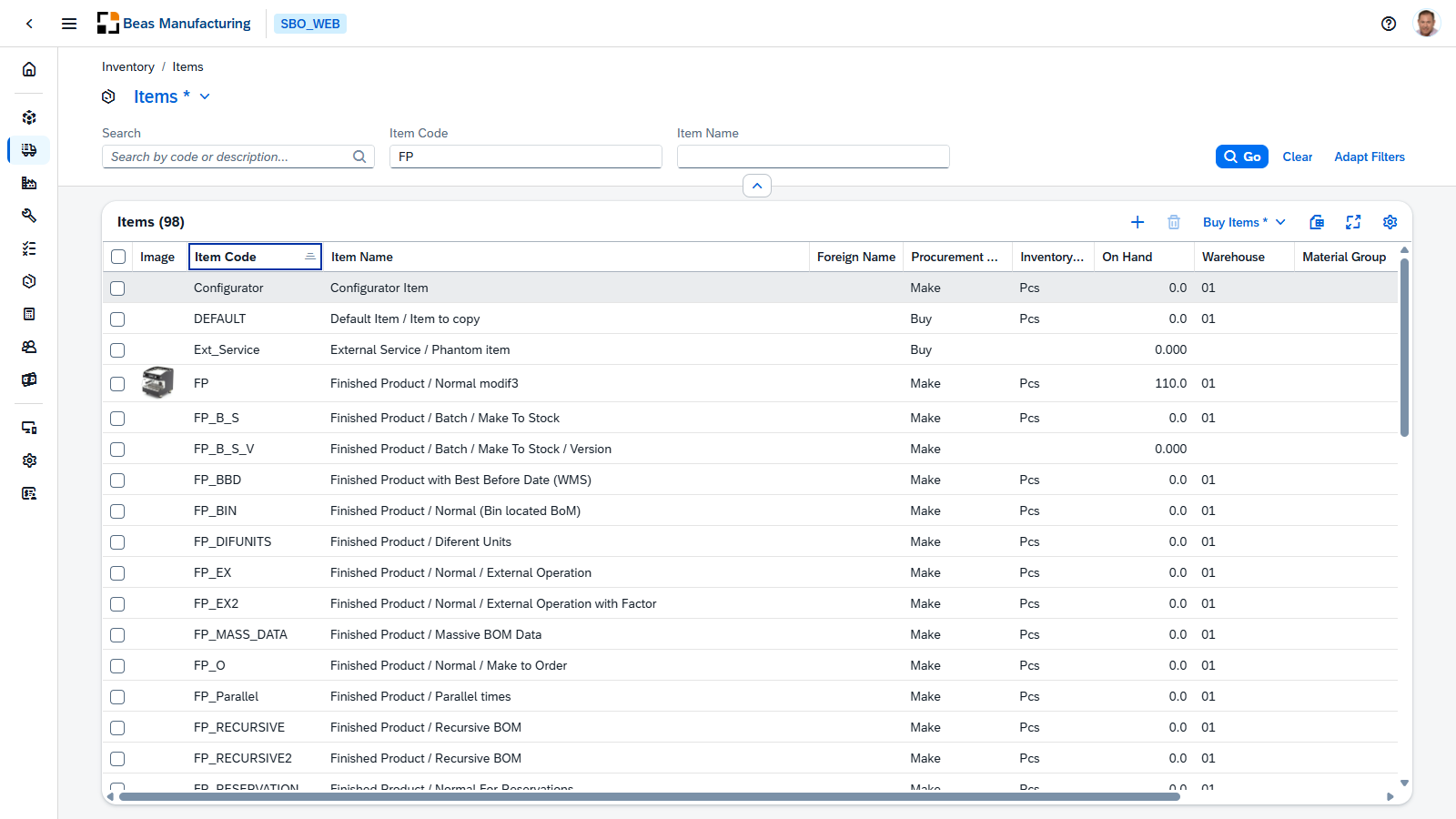
Here the filter view reads Items * because a filter was typed in, and the column template reads Buy Items * because the sort was changed. Choose Save in the matching picker to keep either of them. Undo the change instead and the asterisk disappears on its own.
Switching to another view or template discards unsaved changes without asking. Save first if you want to keep them.
Filter views remember their template
When you save a filter view it also records the column template that was active. Selecting that view later switches the grid to that template as well, so one click restores both the search you ran and the columns you looked at it through.
If you swap the column template afterwards, the filter view is marked unsaved — save it again to make the new pairing stick. A view saved before it ever had a template simply leaves the grid alone.
Creating and sharing a view
Save as New View… — in either picker — asks for a name and who should see it.
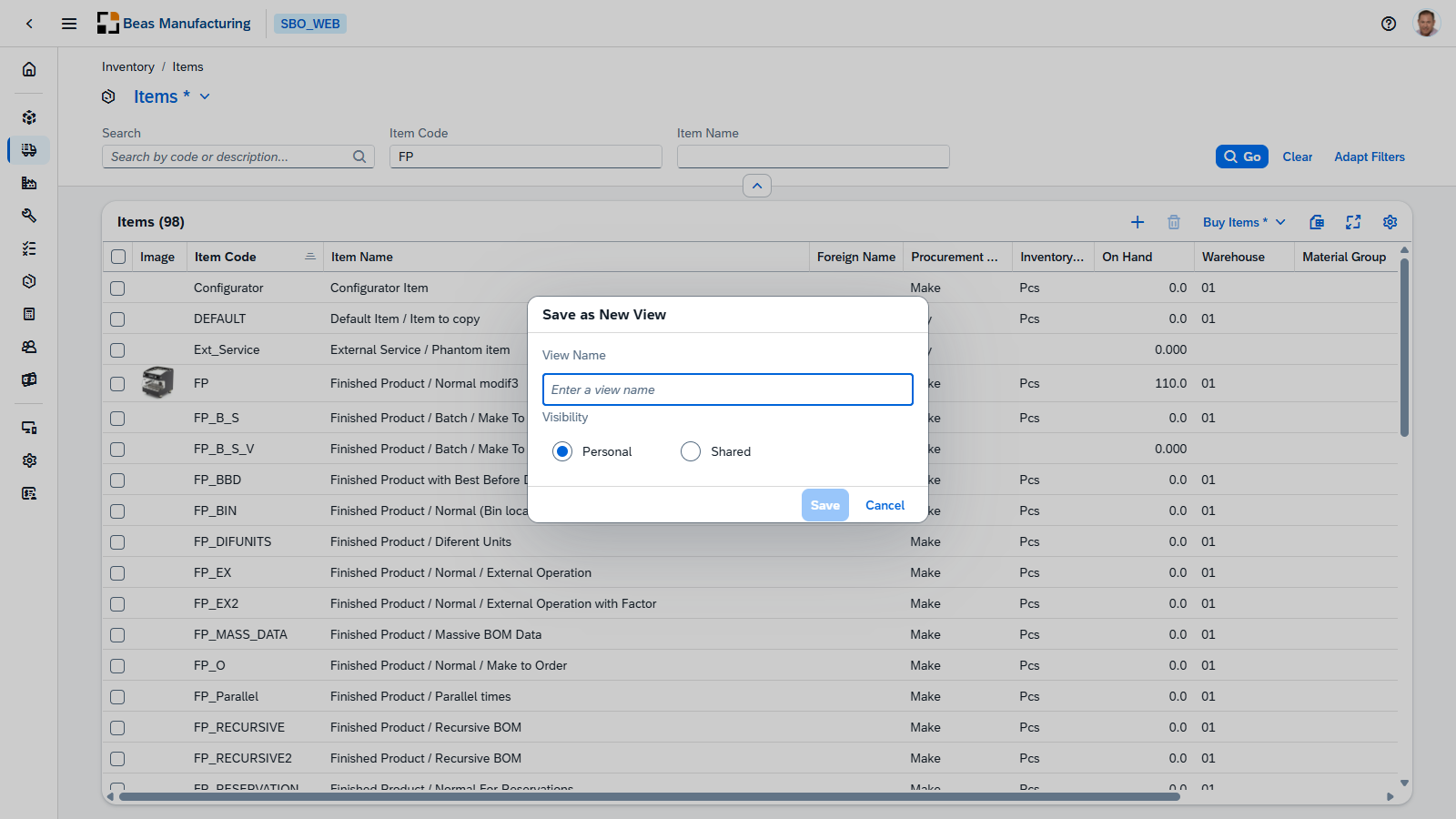
| Field | Description |
|---|---|
| View Name | The name shown in the picker. |
| Visibility | Personal — only you see it. Shared — everyone in the company sees it. |
Creating Shared views needs a permission. Without it the option is unavailable and you can still create as many Personal views as you like. You cannot change a shared view you do not own: to build on it, open it and use Save as New View… to make your own copy.
The results grid
Sorting, freezing columns, the column-level filter window, grouping, Excel export, full screen and the row action buttons are the same in every grid in the application and are described once in General Controls.
What is remembered for you
Each screen remembers, per user:
- the filter view you were last on, and
- the column template you were last on.
Come back to the screen — tomorrow, or from another browser — and you land where you left off. Personal views are yours alone; shared views are visible to everyone but only their owner can change them.