Operation Catalogs - List
Operation Catalogs hold the reusable operations you draw on when building routings and work orders. Each catalog entry bundles a default resource, an operation type, standard times and quantities, and — for external work — subcontracting defaults, so that adding an operation to a routing is a matter of picking a catalog code rather than re-entering every value by hand.
An operation catalog is a template for a single manufacturing step. When you add an operation to a routing, you reference a catalog code and its stored defaults (resource, times, quantities, flags) are carried over. Maintaining them centrally keeps operations consistent across every routing and work order that uses them.
The behavior of a catalog entry depends on its Operation Type: external operation types expose subcontracting fields, timeless types hide the time and quantity sections, and milestone types add a milestone section. See the Operation Catalog detail page for how those sections change.
Filter
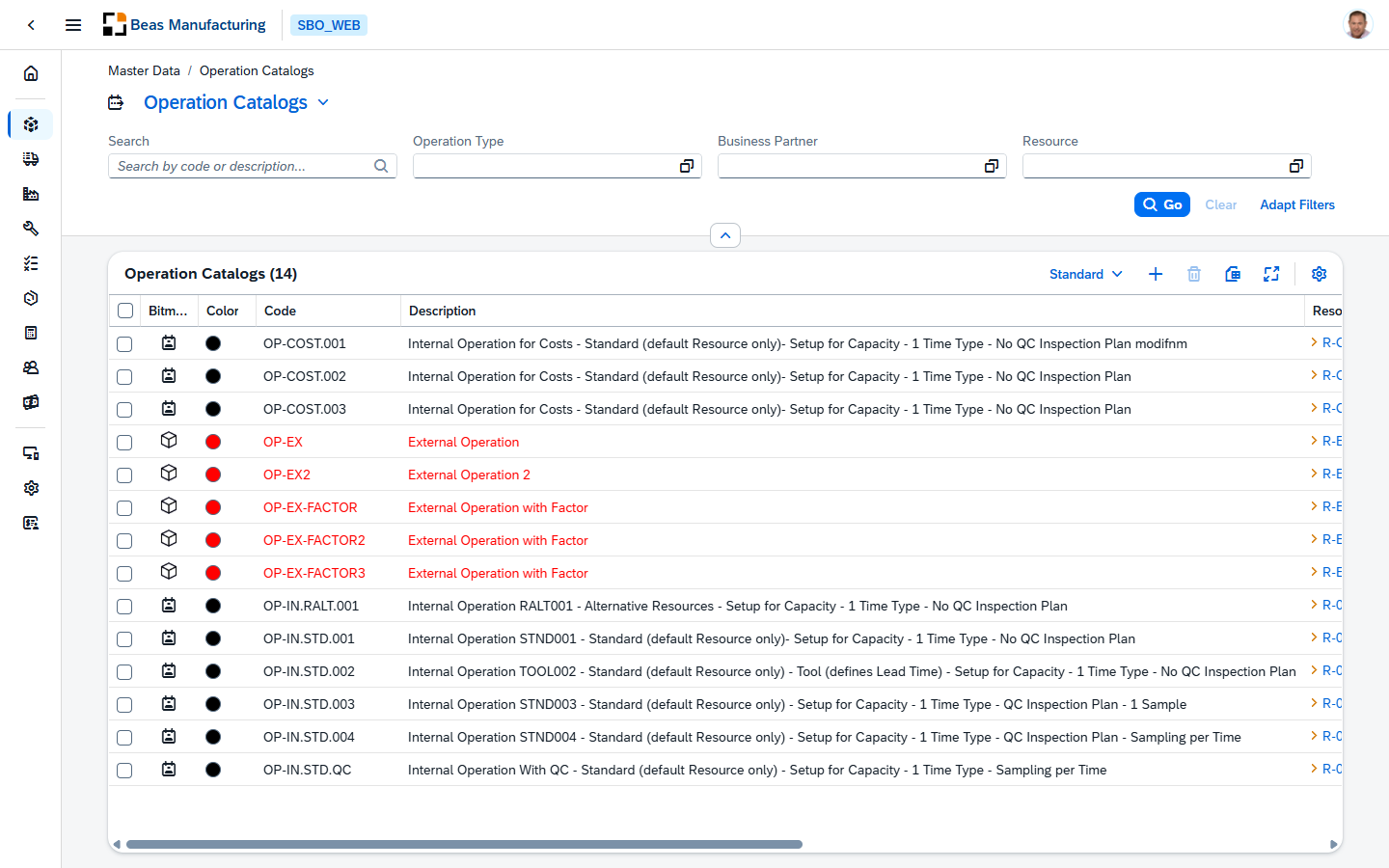
The filter bar above the table lets you narrow the list of operation catalogs. Enter values and select Go to apply, or Clear to reset. Use Adapt Filters to show additional filter fields beyond the four shown by default.
| Filter | Description |
|---|---|
| Search | Full-text search across the operation catalog's code and description. |
| Operation Type | Restricts the list to catalog entries assigned to the selected operation type (e.g. operation, external operation, machine, milestone, qc, costs). Opens a value help listing all configured operation types with their code and description. |
| Business Partner | Restricts the list to catalog entries linked to the selected business partner (e.g. a subcontractor used for external operations). Opens a value help that can be searched by BP Code, BP Name, Type (Customer/Supplier), or Country. |
| Resource | Restricts the list to catalog entries assigned to the selected default resource. Opens a value help that can be searched by resource Code, Description, Type of resource, or Group. |
Default Columns
The following columns are visible by default when you first open the list:
| Column | Description |
|---|---|
| Image | The icon assigned to the operation's type (SAP icon, Beas icon, or custom image), shown as a small graphic in the row. |
| Code | The unique identifier code for the operation catalog entry. Clicking this value opens the detail view for that operation. |
| Description | A free-text description of the operation. |
| Resource | The default resource (work center / machine) assigned to the operation. The value links to the corresponding resource. |
| Operation Type | The operation type that classifies the operation and drives which sections apply (internal, external, timeless, milestone). The value links to the corresponding operation type. |
Additional Columns
The following columns are available but hidden by default. Enable them using the Columns button (gear icon) in the table toolbar:
| Column | Description |
|---|---|
| Color | The color assigned to the operation's type, used for visual distinction. |
| Operation Type Description | The description of the assigned operation type. |
| Resource Bitmap | The icon of the assigned resource. |
| Resource Color | The color of the assigned resource. |
| Match Code | An alternative search/match code for the operation. |
| Resource Description | The description of the assigned resource. |
| Setup Time | The default setup time for the operation. |
| Production Time | The default production time for the operation. |
| Subcontract | Indicates whether the operation is subcontracted. |
| Business Partner | The business partner (e.g. subcontractor) linked to the operation. |
| Milestone | The milestone assigned to the operation, if any. |
| Created | Date and time when the record was created. |
| Created By | User name of the person who created the record. |
| Modified | Date and time of the most recent modification. |
| Modified By | User name of the person who last modified the record. |
| Custom Fields (UDF) | User-Defined Fields, if configured. Their labels and availability are managed centrally through the UDF Configuration screen. |
Open a row to view or edit a record on the Operation Catalog detail page.