Operation Catalog - Detail
Click a code in the Operation Catalogs list to open its Object Page detail view. This view follows the SAP Fiori Object Page pattern and is divided into a header area and a set of sections presented as tabs. The page opens in display mode by default; click the Edit button to switch to edit mode.
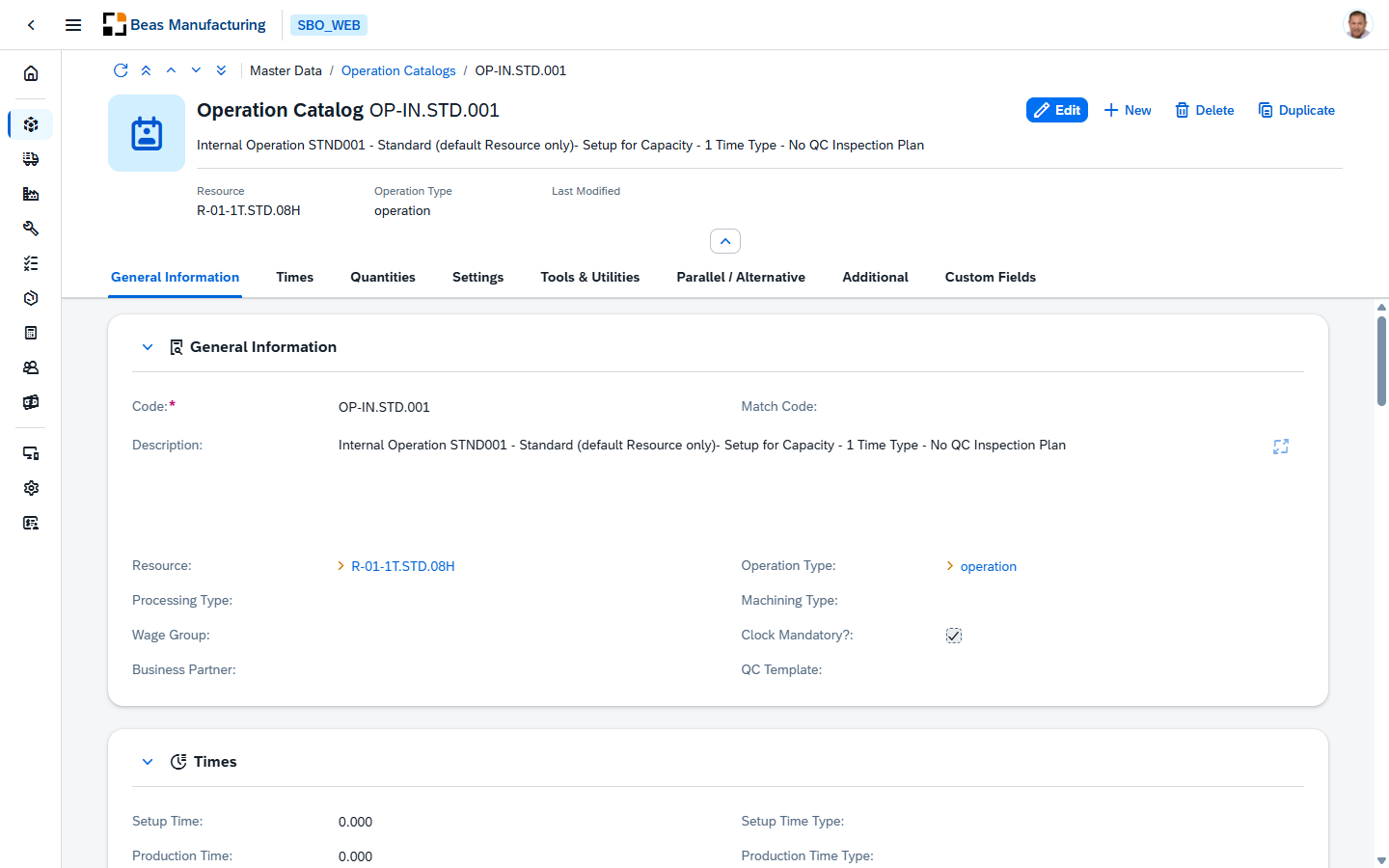
Header
The header displays the key facts about the operation at a glance:
- Resource — a facet showing the default resource assigned to the operation.
- Operation Type — a facet showing the assigned operation type.
- Last Modified — a facet showing the date and time of the most recent modification.
The header toolbar contains the Edit, New, Delete and Duplicate actions.
Which sections are shown is driven by the selected Operation Type: Subcontracting appears only for external operation types, the Times and Quantities sections are hidden for time-less operation types, and a Milestone section appears for milestone operation types.
Body
The sections shown depend on the operation type, as the note above explains.
Deletion is permanent, and an operation referenced by a routing or a work order takes those references with it. Review the dependencies before deleting one.
General Information
The first section contains the identifying fields for the operation.
| Field | Description |
|---|---|
| Code | The unique identifier code for the operation. It is set when the record is first created and cannot be changed afterward. Required, up to 20 characters. |
| Match Code | An alternative search/match code for the operation. Up to 20 characters. |
| Description | A free-text description of the operation. |
| Resource | The default resource (work center / machine) for the operation. Use the Choose-from-List button to pick a resource. |
| Operation Type | The operation type that classifies the operation and controls which sections apply. Use the Choose-from-List button to pick a type. |
| Processing Type | The processing type of the operation. |
| Machining Type | The machining type of the operation. |
| Wage Group | The wage group associated with the operation. |
| Clock Mandatory? | When enabled, time recording (clocking) is mandatory for this operation. |
| Business Partner | The business partner linked to the operation (for example, a subcontractor). |
| QC Template | The quality-control inspection plan / template linked to the operation. |
Times
Standard times for the operation. This section is hidden for timeless operation types.
| Field | Description |
|---|---|
| Setup Time | The setup time for the operation. |
| Setup Time Type | The time type applied to the setup time. |
| Production Time | The production (processing) time for the operation. |
| Production Time Type | The time type applied to the production time. |
| Post-Production Time | The post-production time for the operation. |
| Post-Production Time Type | The time type applied to the post-production time. |
| Single Time | The single (per-unit) time for the operation. |
| Production Time Type 2 | An additional production time type. |
| Setup Time 2 | An additional setup time. |
| Time Type ID | The identifier of the time type used for recording. |
| Time Type | The time type code. |
| Time Recording Type | How time is recorded for the operation. |
Quantities
Quantity and lot-sizing defaults. This section is hidden for time-less operation types.
| Field | Description |
|---|---|
| Utilization | The utilization factor applied to the operation. |
| Quantity | The base quantity for the operation. |
| Quantity Per | The quantity-per factor. |
| Time Unit | The time unit for the quantity. |
| Number of Lot Sizes | The number of lot sizes. |
| Partial Lot Size | The partial lot size. |
| Overlap Limit | The overlap limit for the operation. |
| Scrap Factor | The scrap factor applied to the operation. |
| Quantity Scrap | The scrap quantity. |
Subcontracting
Subcontracting defaults. This section appears only for external operation types.
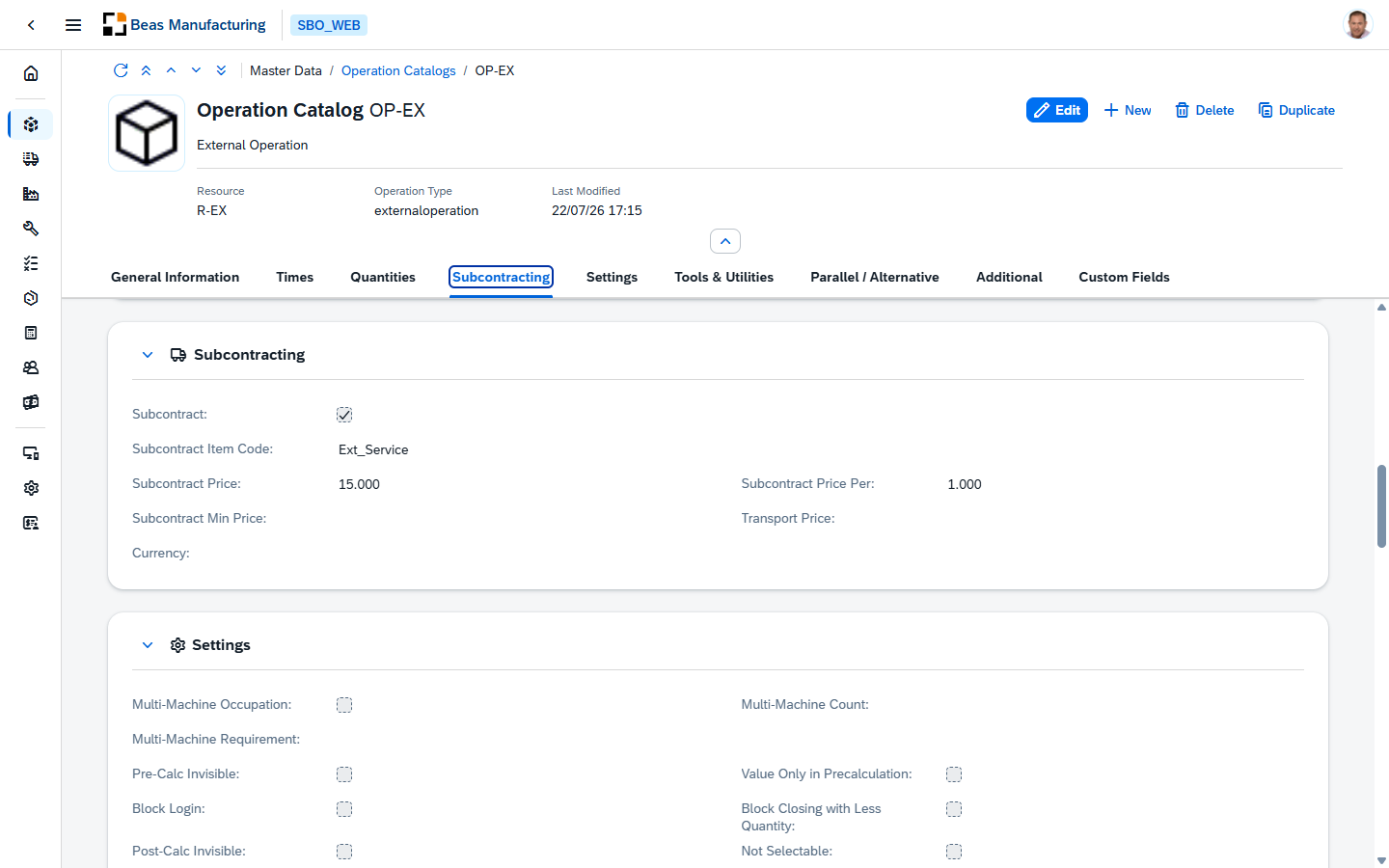
| Field | Description |
|---|---|
| Subcontract | When enabled, the operation is treated as subcontracted. |
| Subcontract Item Code | The item code used for the subcontracting purchase. Use the Choose-from-List button to pick an item. |
| Subcontract Price | The subcontracting price. |
| Subcontract Price Per | The price-per factor for the subcontracting price. |
| Subcontract Min Price | The minimum subcontracting price. |
| Transport Price | The transport price for the subcontracting operation. |
| Currency | The currency for the subcontracting prices. |
Settings
Behavioural flags and additional settings for the operation.
| Field | Description |
|---|---|
| Multi-Machine Occupation | Enables multi-machine occupation for the operation. |
| Multi-Machine Count | The number of machines occupied. |
| Multi-Machine Requirement | The multi-machine requirement value. |
| Pre-Calc Invisible | When enabled, hides the operation in pre-calculation. |
| Value Only in Precalculation | When enabled, the operation contributes a value only in pre-calculation. |
| Block Login | Blocks login (clocking) on the operation. |
| Block Closing with Less Quantity | Prevents closing the operation with less than the required quantity. |
| Post-Calc Invisible | Hides the operation in post-calculation. |
| Not Selectable | Marks the operation as not selectable. |
| Active Formula | The active formula for the operation. |
| Formula | The formula for the operation. |
| Raw Material Unit | The unit of measure for raw material consumption. |
| Raw Material Factor | The raw material factor. |
| PO Warehouse | The warehouse used for purchase orders raised for this operation. |
| Flags | Internal flags for the operation. |
Tools & Utilities
Lists the tools and utilities linked to the operation. Use the Tool / Utilities toggle to switch between the two lists. Each list is a table with the following columns:
| Column | Description |
|---|---|
| Position | The line position within the list. |
| Active | Whether the line is active. |
| Tool | The tool assigned to the line. |
| Description | The description of the tool. |
| Setup Time | The setup time contributed by the tool. |
| Processing Time | The processing time contributed by the tool. |
| Info | Additional information for the line. |
Parallel / Alternative
Lists parallel and alternative resources for the operation. Use the Parallel / Alternative toggle to switch between the two lists. Each list is a table with the following columns:
| Column | Description |
|---|---|
| Active | Whether the line is active. |
| Position | The line position within the list. |
| Resource | The parallel or alternative resource. |
| Description | The description of the resource. |
| Setup Time | The setup time for the resource. |
| Processing Time | The processing time for the resource. |
| Alternative | Whether the resource is an alternative. |
Additional
Free-form and visual information for the operation. Click to add or drag images to attach them to the catalog
| Field | Description |
|---|---|
| Image 1 – Image 3 | Images attached to the operation. |
| Scripts | Scripts associated with the operation. |
| Instructions | Work instructions for the operation. |
| CAFT Info | Additional CAFT information. |
Custom Fields
The Custom Fields section shows the User-Defined Fields configured for operation catalogs. Their labels, order, and visibility are managed centrally through the UDF Configuration screen.
Return to the Operation Catalogs list.