Material Requirements
Check material needs for work orders at a glance. See all Bill of materials with their stock coverage, shortage status, required quantities, and warehouse availability — all in a single, filterable report.
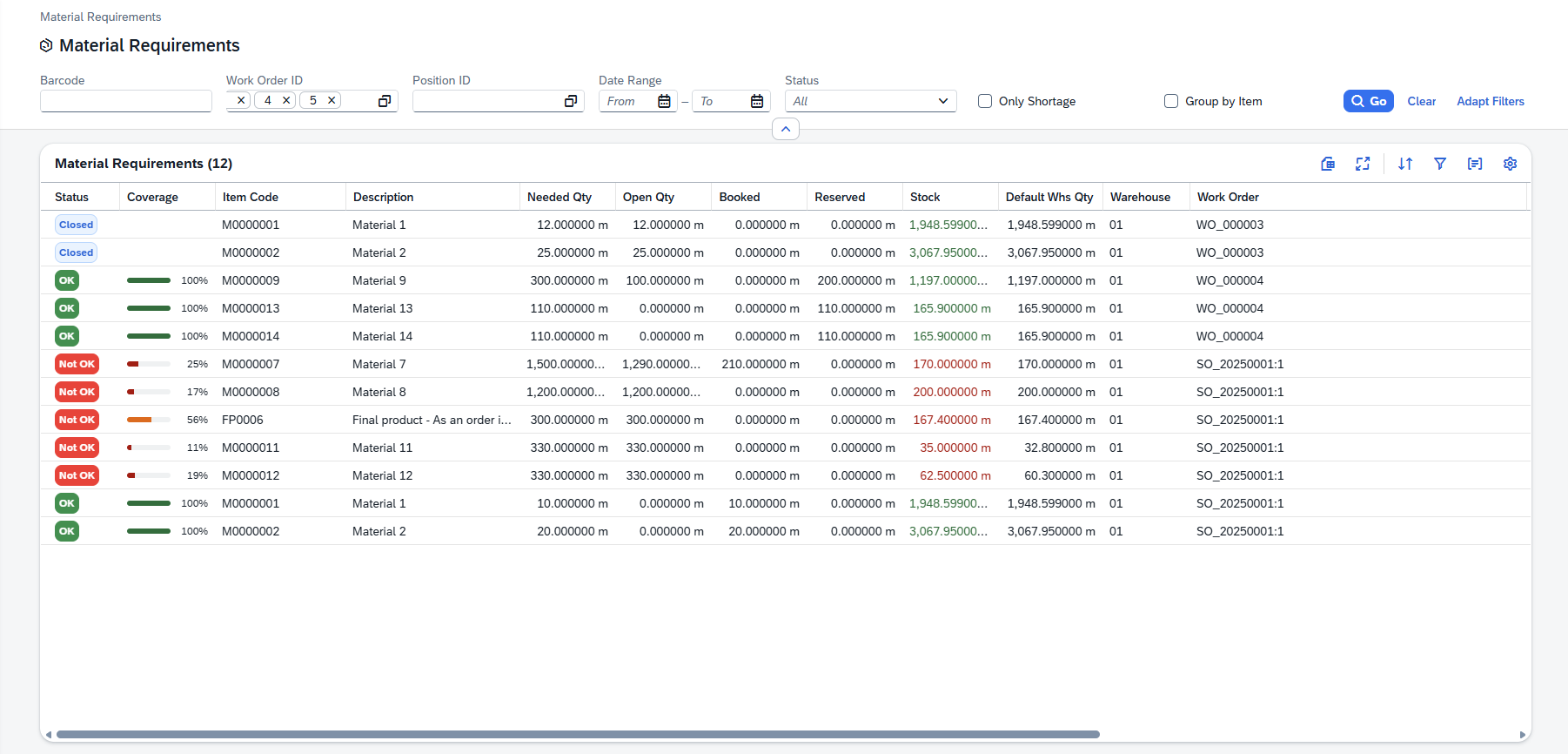
The Material Requirements view is an analytics report in the Beas Web Client that shows the material needs for one or more work orders. For each BoM material line, the report displays:
- Status — Whether stock is sufficient (OK), insufficient (Not OK), closed, or represents a negative correction.
- Coverage — A visual progress bar showing the percentage of the required quantity that is covered by available stock.
- Quantities — Required (needed), open, booked, and reserved quantities per material.
- Stock — Total available stock across all warehouses and stock in the default warehouse, with color-coded values indicating sufficiency.
- Work Order context — The work order and position from which each material requirement originates.
This view is particularly useful for production planners and warehouse managers who need to quickly assess whether all materials are available before starting or continuing production.
Use the Only Shortage check box to instantly filter the report down to materials that have insufficient stock. This lets you focus immediately on problem items that need attention.
Filter Bar
The filter bar at the top of the view provides several fields to narrow down the material requirements. At least one identifying criterion (Bar code, Work Order ID, or Position ID) must be provided before the search can be executed.
| Filter | Type | Description |
|---|---|---|
| Bar code | Text input | Enter or scan a bar code to look up materials for a specific work order. Designed for use on the production floor with a bar code scanner. |
| Work Order ID | Multi-select lookup | Select one or more work orders. Click the browse button to open a List dialog that lets you search and select work orders by document entry, sales order, item code, or customer name. Selected work orders appear as removable chips. |
| Position ID | Multi-select lookup | Optionally narrow the search to specific work order positions. The available positions are cascaded from the selected Work Order IDs — only positions belonging to the selected work orders are shown. |
| Date Range | Date range (From – To) | Filter by operation start date. Only materials linked to operations within this date range are included. |
| Status | Drop-down | Filter results by material status: All (default), OK, Not OK, Closed, Negative. |
| Only Shortage | Check box | When checked, shows only materials with a Not OK status that are not closed and not negative corrections. A quick filter for materials that genuinely need attention. |
| Group by Item | Check box | When checked, materials with the same item code are consolidated into a single summarized row, aggregating quantities across all work orders and positions. |
Adapt Filters — click the Adapt Filters link at the top-right of the filter bar to customize which filter fields are visible: toggle fields on/off, reorder by dragging, search by name, or Select All / Deselect All. Your layout preferences are persisted across sessions.
Clear Button — click Clear to reset all filter fields to their default (empty) values. This does not clear the grid results — it only resets the filter inputs.
Running a Search
- Enter at least one of the following: a Bar code, one or more Work Order IDs, or a Position ID.
- Optionally set a Date Range, Status filter, or check Only Shortage or Group by Item.
- Click the Go button (blue, with a magnifying glass icon). The system queries the backend and loads all matching material requirement lines into the grid.
The search requires at least a Bar code, Work Order ID, or Position ID. If none of these are provided, clicking Go will have no effect and the grid will remain empty. The grid title shows the total count of results, e.g. "Material Requirements (12)".
Results Grid
The results are displayed in columns, with color-coded indicators, and quantity values shown with their units of measure. The grid supports sorting, grouping, column reordering, and fullscreen mode.
Default Columns
| Column | Description |
|---|---|
| Status | A colored badge indicating the material's stock coverage status (see Status Column below). |
| Coverage | A visual progress bar with a percentage value showing how much of the required quantity is covered by available stock. |
| Item Code | The material/item code (e.g., M0000001, FP0006). Supports grouping. |
| Description | The item description. |
| Needed Qty | The total required quantity for this material line, shown with the unit of measure (e.g., "300.000000 m"). |
| Open Qty | The open (outstanding) quantity: Required minus Booked minus Reserved. If negative, displayed in red bold text. |
| Booked | The quantity already booked (issued) from stock, with unit of measure. |
| Reserved | The quantity reserved against this requirement, with unit of measure. |
| Stock | Total available stock across all warehouses. Green when sufficient (stock ≥ open qty), red when insufficient. |
| Default Whs Qty | Stock available in the default warehouse for this material, with unit of measure. |
| Warehouse | The default warehouse code (e.g., 01). Supports grouping. |
| Work Order | The work order identifier or sales order reference from which this material requirement originates (e.g., WO_000003, SO_20250001:1). |
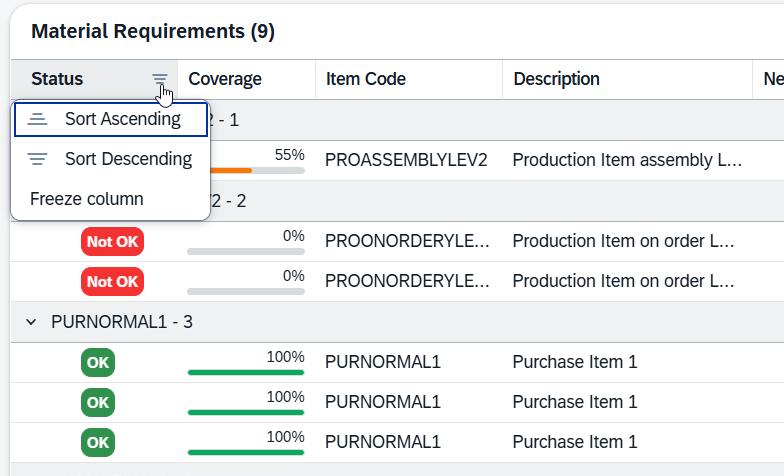
The Freeze column function works here too: click a column title to freeze it (counting from the first, "Status"); click again and select Unfreeze to deactivate.
All quantity values are displayed with a unit-of-measure suffix. The number of decimal places varies per material and is determined by the material master data configuration.
Status Column
The Status column displays a colored badge that immediately communicates the stock coverage situation for each material line. There are four possible status values:
| Badge | Description |
|---|---|
| OK | Sufficient stock is available to cover the material requirement. Coverage is 100% or higher. No action needed. |
| Not OK | Insufficient stock to cover the full requirement. Coverage is below 100%. This material needs attention — stock may need to be replenished, transferred, or purchased. |
| Closed | The material requirement line has been closed or completed. No further action expected. Closed lines do not show a coverage bar. |
| Negative | The line represents a negative correction or return (required quantity less than zero). An independent flag indicating a reversal rather than a standard requirement. |
The "Closed" and "Negative" statuses are independent flags. They take precedence over the OK/Not OK stock coverage status. A line that is "Not OK" in coverage but has been manually closed shows as Closed.
Coverage Indicator
The Coverage column provides a visual progress bar alongside a percentage value, giving an instant sense of how well each material's requirement is covered by available stock. Each non-closed row shows a small horizontal bar (filled proportionally) followed by the percentage value.

Color Thresholds
| Coverage | Bar Color | Description |
|---|---|---|
| 100% or higher | Green | Fully covered. Stock meets or exceeds the requirement. |
| 50% – 99% | Orange | Partially covered. A shortfall exists but more than half is available. |
| Below 50% | Red | Critically under-covered. Less than half the material is available. |
Closed lines do not display a coverage bar or percentage — they show an empty cell, since coverage is no longer relevant once a requirement has been closed.
Stock Color Coding
The Stock column (total available stock across all warehouses) uses color coding to help you quickly identify materials with sufficient or insufficient inventory:
| Condition | Color | Description |
|---|---|---|
| Stock ≥ Open Quantity | Green | There is enough total stock to cover the remaining open requirement. |
| Stock < Open Quantity (and Open Qty > 0) | Red | Total stock is not enough to fully cover the open requirement. A shortage exists. |
Additionally, the Open Qty column displays values in red bold text when the open quantity is negative (meaning more has been booked or reserved than originally required).
Reading the Grid at a Glance — combine the three visual indicators for a rapid assessment: check the Status badge for the overall verdict, glance at the Coverage bar for the proportion covered, and look at the Stock value color to see whether total inventory can close the gap.
Additional Columns
Beyond the default columns, the grid offers over 40 additional columns that are hidden by default. Enable them using the grid settings (gear icon) in the table toolbar. They are organized into:
Operation Information — Operation ID, Operation Description, Operation Start Date.
Work Order Details — Work Order ID, WO Position ID, BOM Line ID, Display Line Number, Position Text, Customer Code, Customer Name, Project Code, Branch ID / Branch Name.
Material Details — Short Variant, Variant Routing Index, Version, Drawing Number, Supplier Code.
Additional Quantities — Planned Qty, Transferred Qty, Transfer Request Qty, Ordered Qty, Requested Qty.
Stock & Warehouse Details — Staging Area Stock, Total Reservations, On Order Quantity, Committed Quantity, Lead Time (Days), Bin Code.
Dimensions — Dimension 1 / 2 / 3 (length, width, height).
Assembly Information — Assembly Item Code, Assembly Item Name, Assembly Drawing Number, Assembly Quantity, Managed by Serial / Batch.
Dates & Purchasing — Purchase Delivery Date, Required Date, Purchase UoM, Purchase Conversion Factor.
Custom Fields — up to 6 custom fields (Custom Field 1 through Custom Field 6) for business-specific data configured in your system.