Sales Order to Work Order
Sales Order To Work Orders is the workspace where production planners turn open customer demand into Work Orders. It lists every Sales Order line and every Reserved Accounts Receivable Invoice line that still needs production, lets the planner type the quantity to make for each line, and creates the corresponding Work Orders in one click — individually, as a single collective Work Order, or merged through the Beas merge phantom.
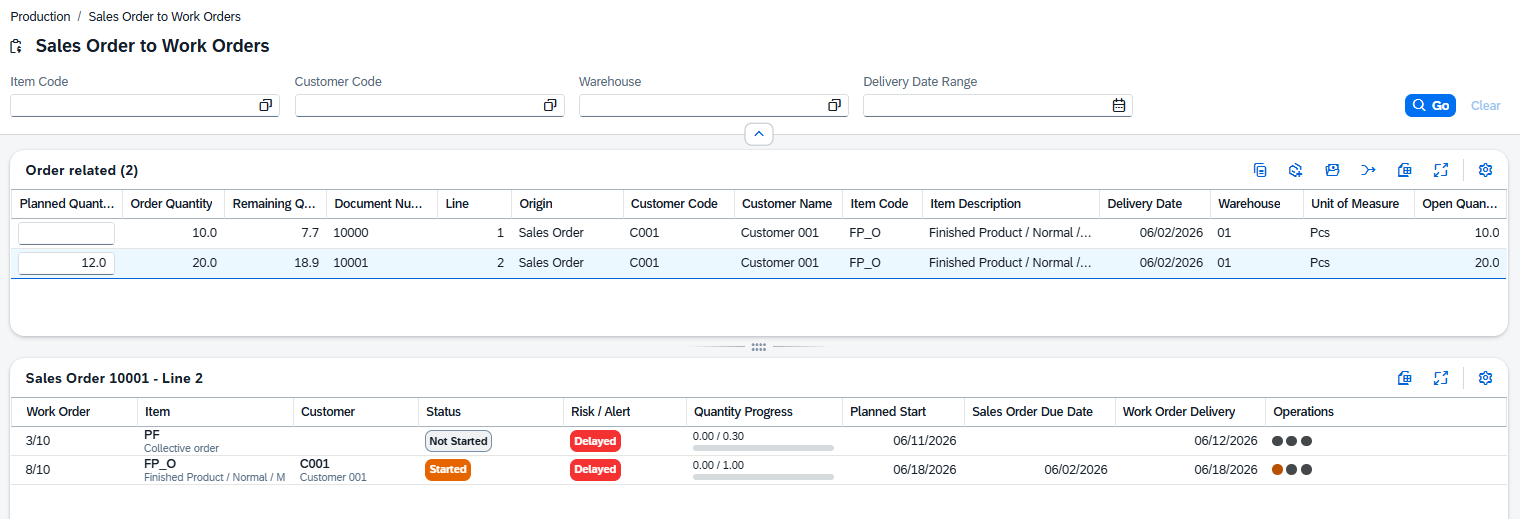
The two tables described below display both open and closed Work Orders.
Order-related table
The Order-related table lists, in a single grid, two kinds of open document lines:
- Sales Order lines — open lines from confirmed sales orders.
- Accounts Receivable Invoice lines — open lines from Reserved A/R Invoices (invoices that commit inventory but defer the stock movement). Regular A/R Invoices already moved stock at posting and do not appear here.
The Origin column distinguishes both kinds. Both are operated on with the same actions. Columns marked (not default) are not shown by default and can be enabled from the column settings.
| Column | Description |
|---|---|
| Planned Quantity | Editable cell. The quantity the planner wants to produce for this line. Empty or zero means the line is not selected for any creation action. Decimals follow the line's unit of measure. |
| Order Quantity | Quantity ordered on the document line. |
| Remaining Quantity | Open Quantity minus the quantity already covered by Work Orders linked to the line. This is the quantity still to plan. |
| Document Number | Sales Order or Reserved Invoice number. |
| Line | Position number of the line as shown on the source document. |
| Origin | Document type the line comes from: Sales Order or Reserved Invoice. |
| Customer Code / Name | Code and display name of the customer the document belongs to; only customers can be selected here, not leads or suppliers. |
| Item Code / Description | Code and description of the item to be produced. |
| Delivery Date | Promised delivery date of the document line. |
| Warehouse | Warehouse on the line. Used as the default for the resulting Work Order. |
| Unit of Measure | Inventory unit of measure of the item. |
| Open Quantity | Quantity remaining on the document line. |
Additional (not default) columns include: Quantity From Warehouse, Create Date, Customer Reference Number, Version, Variant, Drawing Number, DIN, Match Code, Raw Material, Item Group, Employee, Project, Desired Delivery Date, Delivery Confirmed, Production Release, Released, Warehouse Name, Branch, Inventory, Total Inventory, On Order, Sales Order Quantity.
The toolbar above the Order-related table exposes four actions, in increasing order of consolidation.
Pre-Assign

Fills Planned Quantity with Remaining Quantity on every row currently visible. Re-clicking re-applies the Remaining Quantity even if the planner typed a different value, so it can also discard pending edits.
Create Work Order

Creates one Work Order for every row with Planned Quantity > 0. Each Work Order is linked back to its source line. If one line fails, the others still go through and a summary toast reports successes and failures.
Create Collective Order

Creates a single Work Order with one position per selected line. Use it when several lines should share the same Work Order header but stay traceable as separate positions. All-or-nothing — if any line fails, no Work Order is created.
Merge Work Orders

Creates a single Work Order whose header item is the merge phantom configured in Beas. Components are the union of the selected items' bills of materials, with shared components summed (e.g. two products needing 2 + 3 of the same raw material produce a merged order with 5). The original lines stay traceable as merge sources. Requires every selected line to have a warehouse.
Quick planning of a backlog: apply Pre-Assign, then Create Work Order — every backlog line becomes a Work Order in one step.
Related Work Orders
When a row is selected in the Order-related table, the Related Work Orders table lists every Work Order linked to that line — regardless of whether the source is a Sales Order or an Accounts Receivable Invoice. Both kinds of links are surfaced: Work Orders created directly from this line through Create Work Order or Create Collective Order, and merged Work Orders into which this line was rolled through Merge Work Orders (the merge phantom Work Order is shown so the planner can follow up on production even if the line is not the header of the merged order). Its title shows the selected document and line.
| Column | Description |
|---|---|
| Work Order | Work Order ID and position (two-line cell). |
| Item | Item code and description being produced by the Work Order. |
| Customer | Customer code and name the Work Order is allocated to. |
| Status | Production status: Closed, Completed, In Progress, Started, Not Started. |
| Risk / Alert | Risk tags such as Delayed, Delay Alert, Quantity Risk or Blocked. |
| Quantity Progress | Visual progress bar comparing Actual Quantity to Planned Quantity, with the unit of measure as a suffix. |
| Planned Start | Date the Work Order is scheduled to start. |
| Sales Order Due Date | Promised due date of the source Sales Order line. |
| Work Order Delivery | Delivery date of the Work Order itself. |
| Operations | Per-operation progression dots; hover for the operation detail. |
Additional (not default) columns: Sales Order, Planned Quantity, Actual Quantity, Closed.
Tips
- Save raw material picks: when several lines share components, prefer Merge Work Orders so the shared materials are picked once.
- Spot orphans: click a row and watch the Related Work Orders table — if the Remaining Quantity is positive but the table lists Work Orders, those Work Orders may be partial and need a follow-up.
- Personalize columns: open the column settings to bring On Hand, On Order, Committed and Order On Hand into the Order-related table for a stock-aware view.