Time Receipt - Detail
A time receipt is opened from the Time Receipts list, or started as a new booking from the Time Receipt quick action on the home page. The page opens in display mode; press Edit to correct a stored booking.
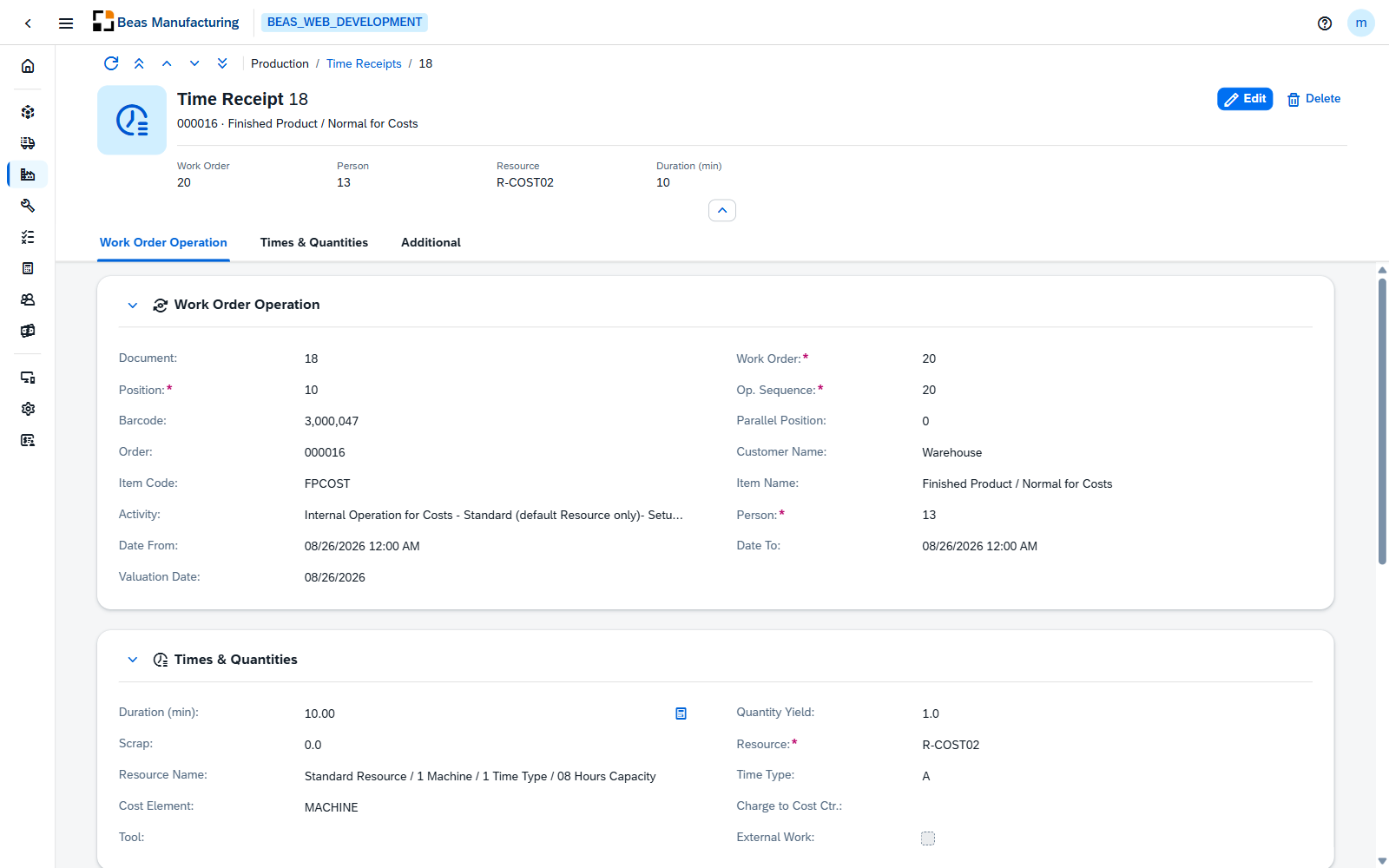
Header
The header shows the booking's own number, with the sales order and the produced item beneath it.
| Field | Description |
|---|---|
| Work Order | The work order the booking belongs to. |
| Person | The personnel number the time is booked for. |
| Resource | The resource the work was carried out on. |
| Duration (min) | Length of the booked period. |
The footer offers the booking itself as a split button with two flavors. Partial Receipt is the default and reports progress without closing the operation. Confirm Completion books the same figures and marks the operation as finished; it asks for confirmation first, and it is unavailable on an overhead order, which can never be completion-confirmed.
While a new booking is being entered, two more actions are available: Scrap, which opens the Scrap distribution dialog, and Reset, which clears the form back to an empty booking.
A booking that has been cancelled, or that already has a journal entry, no longer accepts changes. Reversing a posted booking is a desktop function — the web client shows the reversal but does not perform it.
Body
The form has four sections: Work Order Operation, Times & Quantities, Additional and Custom Fields.
Work Order Operation
Identifies what is being booked. The three operation keys are set when the booking is created and stay fixed afterwards, so a booking cannot be moved to a different operation — cancel it and enter a new one instead. Filling them in fills the descriptive fields below them, and the resource, quantities, tool and parallel position, from the operation.
| Field | Description |
|---|---|
| Booking No. | The booking's own number, assigned when it is saved. |
| Work Order | The work order to book against. Choosing it opens the operation selection, which returns the position and op. sequence with it. Required. |
| Position | The work order position being produced. Required. |
| Op. Sequence | The operation within that position's routing. Required. |
| Barcode | The operation's barcode, as an alternative to entering the three keys by hand. |
| Parallel Position | Which parallel branch of the operation the time belongs to, when the operation has more than one. |
| Order | The sales order behind the work order. |
| Customer Name | The customer on that sales order. |
| Item Code | The item produced by the position. |
| Item Name | Description of that item. |
| Activity | The operation's activity text. |
| Person | The personnel number the time is booked for. Required. |
| Date From | Start of the booked period. |
| Date To | End of the booked period. |
| Valuation Date | The date the booking is valued on, when it differs from the booked period. |
Neither timestamp may lie in the future, and Date To may not fall before Date From.
Times & Quantities
What the booking actually reports, and where it is charged.
| Field | Description |
|---|---|
| Duration (min) | Length of the booking in minutes. The action on the field calculates it from Date From and Date To. |
| Quantity Yield | Good quantity produced, in the operation's reporting unit. |
| Scrap | Scrap quantity produced. The action on the field opens the Scrap Distribution dialog. Select an existing Scrap reason and add the quantity. |
| Resource | The resource the work was carried out on. Required. |
| Resource Name | Description of that resource. |
| Time Type | What the booked time counts as. |
| Cost Element | The cost element the time is charged to. |
| Charge to Cost Ctr. | The cost center the time is charged to. Defaults from the resource, which may carry a code that is not in the SAP cost center list. |
| Tool | The tool position used, when the operation defines tools. |
| External Work | Check mark when the operation is carried out by a supplier. |
| External Costs | The supplier's cost for the operation. Appears only when External Work is set. |
A negative duration is rejected once a cost element is filled in. Confirming an external operation without entering costs asks you to confirm that this is intended.
Additional
| Field | Description |
|---|---|
| Branch | The branch the booking is assigned to. |
| Batch Number | The batch the produced quantity goes into. |
| Information | Free text about the booking. |
| Completion Confirmed | Check mark when the booking closed the operation. |
| Cancelled | Check mark when the booking has been reversed. |
| Journal Entry | Check mark when the booking has been posted to the journal. |
Custom Fields
Fields your administrator has defined for time receipts.
Examples
The booking is refused and the message names the work order or the operation, not a field. Beas checks the state of the target before it accepts time. A locked Work order, an operation that is already completed, a closed Work order position, and an assembly whose time booking is locked each block the receipt outright. None of these is fixed on this page: clear the state on the Work order or the position first, then book again.
The two selects for tool and parallel position are empty on a stored booking. Both lists come from the operation, and they are fetched when the booking is opened. If that lookup fails, the lists stay empty and a stored tool looks unset even though it is saved. Reload the page; the booking's own values are untouched.
Reporting the last piece of an operation. Enter the booking as usual, then pick Confirm Completion from the footer's split button instead of Partial Receipt. The button re-labels itself before anything is booked, so you can see which of the two you are about to do. Use Partial Receipt for every booking that leaves work behind — the operation stays open for the next one.