Transaction Details
Transaction Details explains one Beas transaction entry: the quantity and price that were reported, the method the calculation used to value them, how the calculated cost splits between what was already booked and what went to this receipt, and how the item's entry price has moved across the receipts of the same Work order operation.
This page only shows what was calculated — it does not recalculate anything. Every figure comes from the calculation protocol stored with the transaction entry when the receipt was posted, so the page always shows what was calculated at that moment — not what the same calculation would produce today.
The type of transaction currently supported in this version is Goods Receipt which must be performed in the Desktop solution on assembly level.
The page opens empty, showing Select a transaction entry with the message "Choose a Beas Journal to view its transaction details." Pick the entry in the Beas Transaction entry field of the header: choosing a row in the selection window loads it immediately — there is no need to press Go. See General Controls for the filter window and the header behavior.
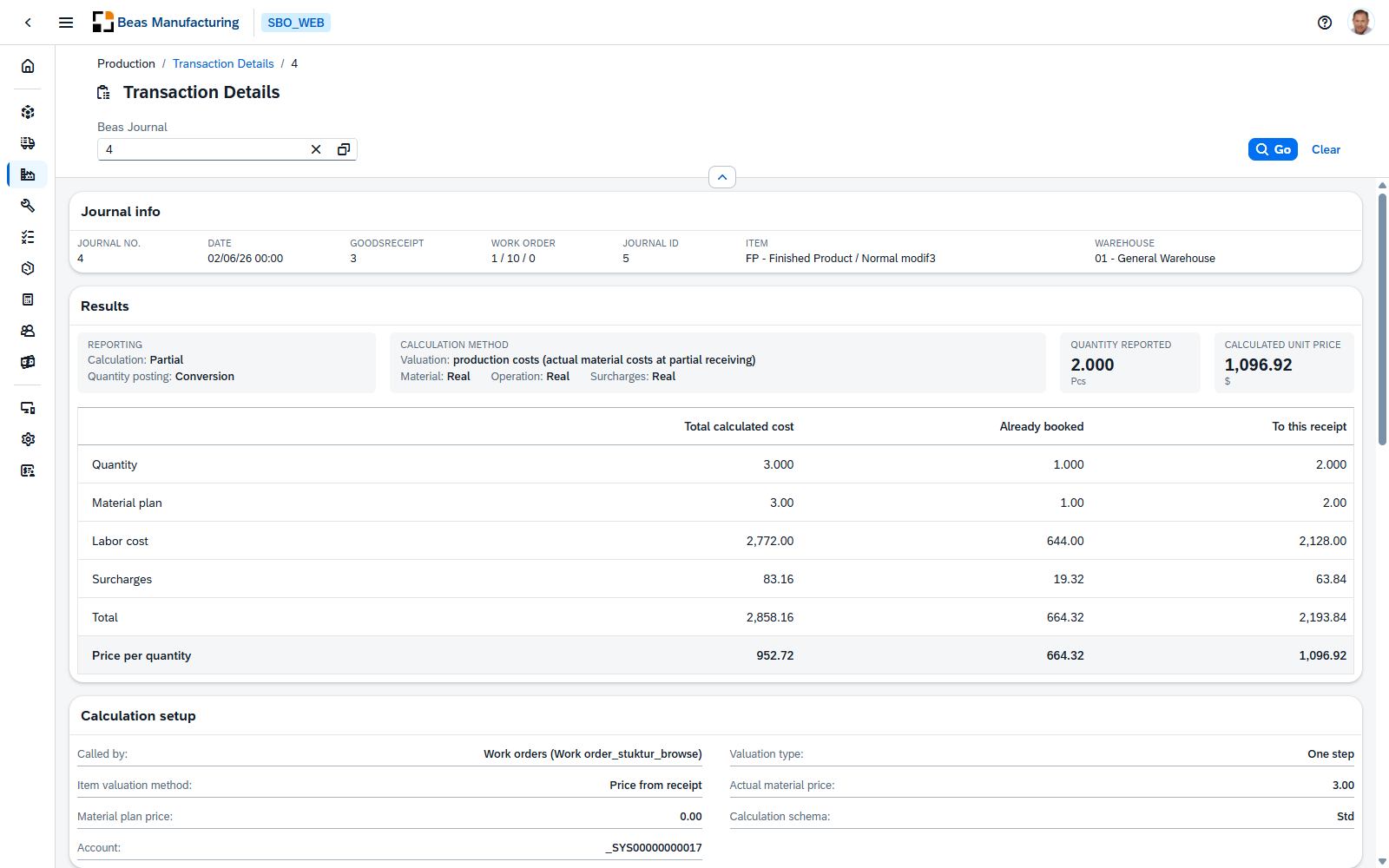
Information
The header card identifies the entry on a single line.
| Field | Description |
|---|---|
| Information | The transaction's own document number. |
| Date | The date the transaction entry was written. |
| (document reference) | The document the transaction entry was created from, and its number. The label comes from the transaction entry itself, so it names the document type that triggered the calculation — Goodsreceipt for a goods receipt. |
| Work Order | The Work order the receipt belongs to, as order / position / operation. |
| transaction ID | The transaction identifier the calculation was run under. |
| Item | The item that was received, as code and description. |
| Warehouse | The warehouse the receipt was posted to, as code and name. |
Results
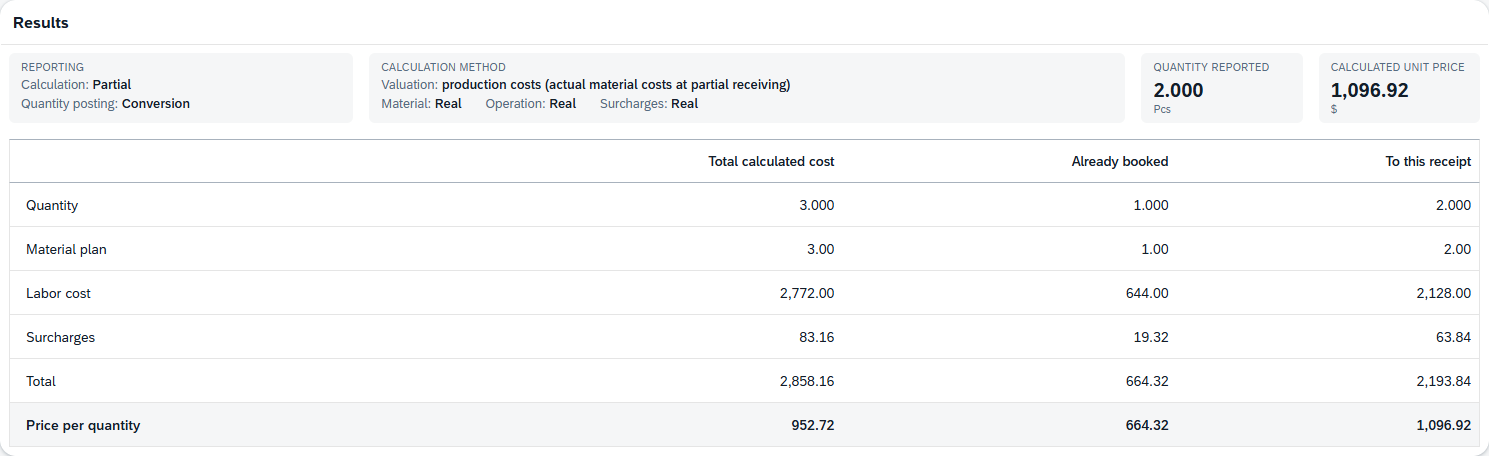
The top of the card summarizes how the receipt was reported and valued.
Reporting
| Line | Description |
|---|---|
| Calculation | Closing when the receipt closed the calculation, Partial when it was one of several partial receipts. |
| Quantity posting | Conversion when quantities are posted converted, Accumulated when they are posted as an accumulated quantity. This follows a system-wide Beas setting, not the individual transaction entry. |
Calculation method
The Valuation line names the valuation type the calculation used. Below it, Material, Operation and Surcharges each state how that cost block was valued — Actual or Plan, prefixed with Closing or Partial where the valuation depends on the receipt being a closing one.
Quantity reported and Calculated unit price show the two figures the receipt was posted with, each with the unit of measure or currency it is expressed in below it.
Cost breakdown
The table splits the calculation into what was calculated in total, what earlier receipts had already taken, and what this receipt got.
| Column | Description |
|---|---|
| Total calculated cost | The full calculated amount for the work order operation. |
| Already booked | The part of it that previous receipts already posted. |
| To this receipt | The part that was posted to the receipt this entry belongs to. |
| Row | Description |
|---|---|
| Quantity | The quantities the three columns refer to. |
| Material plan | The material cost. |
| Labor cost | The labor and machine cost. |
| Surcharges | The surcharges applied on top. |
| Total | The sum of Material plan, Labor cost and Surcharges. |
| Price per quantity | The Total of each column divided by that column's quantity — the unit price each column works out to. It is highlighted as the row the other rows lead up to. |
A dash means the calculation protocol carries no value for that cell, which is not the same as a zero. Total is still shown when only some of the three cost rows have values; the missing ones count as zero.
Calculation setup
The parameters the calculation ran with, in two columns.
| Field | Description |
|---|---|
| Called by | What triggered the calculation. |
| Item valuation method | The valuation method taken from the item. |
| Material plan price | The planned material price the calculation started from. |
| Account | The account the receipt was posted to. |
| Valuation type | The valuation type the calculation applied. |
| Actual material price | The material amount the calculation arrived at. |
| Calculation schema | The calculation schema that produced the figures. |

Calculation details
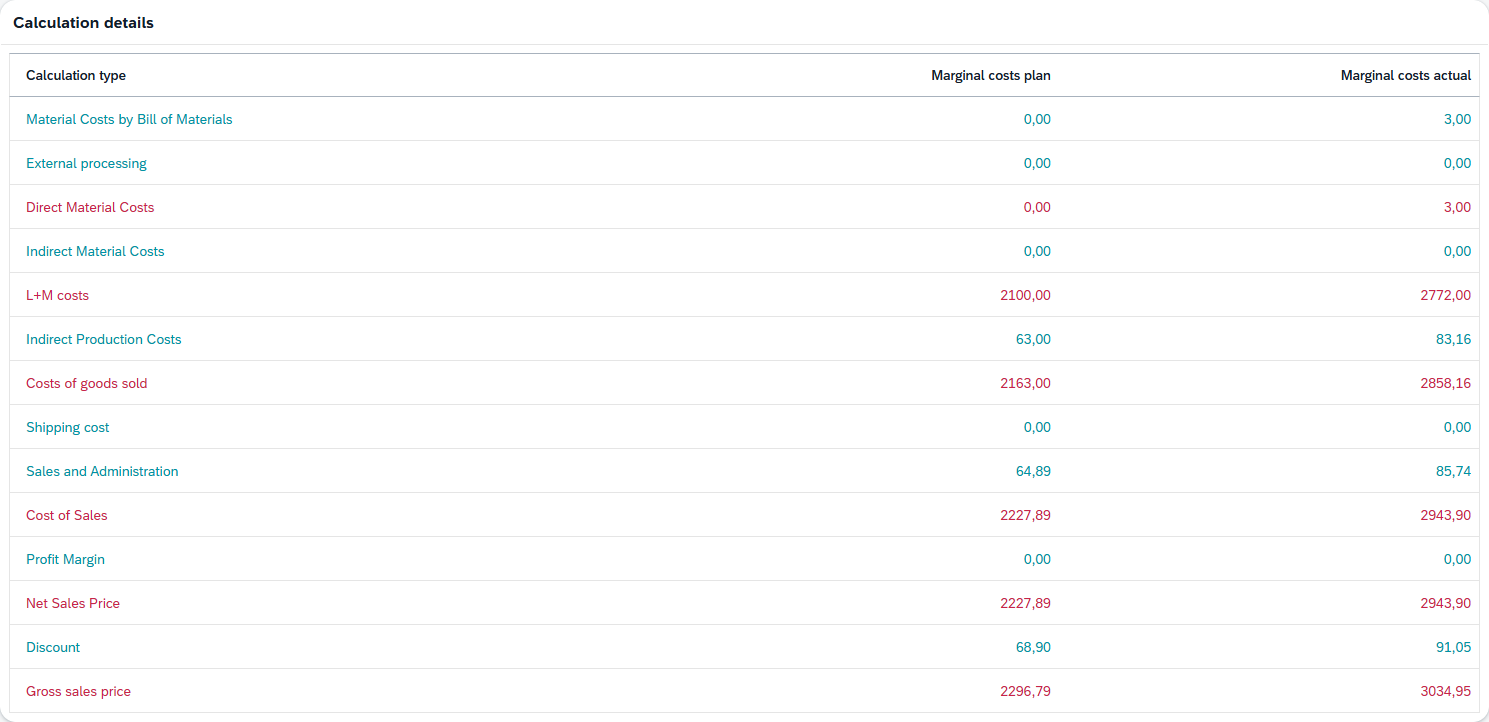
The calculation's own result lines, as the calculation engine wrote them.
The first column, Calculation type, names each line. The two value columns follow the valuation the transaction entry used:
| Valuation | Columns shown |
|---|---|
| Full-cost valuation | Full costs plan and Full costs actual |
| Marginal-cost valuation | Marginal costs plan and Marginal costs actual |
Line colors are the ones the calculation assigned, so a line highlighted here is highlighted for the same reason it is in the Beas desktop client: the lines that total up the ones above them — Direct Material Costs, Costs of goods sold, Cost of Sales, Net Sales Price — stand out from the lines that feed them.
Allocation over time
A line chart of the item's Entry price across the goods receipts posted for this work order operation, subtitled Entry price history for the item. The card header states how many receipts were posted for the Work order.
The receipt this Transaction details document belongs to is drawn with a larger marker captioned This document, so you can see where this transaction sits in the sequence.
When the item has no receipt history to plot, the card shows No price history available.
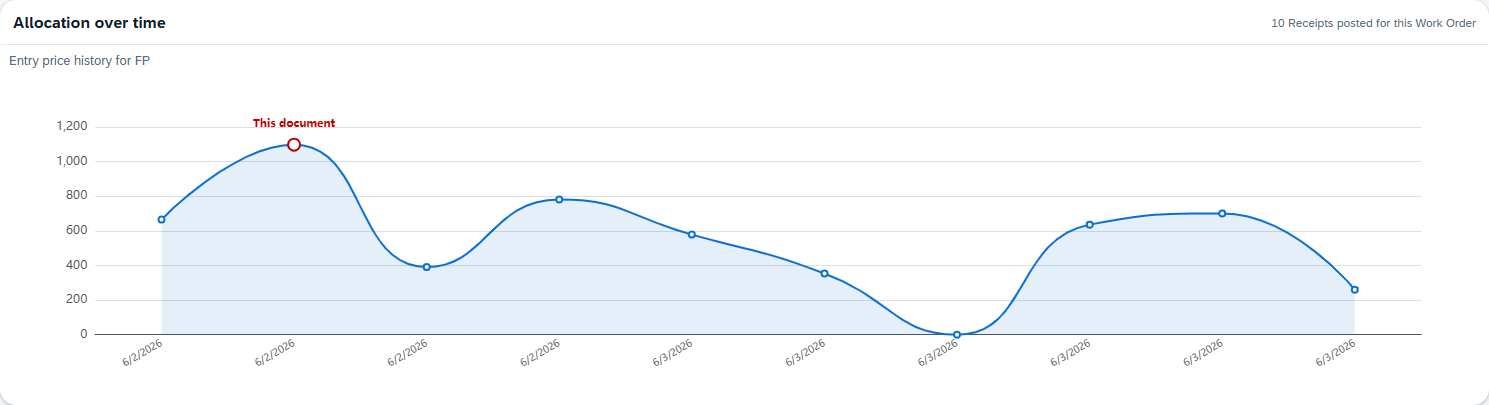
Use the chart to judge a single receipt against its neighbours: a point that sits well away from the rest usually means the material or labor valuation of that receipt differed from the others, which the Calculation setup card will name.
Audit log
Who produced the entry and where.
| Field | Description |
|---|---|
| User | The user the calculation ran as. |
| Work station | The work station the receipt was posted from. |
| beas version | The Beas version that wrote the entry. |
| Date / Time | When the entry was written. |

Refreshing data
The page loads when a transaction entry is selected and keeps showing that entry until another one is picked. Because the figures are the stored calculation protocol, they do not change while the page is open — select the Transaction details document again to reload it.
Permissions
| Action | Requires |
|---|---|
| Opening the Transaction Details page | Read on Transaction Details. |
Tips
Read Already booked and To this receipt together before questioning a cost: on a work order received in several partial receipts, a small figure in To this receipt is normal — most of the cost has already gone to the earlier receipts.
When the numbers look wrong, start at Reporting. Whether the receipt was Closing or Partial decides which valuation the calculation applied to every cost block, and the Calculation method lines just below name the result.
To explain a booking months after the fact, read the Audit log: the user, the work station, the Beas version and the moment are usually enough to reconstruct what the configuration was at the time, without guessing.