Work Order Positions - List
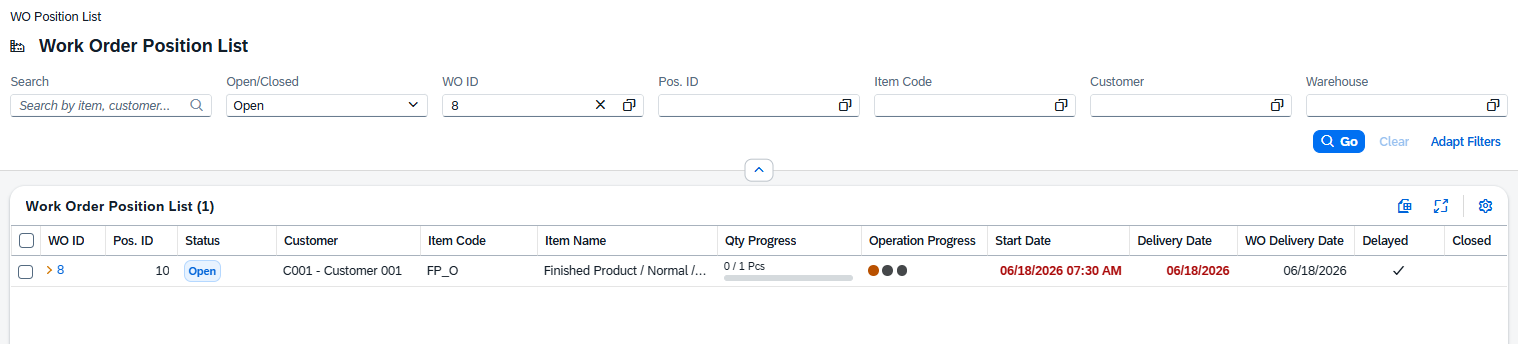
The Work Order Position List gives a cross-work-order view of all production positions. Where the Work Orders view shows one header per order, this page shows one row per position line, making it easy to track individual components and sub-assemblies across many work orders at once. Each row displays quantity progress, operation progress and delay indicators, so you can quickly spot which positions need attention.
Opening the view
- In the main navigation, go to Documents › Work Order Position List.
- The list opens showing all open positions by default (filter Closed = Open is pre-set).
- Click any row to open the position detail page.
Filters and search
The filter bar above the grid lets you narrow down the list. Type in the search box to search across Item Code, Item Name and Customer Name simultaneously. Use the individual filter fields for more precise control.
| Filter | Description |
|---|---|
| Closed | Show open or closed positions. Defaults to Open. Set to blank to show all. |
| Delayed | Filter to positions whose delivery date is in the past and that are still open. Set to Yes to see overdue positions only. |
| Starting Today | Filter to positions whose planned start date is today. Useful for a daily production pick list. |
| Doc Entry | Filter by work order ID. Type the number directly or use the selection dialog. |
| Item Code | Filter by item code. Use the selection dialog to pick from the item master data. |
| Customer | Filter by customer ID. Use the selection dialog to pick from the business partner list (customers only). |
| Warehouse | Filter by warehouse code. Use the selection dialog to pick from the warehouses list. |
Press Go to run the search with the current filter values. Press Clear to reset all filters. Press Adapt filters to select any value(s) based on the columns in the list below.
List columns
The grid shows the most useful fields by default. Use the column settings button to show or hide additional columns.
| Column | Description |
|---|---|
| WO ID | The work order DocEntry. Clicking the link navigates to the parent work order. |
| Position ID | The sequential line number within the work order. |
| Status | The calculated status of the position, shown as a colored badge: Open (no quantity made yet), In Work (some quantity made but not closed), or Closed. |
| Customer | The customer code and name, shown as Code – Name, taken from the parent work order. |
| Item Code | The component or sub-assembly item code for this position. |
| Item Name | The description of the item. |
| Qty Made | A progress bar showing Qty Made / Qty Planned with the unit of measure. Gives an at-a-glance view of production completion for this line. |
| Operation Progress | A color coded position status badge showing the percentage of routing operations that have been closed. 100 % means all operations for this position are complete. Not selectable as a filter value. |
| Start Date | The planned production start date and time for this position. When delayed or not in progress, the date font color is red. |
| Delivery Date | The date this position must be completed. Shown in red when the position is overdue (past delivery date and still open). |
| WO Delivery Date | The delivery date of the parent work order, for reference. |
The following columns are available but hidden by default: Delayed, Starting Today, Warehouse, Project, Closed.
The WO ID column is a clickable link. Click it to jump directly to the parent work order without leaving the context of this list.
Click any row in the list to open the WO position detail page.