Work Order Reservation
The reservation page puts stock aside for the components of a work order position. Open it from the position's Related Documents menu (entry Reservation) to see every open material line of the position, or from the work order's own Related Documents menu to see the lines of every position of the order. The Reservation button on the Work Order Bill of Materials, the Material Requirements report and the Reservation List open it on one component line only.
The page is three panels. Material Lines at the top lists the components and what each one still needs; the line you select there drives the two panels below: Available Stock shows what can be reserved for that line, and Reservations of the Line shows what already is. Reserving needs the reservation permission at full control. Without it the page still opens and shows the figures, but the action buttons and the Reserve column are not there.
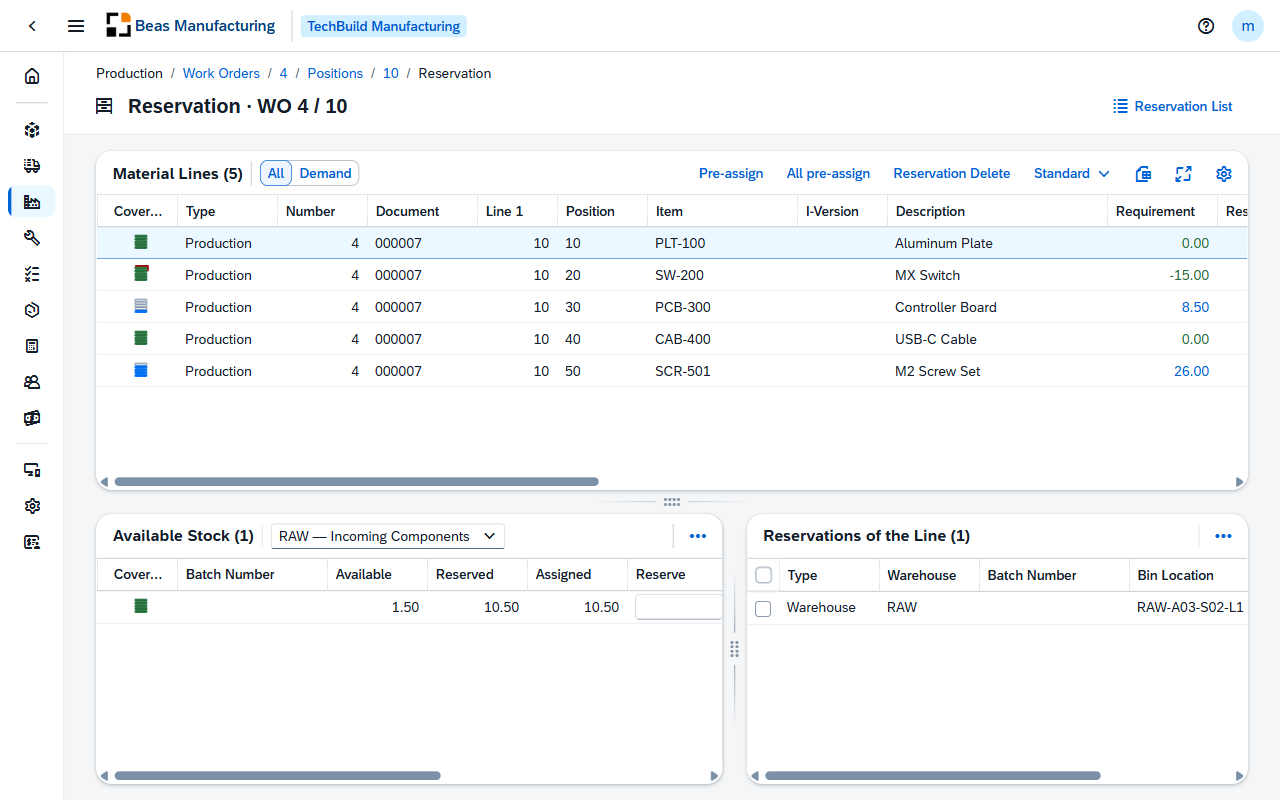
The screenshots in this topic come from the SBO_TechBuild company.
Header
The title names the work order and the position. Two actions sit in the header:
| Field | Description |
|---|---|
| Show all lines | Widens a page that was opened on one component line to every open line of the position. Only shown when the page was opened from a component line. |
| Reservation List | Opens the Reservation List filtered to this work order — every reservation the order holds, across all of its positions. |
Material Lines
One row is one open material line of the position, with its requirement and how far it is already covered. The first line is selected when the page opens; click another row to select it. The two panels below always show the selected line.
All and Demand beside the title switch between every line and only the lines whose Requirement is not zero — the lines that still need something, or hold more than they need.
| Field | Description |
|---|---|
| Pre-assign | Reserves the selected line automatically from the Priority Warehouse for Pre-assignment chosen on the Available Stock panel, batch by batch or serial by serial, until the requirement is covered or the warehouse runs out. Only released batches are taken. Lines whose item is issued manually are skipped; batch and serial items are included only when the company settings assign their numbers automatically. |
| All pre-assign | Runs Pre-assign over every line the panel currently lists — so with Demand active, only the lines that still need stock. |
| Reservation Delete | Deletes every reservation of the selected line at once. |
When every line ends covered, a message confirms how many reservations Pre-assign wrote. When a line could not be covered in full, a report names each such line with its reason:
| Reason | Meaning |
|---|---|
| partly reserved, not enough stock for the rest | The priority warehouse ran out before the requirement was covered; the rest stays open. |
| no eligible stock | The priority warehouse holds nothing free for the line — stock in other warehouses and batches that are not released do not count. |
| issued manually, reserve it by hand | The item is not backflushed, so Pre-assign leaves the line to you. |
| batch numbers are not assigned automatically | The company settings do not assign batch numbers automatically; reserve batch and serial items by hand. |
Reservation Delete and the Delete on Reservations of the Line act immediately — there is no confirmation. A deleted reservation can be made again from Available Stock, but its batch, bin and quantity are not remembered.

Coverage
The first column is an icon that shows how far the line is reserved. Hover it to see the figures behind it.
| Value | Label | Indicator |
|---|---|---|
| Nothing reserved | Nothing reserved | Empty stack |
| Reserved less than the quantity needed | Partially reserved | Blue stack, filled in proportion — never full |
| Reserved exactly the quantity needed, or nothing left to reserve | Fully reserved | Green stack, all five bars |
| Reserved more than the quantity needed | Over-reserved | Red stack with an overflow bar |
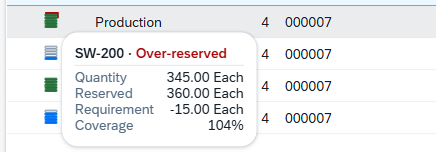
Four quantity columns are colored by the same idea:
| Column | Color |
|---|---|
| Requirement | Green when nothing is left to reserve. Blue when something is still open and the total stock could cover it. Red when the total stock cannot. |
| Reserved | Grey when nothing is reserved. Blue when part of the requirement is reserved. Green when exactly the requirement is reserved. Red when more than the requirement is reserved. |
| Allocation warehouse | Red when the free stock of the staging warehouses cannot cover what is still open — Pre-assign will not be able to finish the line. |
| Inventory Total | Green when the item's total stock covers its minimum stock plus this requirement. Red when it does not. A hidden column, see below. |
Default Columns
| Column | Description |
|---|---|
| Coverage | How far the line is reserved. See Coverage. |
| Type | The kind of document the line belongs to — Production for a work order. |
| Number | The work order number. |
| Document | The work order's Reference — free text on its header, often the sales order it came from. The work order's own number is in the Number column. |
| Line 1 | The position within the work order. |
| Position | The line's position within the position's bill of materials. |
| Item | The component's item code. |
| I-Version | The item version the line calls for. |
| Description | The component's description. |
| Requirement | What still has to be reserved: the quantity needed minus what is already reserved. A negative value means more is reserved than needed. |
| Reserved | The quantity already reserved for this line. |
| Open requests | The quantity of purchase or production requests created for this line and not yet processed. |
| Allocation warehouse | Free stock of the component in the staging warehouses — what is on hand there minus the reservations already held there. |
| External Warehouse | Stock of the component in a subcontractor's supply warehouse, for lines of an external operation. |
| Ordered | The open quantity on purchase orders raised for this line. |
| UoM | The unit the quantities are in. |
| Warehouse | The warehouse the component is issued from — the line's own warehouse, or the item's default warehouse when the line has none. |
| Customer | The customer of the work order. |
| Res. Total | Everything reserved of this item, across all warehouses and all documents — not just this line. |
| Branch | The branch of the position. |
| Lead time | The item's lead time in days. |
| Delivery Date | The earliest delivery date among the item's open purchase order lines. |
| Date of requirement | When the material is needed: the start of the operation it is assigned to, else the position's first operation, else the position's start or delivery date. |
Additional Columns
Hidden columns are available in the tool bar settings ().
| Column | Description |
|---|---|
| Line 2 | The line's number within the position's bill of materials. |
| Drawing Number | The component's drawing number. |
| Quantity | The quantity the line needs after what has already been issued — the requirement before reservations are taken off. |
| Inventory Total | The item's stock on hand in every warehouse that is not locked. Coloured, see Coverage. |
| Inventory | The item's stock on hand in the line's warehouse. |
| Goods receipt from PO Total | The item's quantity on order in SAP, across all purchase documents. |
| Sales Order | The item's quantity committed to sales documents in SAP. |
| Planned Qty | The line's rounded total quantity before anything was issued. |
| Actual Qty. | The quantity already issued to the line. |
| Purchase UoM | The unit the item is purchased in. |
| Purchase Factor | How many inventory units one purchase unit holds. |
| Supplier | The item's default supplier. |
| Variant | The variant of the position. |
| Configuration | The variant routing index of the position. |
| Name | The customer's name. |
| Min. Stock | The item's minimum stock level. |
| Assembly | The item code of the assembly the position produces. |
| Assembly Description | The assembly's description. |
| Assembly Drw.No. | The assembly's drawing number. |
| Assembly Quantity | The quantity of the assembly the position produces. |
| Total Requirement | The full requirement of the line, before issued and reserved quantities are taken off. |
| Default Warehouse | The warehouse set on the bill of materials line itself. |
| Closed | Check mark when the line is closed. |
| Default Bincode | The bin the component is issued from by default. |
Available Stock
The stock of the selected line's component that can still be reserved for it: one row per warehouse, bin, batch or serial number, with what is free, what is already reserved and how much of that belongs to this line. For a serial-managed item the batch column is headed Serial Number and one row is one piece.
To reserve, type a quantity into Reserve and leave the cell — the reservation is saved at once and all three panels refresh. The arrow beside the cell, Reserve maximum, fills in everything the row can still give the line: the smaller of the row's Available and the line's Requirement, and at most one piece for a serial number. Double-clicking the row does the same. A row whose Available drops to zero leaves the list.
Reserving from a row that already holds a reservation for this line adds to that reservation instead of creating a second one. Reservations of the Line keeps one row per warehouse, bin and batch, however many times you reserved from it.
A batch number in red is a batch the warehouse has not released. A bin location in red is a bin, or an area, that does not allow removals.
The dropdown beside the title is the Priority Warehouse for Pre-assignment. It lists the staging warehouses of the position's branch, remembers your choice, and decides where Pre-assign draws its stock from. It does not filter the rows below. When the branch has no staging warehouse the dropdown is empty and Pre-assign draws from the line's own warehouse instead.

Coverage
The same icon as on Material Lines, here for one stock row: how much of the quantity the line needs this row holds. Empty when nothing of this row is assigned to the line, blue in proportion when part of it is, green when the row alone covers the line, red when it holds more than the line needs. Its hover card shows the line's Quantity, the row's Assigned and the resulting Coverage.
Default Columns
| Column | Description |
|---|---|
| Coverage | The share of the quantity the line needs that this row holds. |
| Batch Number | The batch, or for a serial-managed item the serial number. Headed Serial Number in that case. |
| Available | The quantity still free to reserve on this row. |
| Reserved | Everything reserved on this row, by this line and by any other document. |
| Assigned | The part of Reserved that belongs to the selected line. |
| Reserve | The quantity to reserve now. Typing a value and leaving the cell saves the reservation. |
| Unit | The unit the quantities are in. |
| Warehouse | The warehouse holding the stock. |
| Bin Location | The bin holding the stock, in a bin-managed warehouse. |
| Expir. date | The batch's expiry date — the reason to take one batch before another. |
Additional Columns
Hidden columns are available in the tool bar settings ().
| Column | Description |
|---|---|
| System Number | The internal number of the batch or serial number. |
| Release Date | The date the batch was admitted. |
| Manufacturing Date | The batch's manufacturing date. |
| B Available | The quantity free on the batch as a whole. |
| L Available | The quantity free on the load carrier. |
| D Available | The quantity free on this bin. |
| B Reserved | The quantity reserved on the batch as a whole. |
| L Reserved | The quantity reserved on the load carrier. |
| D Reserved | The quantity reserved on this bin. |
| Warehouse Name | The warehouse's description. |
| RFID | The load carrier the stock is on. |
| Info 1 | The batch's first free-text attribute. |
| Info 2 | The batch's second free-text attribute. |
| Info 3 | The batch's third free-text attribute. |
| I-Version | The item version of the stock. |
| Description | The component's description. |
| Drawing Number | The component's drawing number. |
| Batch Status | Whether the batch is released, without access, or locked. |
| Bin Locked | Check mark when the bin does not allow removals. |
| Item Code | The component's item code. |
| Location | The location recorded on the batch or serial number. |
| Dist. Number | The batch or serial number as it is stored. |
Available is the smallest of the three availabilities: a batch can be free as a whole while the bin it lies in is already promised, and the row can only offer what every level still has.
Reservations of the Line
The reservations the selected line already holds, one row each. Tick one or more rows and press Delete () to remove them — immediately, without a confirmation. Red batch numbers and bin locations mean the same as on Available Stock.

A goods issue for the line consumes its reservation: the reserved quantity drops by what was issued, and the row disappears once everything reserved has been issued. A reservation that shrinks or vanishes after a posting is expected, not lost.
Default Columns
| Column | Description |
|---|---|
| Type | Warehouse for stock reserved where it lies, Inflow for stock reserved against something still arriving. |
| Warehouse | The warehouse the stock is held in. |
| Batch Number | The batch, or for a serial-managed item the serial number. Headed Serial Number in that case. |
| Bin Location | The bin the stock is held in. |
| Quantity | The quantity reserved. |
| Version | The item version of the reserved stock. |
Additional Columns
Hidden columns are available in the tool bar settings ().
| Column | Description |
|---|---|
| Lock Level | Whether the reservation holds the batch, the load carrier or the bin. |
| Doc Entry | The reservation document the row belongs to. |
| Line Number | The row's line within that document. |
| Created By | The user who made the reservation. |
| RFID | The load carrier the stock is on. |
| System Number | The internal number of the batch or serial number. |
Examples
Pre-assign reports "no eligible stock" although Available Stock lists plenty. Pre-assign only draws from the Priority Warehouse for Pre-assignment; stock in any other warehouse is ignored, even when the panel shows it. Either switch the dropdown to the warehouse that holds the stock and run Pre-assign again, or reserve the row by hand with Reserve maximum.
The Requirement is negative and the coverage icon is red. The line holds more than it needs — usually because the position's quantity was reduced after the stock was reserved, or because two people reserved for the same line. Nothing is wrong with the stock; open Reservations of the Line, tick the surplus rows and press Delete, and the Requirement returns to zero.
Reserve maximum filled in 1, not the 5 that are available. The component is serial-managed: one row of Available Stock is one serial number, and a reservation takes one piece at a time. Reserve five rows to cover a requirement of five.
A line stays blue after Pre-assign wrote nothing for it. Its item is issued manually, so Pre-assign leaves it alone — the closing message names it with issued manually, reserve it by hand. Select the line and reserve from Available Stock directly.
Available Stock shows a row with Reserved 42 and Assigned 0, or no rows at all, although the item is in stock. Another document has reserved that stock. Reserved counts every document's reservations on the row, Assigned only this line's, and the coverage icon fills from Assigned alone. Those reservations are not listed under Reservations of the Line — open the Reservation List from the header to see who holds them. When every unit is reserved elsewhere, the panel shows No stock can be reserved for this material line.
Ten keyboards, but the plate line needs 10.50. Quantities include the line's scrap or waste allowance from the bill of materials, so a requirement can be fractional even for pieces. The hidden Quantity and Planned Qty columns show the same figure; nothing has to be corrected.