Measurement Positions
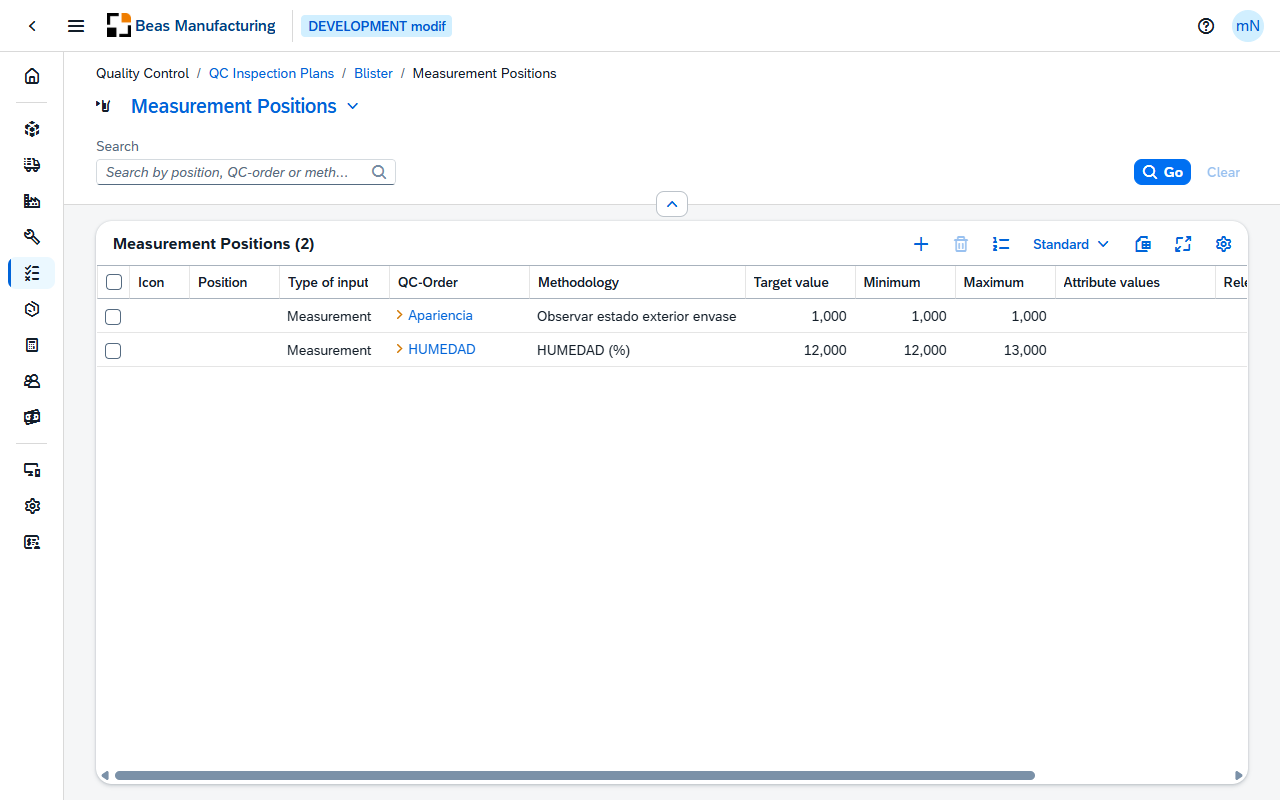
The Measurement Positions list holds the checks one inspection plan is made of. One row is one check: what is measured or judged, what the target is, and how far off it may be. The list is opened with Measurement Positions on the plan detail page and belongs to that plan; the breadcrumb leads back to it.
Rows are listed in the order the checks are made: by Sort, then by Position ID.
Re-number
Re-number rewrites the position numbers of every check in the plan in their current order — 10, 20, 30, and so on — and asks for confirmation first. Use it after inserting checks between existing ones, or when positions were saved without a number, so the numbering leaves room again.
Default Columns
| Column | Description |
|---|---|
| Icon | The icon assigned to the position on its Appearance section. |
| Position | The position number. |
| Type of input | Measurement, Attribute or Text. |
| QC-Order | The QC template the check is based on. Click the value to open the template. |
| Methodology | How the check is carried out. |
| Target value | The value the check aims at, shown with its unit. |
| Minimum | Lowest acceptable value, shown with its unit. |
| Maximum | Highest acceptable value, shown with its unit. |
| Attribute values | The values an attribute check offers. |
| Relevant | Check mark when the position counts towards the result. |
| Group | The QC group the position is filed under. Click the value to open the group. |
Target value, Minimum, Maximum and UoM are filled only on a Measurement row. An Attribute or Text row shows them blank, whatever was stored earlier — the check has nothing to compare.
Additional Columns
Hidden columns are available in the tool bar settings ().
| Column | Description |
|---|---|
| Color | The colour assigned to the position. It also colours the Position and Methodology text in the row. |
| UoM | The unit the values are expressed in. |
| Check mark when the position is printed. | |
| Test tool | The tool the measurement is taken with. |
| Manual OK | Check mark when the result may be set to OK by hand. |
| Auto-release | Check mark when the result is released automatically. |
| Condition | The condition under which the position applies. |
| Item Rule | The rule that decides which items the position applies to. |
| Business Partner | The business partner the position is limited to. Click the value to open the business partner. |
| Position ID | The technical number of the position within the plan. |
| Sort | The sort order of the position. |
| Created | Date and time the position was created. |
| Created By | User who created it. |
| Modified | Date and time it was last changed. |
| Modified By | User who last changed it. |
Measurement Position detail
Open a row in the list to see one check. The page opens in display mode; press Edit to change it.
Header
The header shows the position number with the Methodology text beneath it, and the icon assigned to the position. The figures at a glance:
| Field | Description |
|---|---|
| QC-Order | The QC template the check is based on. |
| Target value | The value the check aims at. |
| Last Modified | Date and time the position was last changed. |
The action buttons:
| Field | Description |
|---|---|
| Apply Template | Shown in edit mode while Type of input is Attribute. Choose a QC template; its attribute selection is copied into Attribute values. Nothing else on the position is changed. |
The form has four sections: General, Type of input, Rules and Appearance. A fifth, Custom Fields, appears only when the administrator has configured at least one field for QC Inspection Plan Positions under System → UDF Configuration; its fields, labels and types are the ones configured there.
General
| Field | Description |
|---|---|
| Position | The position number. It may be left empty; Re-number in the list fills it in later. |
| Sort | The sort order. It decides the order the checks are listed and renumbered in. |
| QC-Order | The QC template the check is based on, with a choose-from-list of templates. Required. |
| Methodology | How the check is carried out, in the words the inspector will read, over several lines. |
| Relevant | Whether the position counts towards the result. Switched off, and unavailable, while Type of input is Text. |
| Whether the position is printed. | |
| Test tool | The tool the measurement is taken with, with a choose-from-list of tools. |
| Group | The QC group the position is filed under, with a choose-from-list of groups. |
| qspos1 | First free text field of the position. |
| qspos2 | Second free text field of the position. |
Type of input
What the inspector enters, and what counts as a pass. The fields below Type of input change with it, so set it first. A new position starts as a Measurement with Relevant, Manual OK and Auto-release switched on.
| Field | Description |
|---|---|
| Type of input | Measurement for a number, Attribute for a choice from a list, Text for free text. Required. |
| Attribute values | The values an attribute check offers, as a comma-separated list. Apply Template copies them from a QC template. Attribute positions only. |
| Target value | The value the check aims at. Measurement positions only. |
| UoM | The unit the values are expressed in, with a choose-from-list of units. Required as soon as Target value has a value. |
| Minimum | Lowest acceptable value. |
| Maximum | Highest acceptable value. |
| Manual OK | Whether the result may be set to OK by hand. |
| Auto-release | Whether the result is released automatically. |
Changing the type discards what the new type does not use. Choosing Text switches Relevant off at once. When the position is saved, an Attribute or Text position loses its Target value, UoM, Minimum and Maximum; a Measurement or Text position loses its Attribute values.
Rules
When the position applies, and how often.
| Field | Description |
|---|---|
| Condition | The condition under which the position applies. |
| Item Rule | The rule that decides which items it applies to. |
| Business Partner | The business partner it is limited to, with a choose-from-list of business partners. |
| Only Every n-th Document | Check the position only on every n-th document. 0 or more. |
| Skip Every n-th Measurement | Skip the position on every n-th measurement. 0 or more. |
| Always After Error | Whether the position is checked after an error regardless of the two figures above. |
Appearance
| Field | Description |
|---|---|
| Image | The icon shown for the position, chosen from the SAP icons, the Beas icons or an image of your own. It also appears in the header. |
| Color | The colour applied to the position number and Methodology text in the list. |
Examples
The position will not save, and UoM is marked. A Target value is only meaningful with its unit, so UoM becomes required the moment Target value is filled in. Either pick the unit or clear the target value.
A template's tolerances did not come across. Apply Template copies exactly one thing — the template's attribute selection into Attribute values — and is offered only for an Attribute position. A measurement position takes its Target value, Minimum, Maximum and UoM from what you type here, not from the template named in QC-Order.
Positions that run out of numbers. The list orders the checks by Sort, then by their technical Position ID; Position is the label the inspector sees. To slot a check between 10 and 20, give it a Sort between the two, then press Re-number in the list: every position is rewritten as 10, 20, 30 in that order and the gaps are back.