QC Orders
The QC Orders list is the entry point to quality control. Each row is one QC order — an inspection raised for an item from a production, purchasing, sales or stock document, or for a batch — with its inspection plan, quantity, sample counts and release state. From here you open an order to see its details, block or release its batch and post its material transfer.
Two buttons in the grid toolbar are specific to this list. Select exactly one order with its checkbox, then press Input by Sample to record results sample by sample, or Input by Test to record them test by test — see Input by Sample and Input by Test. Both buttons stay disabled until one row is selected; the same two entry points sit in the header of the QC Order detail.
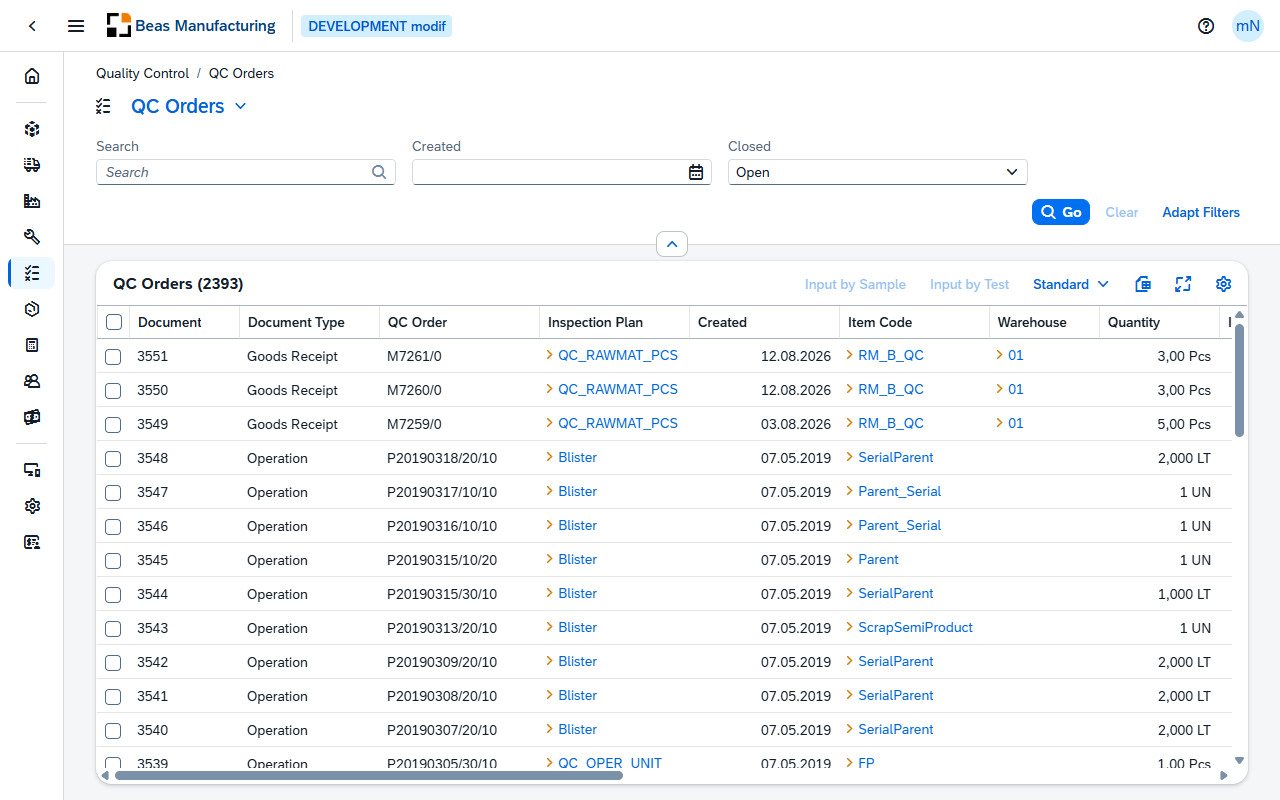
Default Columns
| Column | Description |
|---|---|
| Document | The document entry of the QC order. |
| Document Type | The type of document the order was raised from: Batch, Goods Receipt PO, Production, Sales Return, Expiry Date Exceeded, Stock Transfer, Goods Receipt, A/P Invoice, Purchase Return, A/P Credit Memo, A/R Credit Memo, Delivery, A/R Invoice, Cancellation, Batch split, Batch Transfer Posting, Manual or Operation. |
| QC Order | The QC order ID. |
| Inspection Plan | The QC inspection plan the order follows. Click the value to open the plan. |
| Created | Date the order was created. |
| Item Code | The inspected item. Click the value to open the item. |
| Warehouse | The warehouse the inspected stock is in. Click the value to open the warehouse. |
| Quantity | The inspected quantity, followed by its unit. The decimals follow the unit. |
| Item Info | Free text about the order. |
| Info | System text on the order, such as the routing operation it was created for. |
| Open | Number of samples not yet evaluated. |
| OK | Number of samples that passed. |
| Error | Number of samples that failed. |
| Transfer | Whether the material still has to be transferred — see Transfer. |
| Release | Check mark when the order is released. |
| Closed | Check mark when the order is closed. The list opens with this filter set to Open; choose All in the filter bar to see closed orders as well. |
| Business Partner | The business partner linked to the order. Click the value to open the business partner. |
| Rule | The QC rule applied to the order. |
| Attachment | Number of documents attached to the order. |
Additional Columns
Hidden columns are available in the tool bar settings ().
| Column | Description |
|---|---|
| Description | The item description. |
| Batch Number | The batch under inspection. |
| Unit of Measure | The unit of the quantity. Click the value to open the unit. |
| Version | The item version. |
| Drawing Number | The drawing reference of the item. |
| Branch | The branch the order belongs to. |
| Belongs To | The parent QC order when this order is a sub-order. Click the value to open the parent. |
| Adjusting Factor | The correction factor applied to the order. |
| Order Status | Open, Released or Closed — see Order Status. |
| Batch Status | Whether the order's batch is blocked in SAP — see Batch Status. |
| Printed | Check mark when the order has been printed. |
| Release Date | Date the order was released. |
| Released By | Who released the order. |
| Closed Date | Date the order was closed. |
| Closed By | Who closed the order. |
| Node ID | The node of the order. |
| QC Order Number | The numeric part of the QC order ID. |
| QC Item Number | The line of the inspection plan the order refers to. |
| Project | The project the order is assigned to. |
| Project UID | The internal number of that project. |
| Origin Type | The object type of the source document. |
| Origin Number | The document entry of the source document. |
| Order | The source document the order was raised from. |
| Position | The line in the source document. |
| Base Line 2 | A second line reference in the source document. |
| Type | The order's own type, with the same labels as Document Type. An order created from a batch shows Batch here and the document the batch came from under Document Type. |
| Production Document | The linked production document. |
| Production Position | The position in that production document. |
| Production Pos. | A second position reference in the production document. |
| Production Measurement | The measurement value from production. |
| Status Info | Additional status text. |
| Release Person ID | The ID of the person who released the order. |
| Release Station | The station the order was released from. |
| Person ID | The ID of the person linked to the order. |
| Internal Key | The internal record key. |
| Valuation | The valuation result of the order. |
| Valuation Info | Additional valuation text. |
| Block Reason ID | The ID of the blockage reason. |
| Block reason | The blockage reason. |
| Type Value | The value belonging to the order type. |
| Station | The station linked to the order. |
| Image 1 | File path of the first image attached to the order. |
| Image 2 | File path of the second image. |
| Image 3 | File path of the third image. |
| Version Info | Additional version text. |
| Beas Version | The Beas version that wrote the record. |
| Branch ID | The internal number of the branch. |
| Created By | Who created the order. |
| Modified | Date and time the order was last changed. |
| Modified By | Who last changed the order. |
Transfer
The material transfer of the order, as a coloured badge. Orders without a transfer status show no badge.
| Label | Meaning | Indicator |
|---|---|---|
| No | No material transfer is needed. | Green |
| Open | The transfer still has to be posted. | Red |
| Booked | The transfer has been posted. | Green |
Order Status
Derived from the order's Release and Closed flags.
| Label | Meaning | Indicator |
|---|---|---|
| Open | Neither released nor closed. | Blue |
| Released | Released, not yet closed. | Green |
| Closed | The order is closed. | Grey |
Batch Status
Read from the SAP batch behind the order's item and batch number. An order without a batch, or whose batch is not registered in SAP, shows Free.
| Label | Meaning | Indicator |
|---|---|---|
| Free | The batch is not blocked in SAP. | Green |
| Locked | The batch is blocked in SAP (Not Accessible or Locked). | Red |
QC Order detail
Open a row in the list to see one QC order. The page opens in display mode; press Edit to change Drawing Number, Batch Number, Inspection Plan, Project and Item Info — every other field is written by the process that created or released the order.
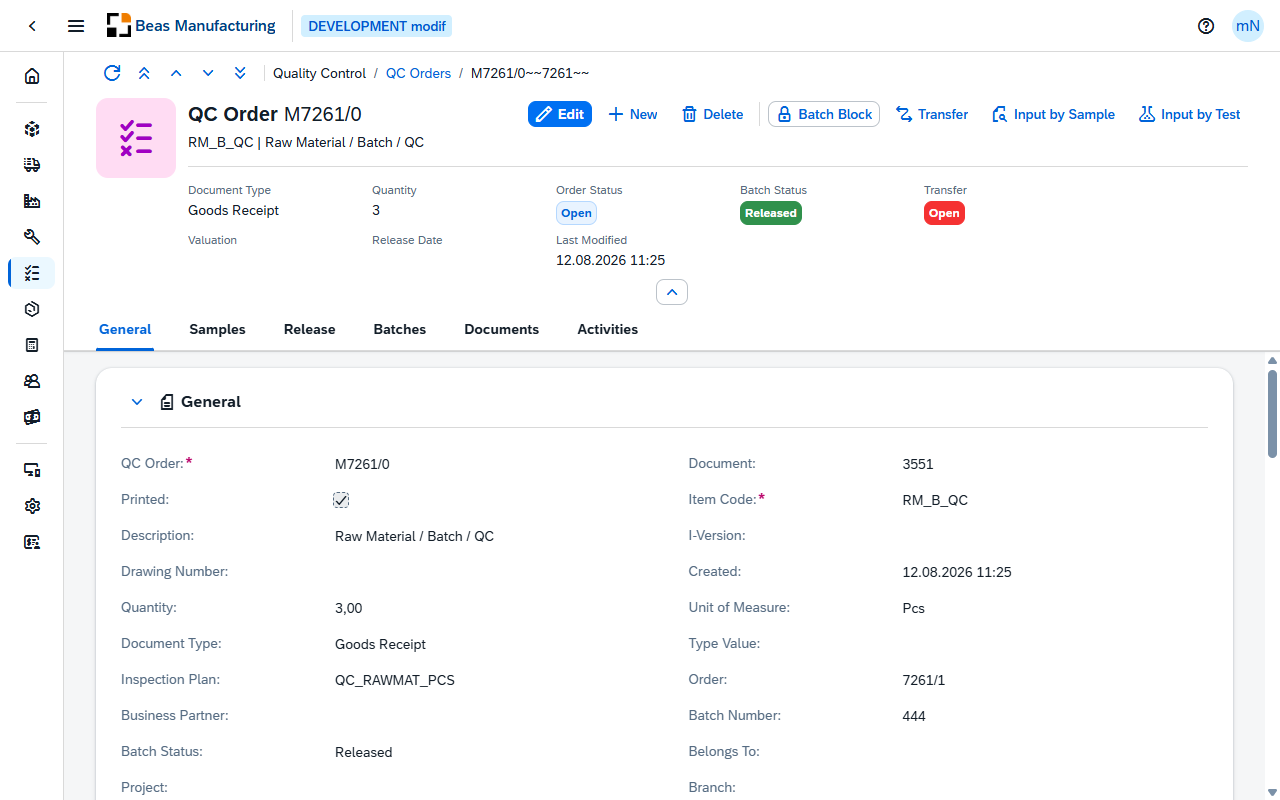
Header
The QC order ID is the title, with the item code and description beneath it. The facets:
| Field | Description |
|---|---|
| Document Type | The type of document the order was raised from — Production, Goods Receipt PO, Stock Transfer, Batch split and the other types listed under Default Columns. |
| Quantity | The inspected quantity. |
| Order Status | Open (blue) while the order is neither released nor closed, Released (green) once it is released, Closed (grey) once it is closed. |
| Batch Status | The SAP status of the order's batch: Released (green), Not Accessible (red) or Locked (red). No badge when the order has no batch registered in SAP. |
| Transfer | Whether the material transfer is still due: No (green), Open (red) or Booked (green). |
| Valuation | The valuation result of the order. |
| Release Date | Date and time the order was released. |
| Last Modified | Date and time the record was last changed. |
The action buttons:
| Field | Description |
|---|---|
| Batch Block | Blocks the order's batch in SAP — see Batch Block and Batch Release. Shown while the batch is free. |
| Batch Release | Releases the batch again. Takes the place of Batch Block while the batch is blocked. |
| Transfer | Posts the material transfer of the order — see Transfer to Warehouse. Shown only while the Transfer status is Open and the order is not closed. |
| Input by Sample | Opens result entry sample by sample — see Input by Sample. |
| Input by Test | Opens result entry test by test — see Input by Test. |
Batch Block and Batch Release
One button that follows the batch. Batch Block sets the SAP batch to Not Accessible; Batch Release sets it back to Released — the state the list shows as Free. The QC order itself is not changed: Order Status stays as it was, while the Batch Status facet and the badge in the Batches section update and the button changes to the opposite action.
The button is disabled when the order has no batch number. If the batch number is not registered in SAP, the action stops with an error message and nothing is changed.
A batch that is Not Accessible cannot be selected in SAP documents until it is released again. Every QC order on the same item and batch shows the new status.
Transfer to Warehouse
Transfer opens the Transfer to Warehouse dialog, which posts the inspected material out of its current warehouse.
| Field | Description |
|---|---|
| Batch Number | The order's batch. |
| Source Warehouse | The order's warehouse, with the batch's current stock there. |
| Document Type | The SAP document to post: Transfer to Warehouse, Goods Issue or Inventory Transfer Request. Purchase Return is offered as well when the order comes from a goods receipt PO. |
| Rejected | Mark when the material failed inspection. The proposed target warehouse switches to the reject route. |
| Target Warehouse | Where the stock goes. Proposed by the warehouse rule and changeable; offered for Transfer to Warehouse and Inventory Transfer Request only. The list holds the active warehouses other than the source; bin-managed warehouses are not offered. |
| Quantity | Defaults to the quantity still to transfer, capped by the batch's stock in the source warehouse, and cannot exceed that figure. |
| Posting Date | The posting date of the document. Defaults to today. |
| Remarks | Free text for the posted document. |
Post creates the document and closes the dialog; Cancel discards the input. A failed posting shows the reason inside the dialog and keeps what you entered. After a successful posting the order reloads: the Transfer status turns Booked once the whole planned quantity has been transferred and stays Open while a part is still outstanding, so a transfer can be posted in several steps.
Seven sections: General, Samples, Release, Custom Fields (only when configured), Batches, Documents and Activities.
General
| Field | Description |
|---|---|
| QC Order | The QC order ID. |
| Document | The document entry of the QC order. |
| Printed | Check mark when the order has been printed. |
| Item Code | The inspected item. |
| Description | The item description. |
| I-Version | The item version. |
| Drawing Number | The drawing reference of the item. |
| Created | Date and time the order was created. |
| Quantity | The inspected quantity, with the decimals of its unit. |
| Unit of Measure | The unit of the quantity. |
| Document Type | The type of document the order was raised from, with the same labels as in the header. |
| Type Value | The value belonging to the order type. |
| Inspection Plan | The QC inspection plan the order follows, with a choose-from-list of plans — see QC Inspection Plans. |
| Order | The source document the order was raised from. |
| Business Partner | The business partner linked to the order. |
| Batch Number | The batch under inspection. |
| Batch Status | The SAP status of that batch: Released, Not Accessible or Locked. Changed with Batch Block and Batch Release in the header. |
| Belongs To | The parent QC order when this order is a sub-order. |
| Project | The project the order is assigned to. |
| Branch | The branch the order belongs to. |
| Item Info | Free text about the order. |
| Info | System text on the order, such as the routing operation it was created for. |
Samples
The sample counts of the order. The samples themselves are recorded through Input by Sample and Input by Test in the header and listed in QC Samples.
| Field | Description |
|---|---|
| Open | Number of samples not yet evaluated. |
| OK | Number of samples that passed. |
| Error | Number of samples that failed. |
| Transfer | The material transfer status: No, Open or Booked. |
Release
| Field | Description |
|---|---|
| Order Status | Open, Released or Closed. |
| Status Info | Additional status text. |
| Block reason | The blockage reason given for the order — see QC Blockage Reasons. |
| Valuation | The valuation result — see QC Valuations. |
| Valuation Info | Additional valuation text. |
| Release | The release stage of the order. |
| Release Date | Date and time the order was released. |
| Released By | Who released the order. |
| Closed | Check mark when the order is closed. |
| Closed Date | Date and time the order was closed. |
Custom Fields
Shown only when an administrator has configured at least one user-defined field for QC orders under System → UDF Configuration. The fields, their labels and whether they can be edited are the ones set there; an order without such a configuration has no Custom Fields section.
Batches
The order's batch number with its SAP status badge, followed by the batch's stock per warehouse. An order without a batch shows no rows.
| Column | Description |
|---|---|
| Warehouse | The warehouse code. |
| Name | The warehouse name. |
| Quantity | The batch's stock in that warehouse. |
Documents
The files attached to the order — those added on this order and those inherited from its inspection plan.
| Column | Description |
|---|---|
| Description | A description of the file. |
| File Name | The file's name. Hover over it to see the full stored path. |
| Category | A free category of up to 20 characters. |
| User Added | Yes for a file added on this order, No for a file inherited from the inspection plan. |
| Last Modified | Date and time the entry was last changed. |
Every row offers Open. Rows with User Added set to Yes also offer Edit and Delete; inherited plan documents can only be opened. Create in the section toolbar opens the New Document dialog:
| Field | Description |
|---|---|
| Description | A description of the file, up to 200 characters. Prefilled with the file name when left empty. |
| Category | A free category, up to 20 characters. |
| Choose file | Selects the file to upload. Files up to 10 MB are accepted. |
Activities
The SAP Business One activities linked to the order.
| Column | Description |
|---|---|
| Action | The activity class: Phone Call, Campaign, Meeting, Note, Other or Task. |
| Type | The activity type. |
| Customer | The business partner code and name. |
| Date | Date and time of the activity. |
| Complete | Check mark when the activity is closed. |
| Remarks | The activity's remarks. |
| Contents | The activity's content text. |
Examples
The Transfer button is not there. It appears only while there is a transfer to post: the Transfer facet reads Open and the order is not closed. No means the order never needed a transfer, Booked means it is already done — neither shows the button.
Blocking the batch did not change the order. Batch Block and Batch Release act on the SAP batch, not on the QC order. Order Status keeps its value; what changes is Batch Status in the header and the badge in Batches. Release, closing, valuation and blockage reason are not changed on this page — they come from the inspection.
Related functionality
- QC Samples — the samples recorded for the QC orders.
- QC Batches to Verify — the batches in stock still waiting for a QC order.