Home Page
The Tiles package adds a set of Beas tiles to the SAP Business One Web Client home page, in the Extensions group. Each tile is a shortcut: pressing it opens the corresponding Beas Web Client screen in a new browser tab, already pointed at your company. The tiles are the normal way into Beas for users who work mainly in SAP Business One.
Every tile carries Beas Manufacturing as its subtitle, so the Beas tiles can be told apart from the standard SAP tiles at a glance. They behave like any other SAP tile, but the set itself is fixed by the installation.
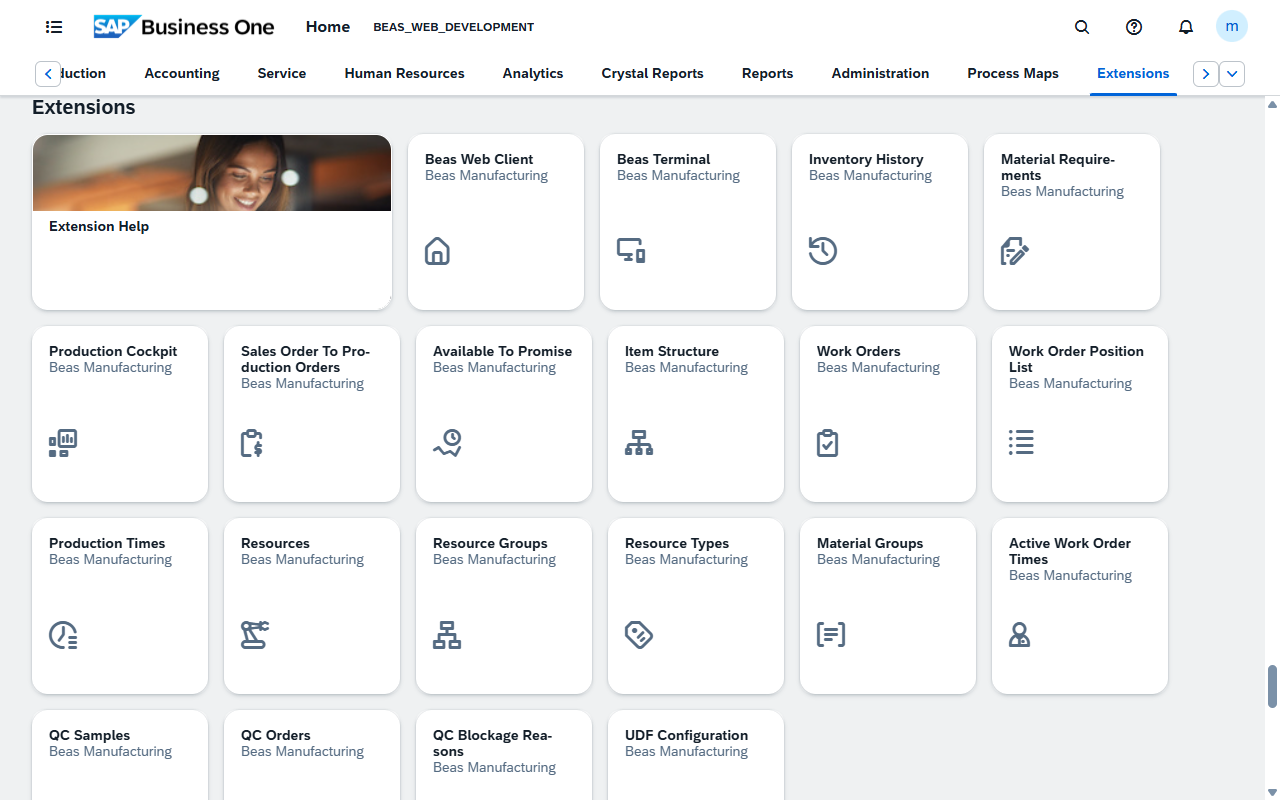
A tile opens a Beas screen; it does not grant access to it. What you can see and change inside the Beas screen is decided by your Beas authorizations, not by the tile. See Authorizations.
Fields and actions
Pressing any tile opens the linked screen in a new browser tab.
| Tile | Opens |
|---|---|
| Beas Web Client | The Beas Web Client itself, on its home page — the way in when you are not after one particular screen |
| Work Orders | Work Orders — the work order list |
| Work Order Position List | Work Order Positions — positions across all work orders |
| Production Cockpit | Production Cockpit |
| Material Requirements | Material Requirements |
| Sales Order To Production Orders | Sales Order to Work Order |
| Available To Promise | Available to Promise |
| Production Times | Production Times |
| Active Work Order Times | Active Work Order Times |
| Beas Terminal | The Beas Terminal — the shop-floor entry screen |
| Inventory History | Inventory History |
| Item Structure | Item Structure |
| Resources | Resources |
| Resource Groups | Resource Groups |
| Resource Types | Resource Types |
| Material Groups | Material Groups |
| QC Orders | QC Orders |
| QC Samples | QC Samples |
| QC Blockage Reasons | QC Blockage Reasons |
| UDF Configuration | UDF Configuration |
The order the tiles appear in is the order SAP Business One shows them in, and each user can rearrange them.
User workflow
Opening a Beas screen from the home page:
- Sign in to the SAP Business One Web Client.
- On the home page, open the Extensions group. The Beas tiles are the ones with the Beas Manufacturing subtitle.
- Press the tile for the screen you need.
- The Beas screen opens in a new browser tab, already showing your company. The SAP Business One tab stays where it was.
If nothing appears to happen when you press a tile, your browser is blocking pop-ups for the SAP Business One site. Allow pop-ups for that address and try again.
The Beas screens are normal web pages, so the ones you use every day can be bookmarked in your browser after the first use.
Examples
Checking whether a work order can be finished on time. From the home page, press Production Cockpit to see the current state of production, then switch to the Material Requirements tile to see whether the components are covered. Both open in their own tab, so you can move between them and back to SAP Business One without losing your place.