Installation
Beas reaches the SAP Business One Web Client through two extension packages that are deployed separately into the SAP Extension Manager:
| Package | What it adds |
|---|---|
| Beas Manufacturing Web Client (Extensibility module) | Beas fields, sections and buttons on standard SAP screens — see Item Master Data and Sales Order. |
| Beas Manufacturing Web Client Tiles | The Beas tiles on the launchpad — see Home Page. |
Both are installed by the Beas installer, in a step that runs straight after the Beas Web Server installation. This topic covers that step: what it needs in place beforehand, what it does, and how to check that it worked.
This topic is aimed at consultants and administrators carrying out the installation. End users do not need it.
Prerequisites
Before the extensions are deployed:
- SAP Business One Web Client is installed and reachable, and the account performing the deployment can sign in to the Extension Manager.
- The Beas Web Client server is running and reachable from the user's browser, not only from the SAP server. Every tile and every Beas button on an SAP screen opens a Beas page in a new browser tab, so the browser must be able to resolve and reach the Beas server address.
- The Beas server certificate is trusted by the browsers that will use it. The Beas pages open over HTTPS; an untrusted certificate leaves the user on a browser warning instead of the Beas page.
- The Beas company database is set up and the company is already in use by Beas.
Configuration
The setup table the extension reads
The extension reads its settings from the U_BEASWEB_SYS_SETUP user table in the SAP company
database. Three entries are used:
| Code | Purpose |
|---|---|
CompanyDB | The Beas company database. Passed to every Beas page the extension opens, so the page shows the right company. |
BeasWebServerKey | The key the extension authenticates with when it reads Beas data for an SAP screen. |
DBType | The database platform, MSSQL or HANA. The Beas fields on the Item Master Data screen are named differently on each, so the wrong value here leaves them empty. |
The Beas server address is not stored in this table. It is written into both packages while they are being deployed, which is why changing the Beas server address means deploying the extensions again rather than editing a setting.
Extension setup steps
When the Beas Web Server installation finishes, a dialog opens to start the Beas SAP Web Extensions setup:
-
Enter the Beas Web Server URL and the installation path the extension files (
.mtar) will be copied to. -
Enter the connection details for your SAP Business One Extension Manager, choose the company assignment — all companies, no companies, or selected companies on this server — and press Next to finish.
-
Open the SAP Business One Extension Manager and confirm that both extensions are installed:
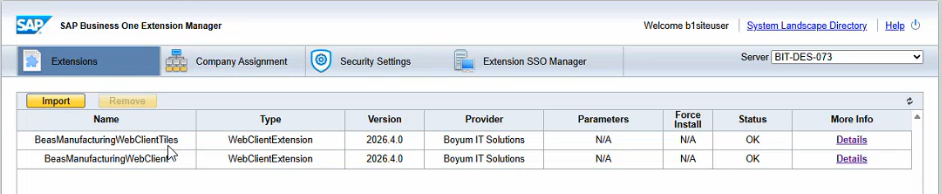
and that they are assigned to the companies you chose:
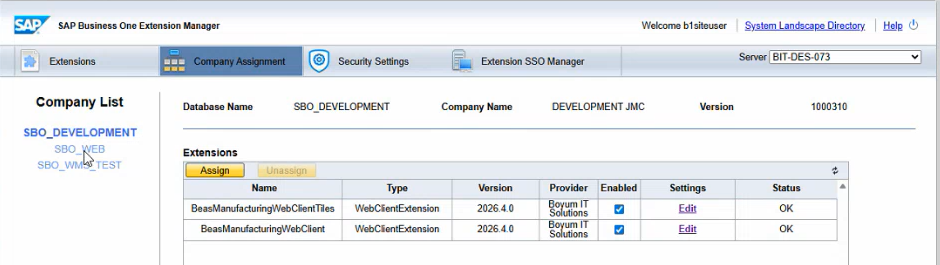
The .mtar extension files are generated during the installation and uploaded to the SAP solution
for you. They are not built or uploaded by hand.
Each user must sign out of the SAP Business One Web Client and sign in again before the extensions appear — extensions are loaded when a session starts.
If the Beas server address changes later — a new host name, a new port, or a move from HTTP to HTTPS — the extensions must be deployed again. Until then every tile and every Beas button keeps pointing at the old address.
The deployment writes a log to deploy_SAPExtensions.log, in the Beas folder of the machine's
temporary directory. That is the first place to look if something does not work.
User workflow
To verify a deployment from the user's side:
- Sign in to the SAP Business One Web Client.
- On the home page, confirm the Beas tiles are present. See Home Page.
- Open any tile. A new browser tab opens the corresponding Beas page, already showing your company.
- Open an item in Item Master Data. Confirm the Advanced Production tab is present and shows values. See Item Master Data.
- Open a sales order. Confirm the Advanced Production button is in the header and the Production button is in the item lines toolbar. See Sales Order.
If the tiles are there but the Beas screens are not — or the other way round — only one of the two packages was deployed.
If the Advanced Production tab appears but shows only group headings with no values on any item, the
extension was deployed for the wrong database platform. Check the DBType entry and deploy again.
The Beas labels on SAP screens follow the language of the SAP Business One session. Where a translation is not available for a language, the English text is shown.
Related functionality
- Installation article in the Boyum IT Help Center — the step-by-step tutorial with screenshots