Sales Order
On the SAP Business One Sales Order screen, Beas adds two buttons — in two different places, because they work on two different things. Production sits in the toolbar of the item lines table and acts on the lines you select. Advanced Production sits in the document header and acts on the whole order.
The point is that a salesperson can turn an order into production, and check on it later, without leaving SAP Business One.
The order must be saved before either button does anything: they work on a stored document, so they are unavailable while an order is being created or edited. The items must also be set up for production in Beas — a Bill of materials, a routing and the manufacturing settings on the item. See Item Master Data and Bill of Materials.
What a created work order looks like — its type, dates, warehouse and how the structure is exploded — follows your Beas company settings, exactly as it would for a work order created inside Beas. See Create Work Orders.
Header
Advanced Production
| Field | Description |
|---|---|
| WO Status | Opens Work Order Status for this sales order. It covers every line, so no line selection is needed. |
Body
Item lines
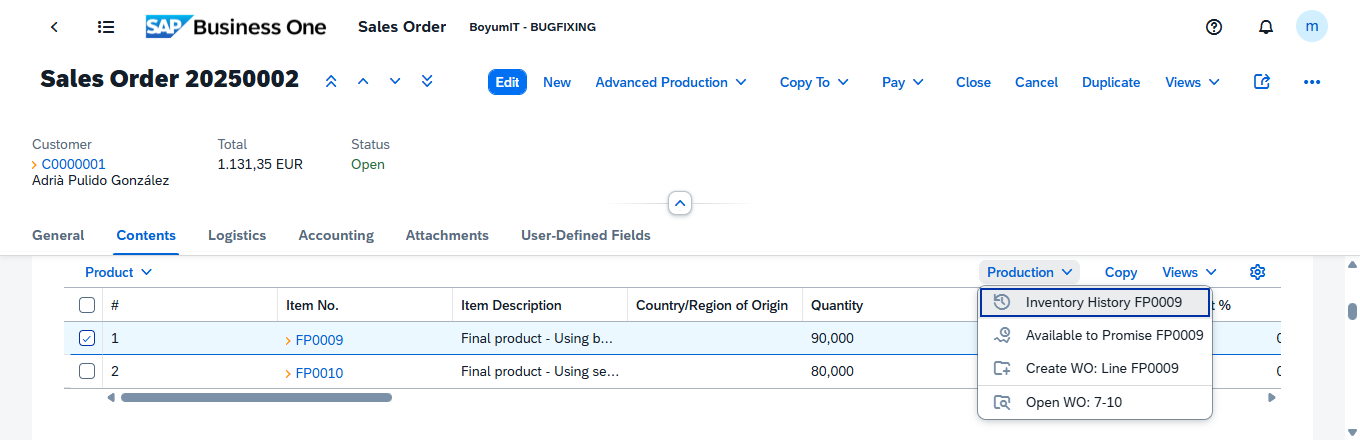
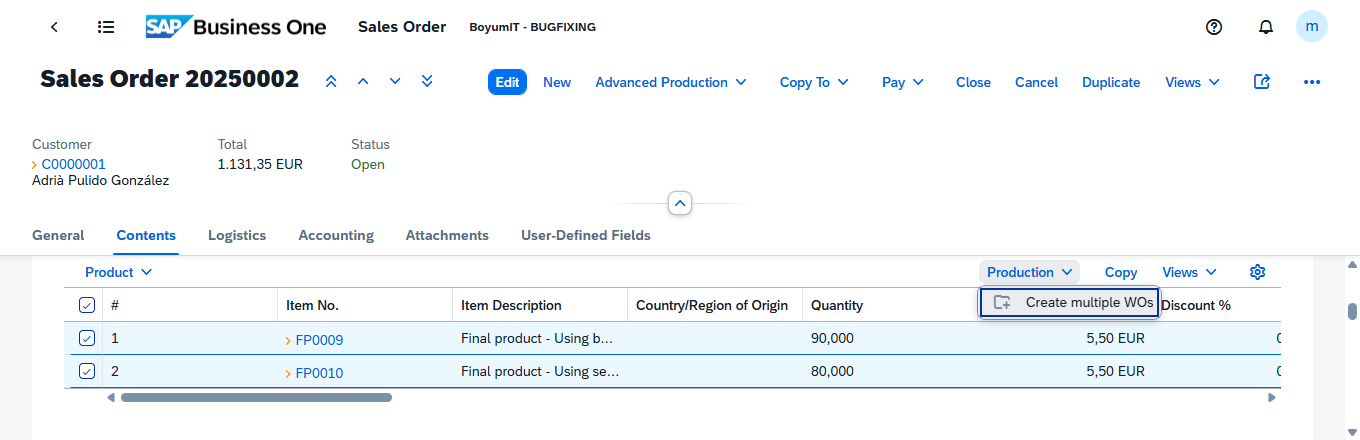
The Production button is in the toolbar of the item lines table, on the Contents tab. It stays greyed out until at least one line is ticked, and each entry names what it will act on — the item code for the single-line actions, the work order reference for Open WO.
With one line ticked:
With several lines ticked, the single-line actions disappear:
| Field | Description |
|---|---|
| Create WO: Line item | Offered with exactly one line ticked. Creates one Work order for that line, and names the new Work order number when it succeeds. |
| Create multiple WOs | Offered with more than one line ticked. Creates a Work order for each ticked line. |
| Open WO: Work order | Offered with one line ticked that already has a Work order. Opens the Work order position in a new browser tab — one entry per existing Work order, newest first. See WO Positions - Detail. |
| Inventory History item | Offered with exactly one line ticked. Opens Inventory History for the line's item. |
| Available to Promise item | Offered with exactly one line ticked. Opens Available to Promise for the line's item. |
Open WO lists only the Work orders that were created from this sales order line, and at most three of them — the three most recent. A Work order made separately for the same item does not appear here. The full list is in Work Orders.
Pressing a create action again on a line that already has a work order creates another work order; it does not update the existing one. Use Open WO first to see what is already there.
User workflow
Create a work order for one line
- Open the saved sales order and go to the Contents tab.
- In the item lines table, tick the checkbox of one line.
- In the table toolbar, press Production › Create WO: Line item.
- A message confirms the work order was created and names its number.
Create work orders for several lines
- Open the saved sales order and go to the Contents tab.
- Tick the checkboxes of several lines.
- Press Production › Create multiple WOs.
- A message confirms the work orders were created.
Open a work order that already exists for a line
- Tick the checkbox of the line.
- Press Production. Below the create action, one Open WO entry appears for each work order linked to that line, each naming the work order it opens.
- Press the entry. The work order position opens in a new browser tab.
Check the production status of the whole order
Press Advanced Production › WO Status in the document header. No line selection is needed.
Examples
A customer orders three configured products and one stock item. Open the saved Sales order and tick the three lines that need producing — leave the stock line unticked. Press Production › Create multiple WOs. Three Work orders are created, one per line. Later, to check on any of them, tick that line again and use Production › Open WO; to see all four lines at once, use Advanced Production › WO Status.
Creating Work orders from a sales order is not undone by cancelling the order. If the order changes after the Work orders were created, the Work orders have to be adjusted or closed in Beas.
Before creating the work orders, use Available to Promise on a line to see whether the item can be delivered from stock or planned supply. It may make the work order unnecessary.
Related functionality
- Work Orders — the list the work orders you create here end up in
- Sales Order to Work Order — the same operation for many sales orders at once, inside the Beas Web Client