The AI Audit Log tracks all interactions with the AI Assistant. This provides a record of questions asked by users, which can help with compliance requirements and troubleshooting. Audit log is disabled by default.
What is Logged
Each audit log entry captures the following information:
Date and Time The date and time when the question was submitted.
User The SAP Business One user who submitted the question. Both the SAP user and the Windows username are recorded.
Machine Information The machine name and IP address from which the question was submitted.
Prompt The full text of the question or prompt that was submitted to the AI.
Query Type The type of query: Chat (general conversation), Report (data query), or Manual (B1UP manual search). |
|---|
Accessing the Audit Log
To open the AI Audit Log:
1. Click the settings (hamburger menu) icon in the AI Assistant widget
2. Select "Audit Log" from the menu.
Or access it from:
1. The SAP menu Administration - Add-ons - B1 Usability Package - Module Configuration - B1 AI Assistant - AI Audit Log
If you're not a superuser in SAP, permissions to access the audit log are required in the SAP authorizations.
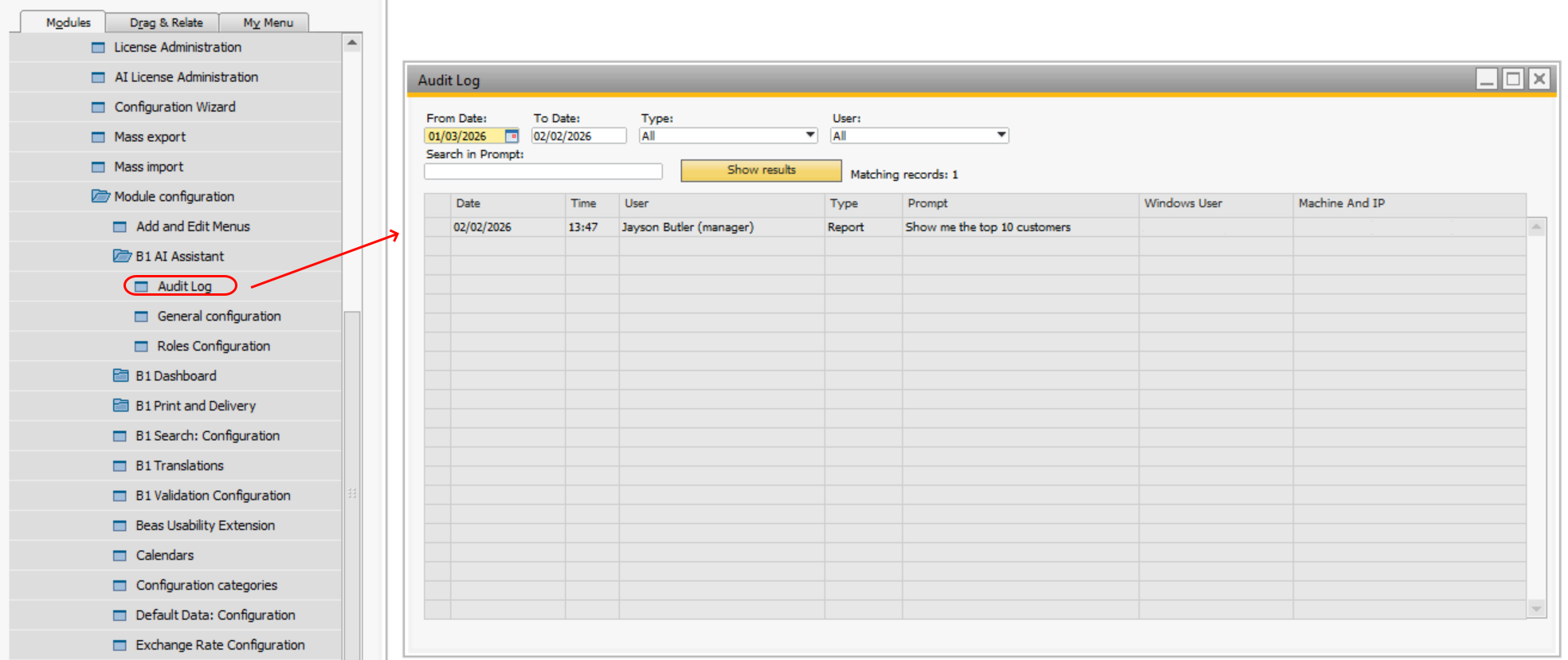
Filtering the Audit Log
The audit log provides several filtering options to help you find specific entries:
Date Range Filter entries by selecting a start date and end date. Only entries within the specified date range will be displayed.
Query Type Filter by the type of query: Chat, Report, or Manual. This helps you focus on specific types of AI interactions.
User Filter entries by a specific SAP Business One user. This is useful when you need to review the activity of a particular user.
Text Search Search for specific words or phrases within the prompt text. This helps you find entries related to particular topics or data. |
|---|
Enabling and Disabling Audit Logging
Audit logging is disabled by default. If you want to enable/disable it:
1. Open the AI Audit Log form.
2. Check/Uncheck the "Enable Audit Log" checkbox.
3. Click Update to save your changes.
When audit logging is disabled, no new entries will be recorded. Existing entries will remain in the log and can still be viewed.