The Roles Configuration feature allows you to control which SAP Business One data each user can access through the AI Assistant. By assigning users to roles, you can restrict their queries to specific tables and document types. SAP Superusers always have permissions to all tables.
Why Use Roles
Without role restrictions, users can query any table in your SAP Business One database. Roles allow you to limit access based on job function. For example, a sales representative might only need access to sales documents, while a warehouse worker might only need inventory data.
When a user with an assigned role asks a question, the AI will only generate queries against the tables allowed by that role. If the AI attempts to access a table outside the allowed list, the query will be blocked and the user will receive a message explaining that their role does not permit access to that data.
Predefined Roles
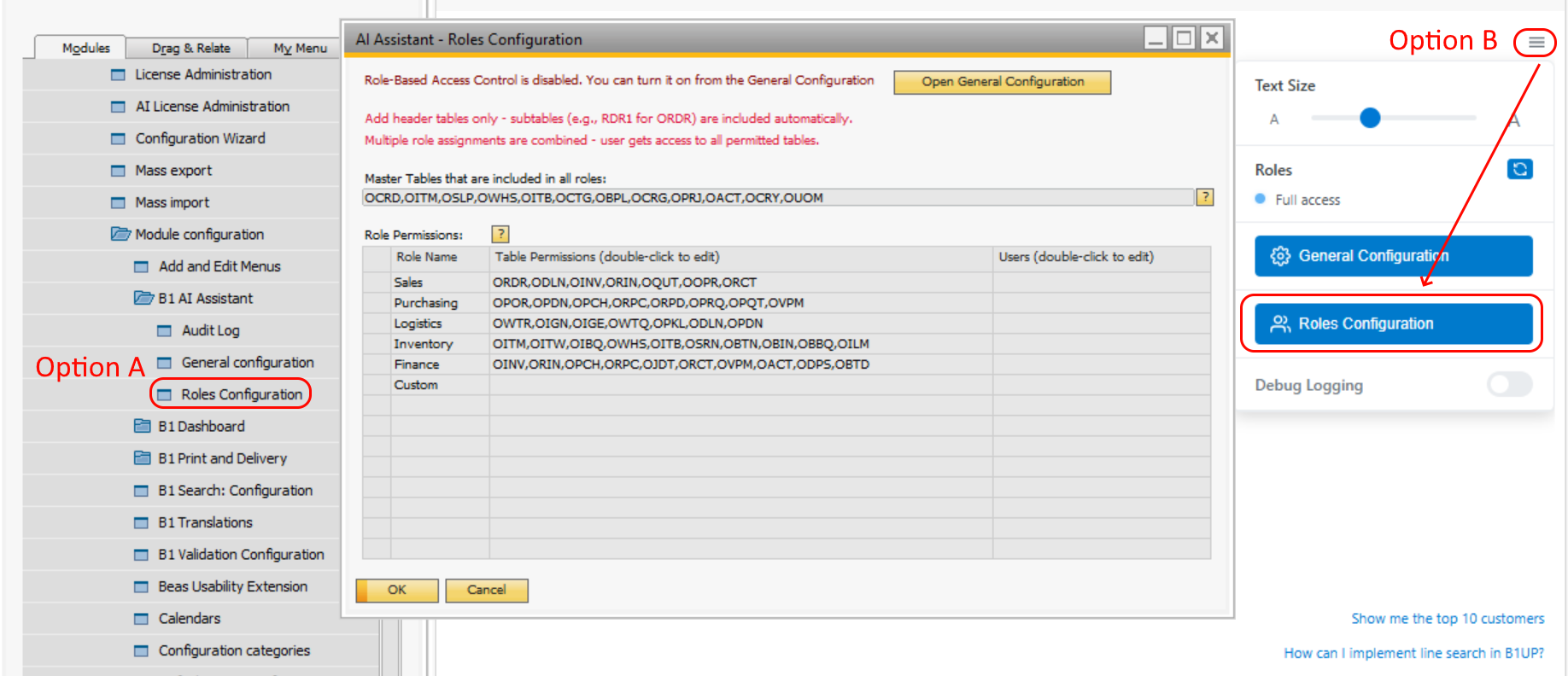
B1UP includes several predefined roles, each configured with access to specific SAP Business One tables (check specific tables in the roles configuration):
Sales Access to sales orders, deliveries, invoices, returns, quotes, opportunities, and incoming payments.
Purchasing Access to purchase orders, goods receipt POs, AP invoices, AP credit memos, returns, purchase requests, purchase quotations, and outgoing payments.
Logistics Access to inventory transfers, goods issues, goods receipts, transfer requests, pick lists, deliveries, and goods receipt POs.
Inventory Access to items, item warehouse data, item batches, warehouses, item groups, serial numbers, batch numbers, bin locations, bin content, and item lifecycle management.
Finance Access to AR invoices, AR credit memos, AP invoices, AP credit memos, journal entries, incoming payments, outgoing payments, chart of accounts, deposit documents, and bank transactions.
Custom A blank role that you can configure with any combination of tables. Use this when the predefined roles do not match your requirements.
All predefined roles can also be customized by changing the tables in the roles configuration form. |
|---|
Master Tables
Certain tables are automatically available to all users regardless of their role assignment. These are called master tables and include common reference data such as business partners, items, sales employees, warehouses, item groups, payment terms, branch data, customer groups, projects, chart of accounts, countries, and units of measure.
Master tables allow the AI to properly join related data when answering questions. For example, when a sales user asks about invoices, the AI can include customer names from the business partners table even though that table is not explicitly in the Sales role.
You can modify the list of master tables in the Roles Configuration form if needed. |
|---|
Accessing Roles Configuration
To open the Roles Configuration form, click the settings icon in the AI Assistant widget and select "Roles Configuration". You need appropriate B1UP permissions to access this feature.
Assigning Users to Roles
To assign users to a role:
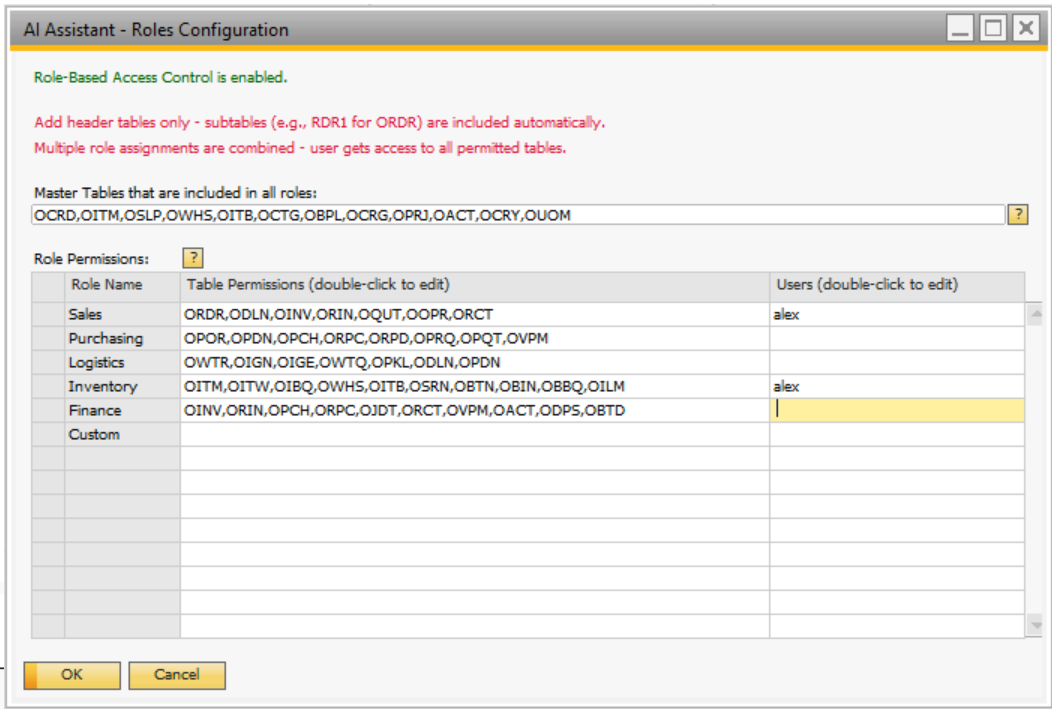
1. Open the Roles Configuration form. 2. Select the role you want to configure. 3. In the Users field, enter the SAP Business One usernames separated by commas. 4. Click Update to save your changes. |
|---|
A user can be assigned to multiple roles. When a user has multiple roles, they can access all tables from all their assigned roles combined.
Enabling and Disabling Roles
Role based access control is disabled by default. When disabled, all users have unrestricted access to query any table.
To enable role based access control:
1. Open the Roles Configuration form from the SAP menu Administration - Add-ons - B1 Usability Package - Module Configuration - B1 AI Assistant - Roles configuration 2. Check the "Enable Roles" checkbox. 3. Click Update to save your changes. |
|---|
When roles are enabled, users who are not assigned to any role will not be able to make data queries. Make sure to assign all users who need AI Assistant access to at least one role before enabling this feature.