This section explains how to ask questions to the AI Assistant and work with the results it provides.
Data Queries
Data queries allow you to retrieve information from your SAP Business One database using natural language. Instead of writing SQL, you simply describe what you want to see.
Example Questions
Here are some examples of data queries you can ask:
"Show me all invoices from this month" "List active customers sorted by name" "What are the top 10 selling items this year?" "Show purchase orders with amounts over 10,000" |
|---|
Clarification Flow
If your question is ambiguous or needs more detail, the AI will ask you clarifying questions before generating results. For example, if you ask "Show me recent orders", the AI might ask whether you mean sales orders or purchase orders, and what time period you consider "recent". This helps ensure the results match what you are looking for.
Working with Results
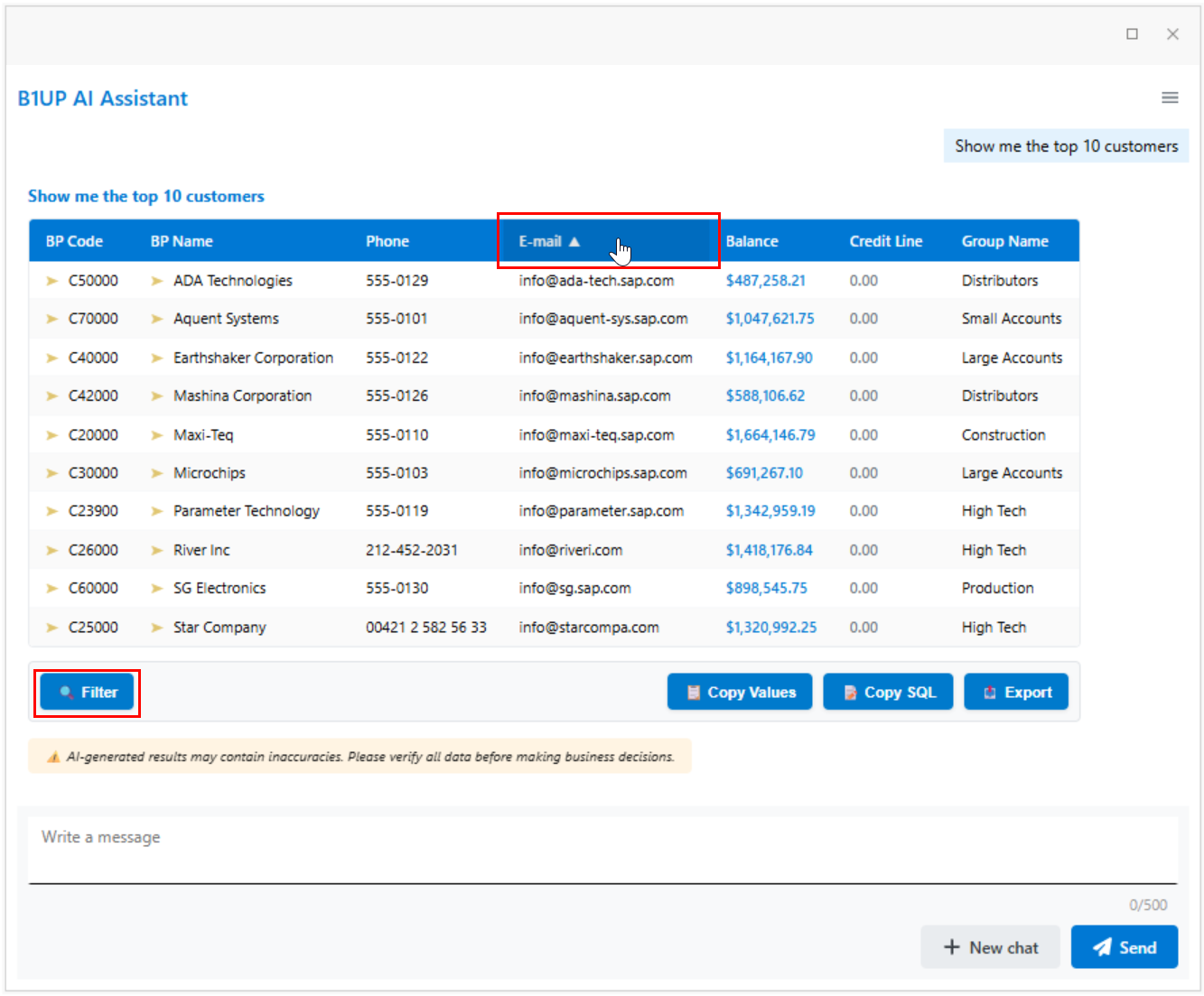
When the AI returns data, it displays the results in an interactive table. You can scroll through the data and sort/filter columns as needed.
Exporting Results
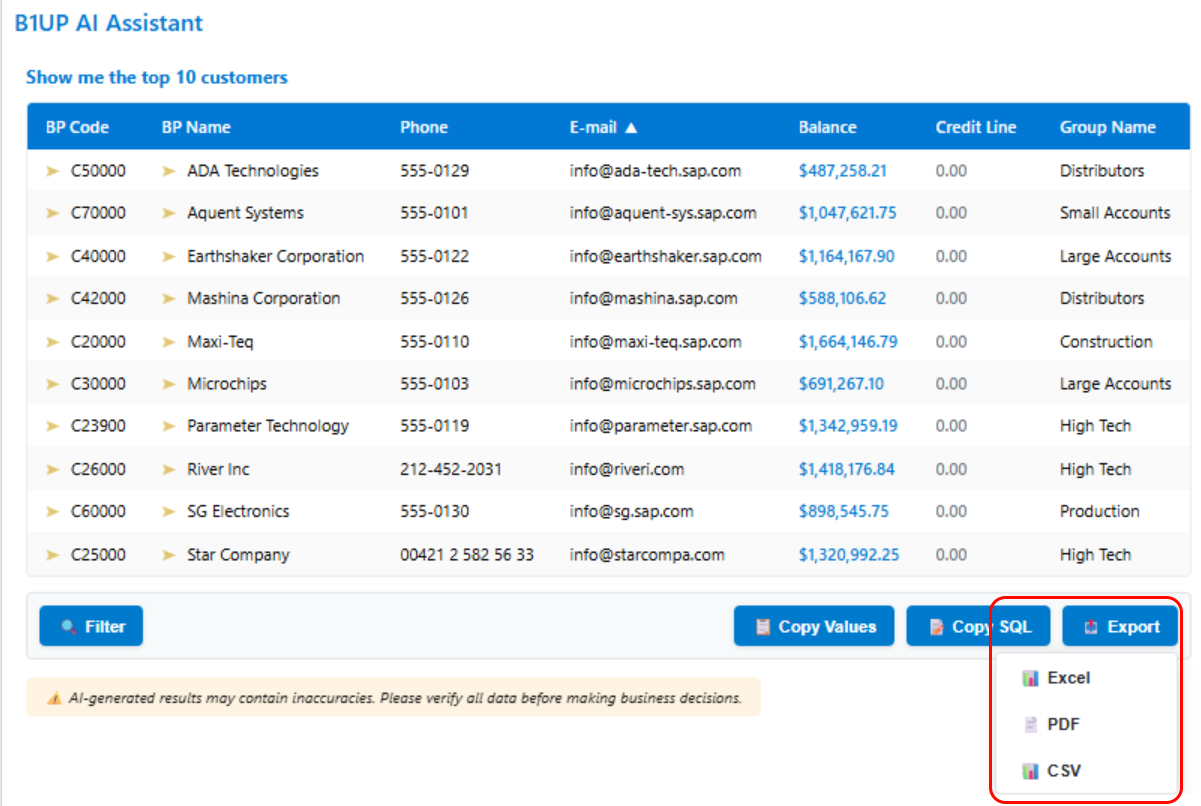
After the AI returns data, you can export the results in several formats using the buttons below the results table:
Export to Excel Click the "Excel" button to download the results as an Excel file.
Export to PDF Click the "PDF" button to download the results as a PDF document.
Export to CSV Click the "CSV" button to download the results as a CSV file.
Copy to Clipboard Click the "Copy" button to copy the results to your clipboard. You can then paste the data into any application that accepts tabular data.
Copy SQL to Clipboard Click the "Copy SQL" button to copy the generated SQL query to your clipboard. This is useful if you want to use the query in other tools or modify it for your own purposes. |
|---|
Golden Arrow Navigation
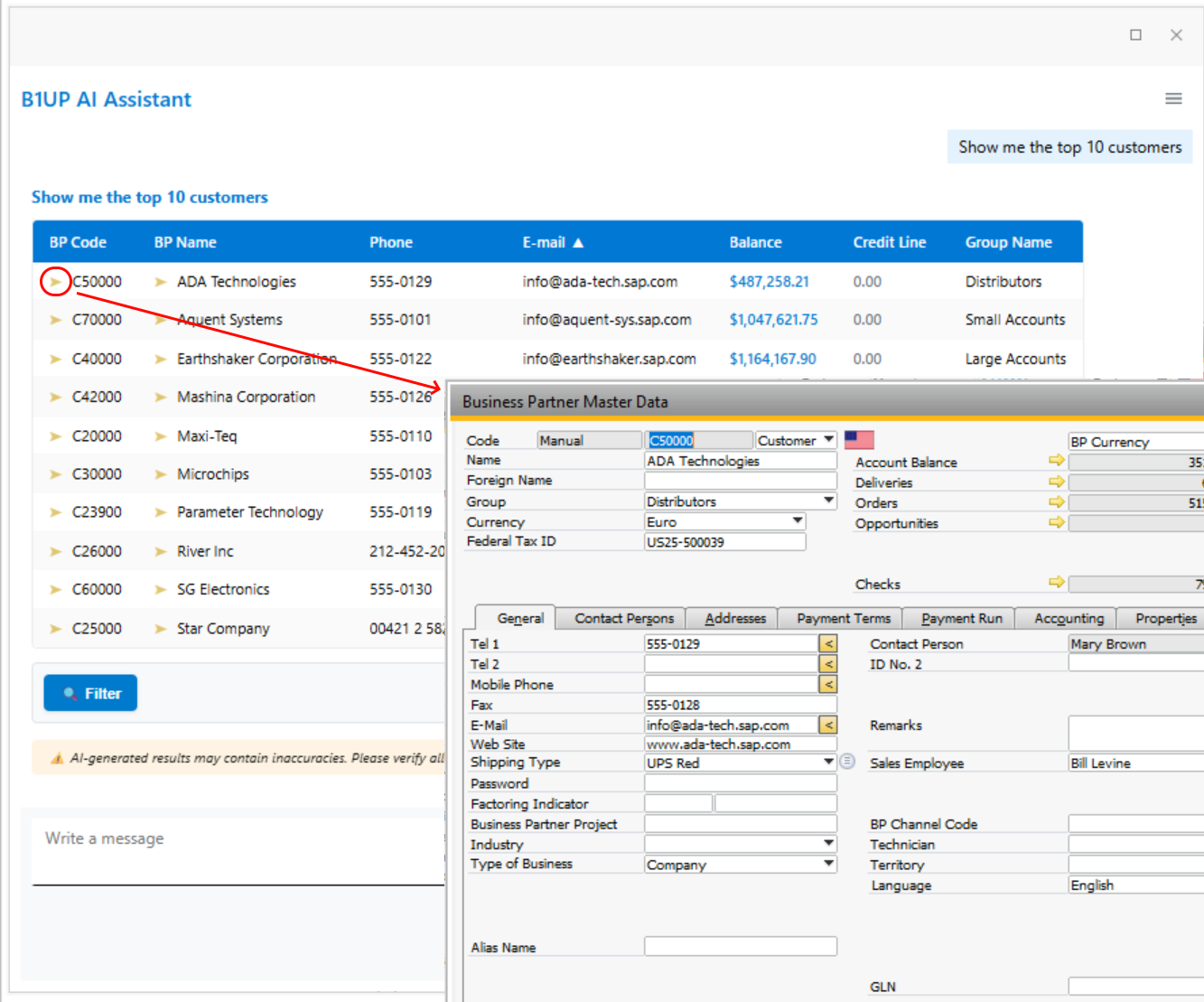
When the AI returns data that references SAP Business One documents or master data, certain values in the results will display a golden arrow icon. Clicking on these values will open the corresponding form directly in SAP Business One.
For example, if you query invoices and the results show invoice document numbers, clicking on a document number will open that invoice in SAP Business One. Similarly, clicking on a customer code will open the Business Partner Master Data form for that customer.
Manual and Help Queries
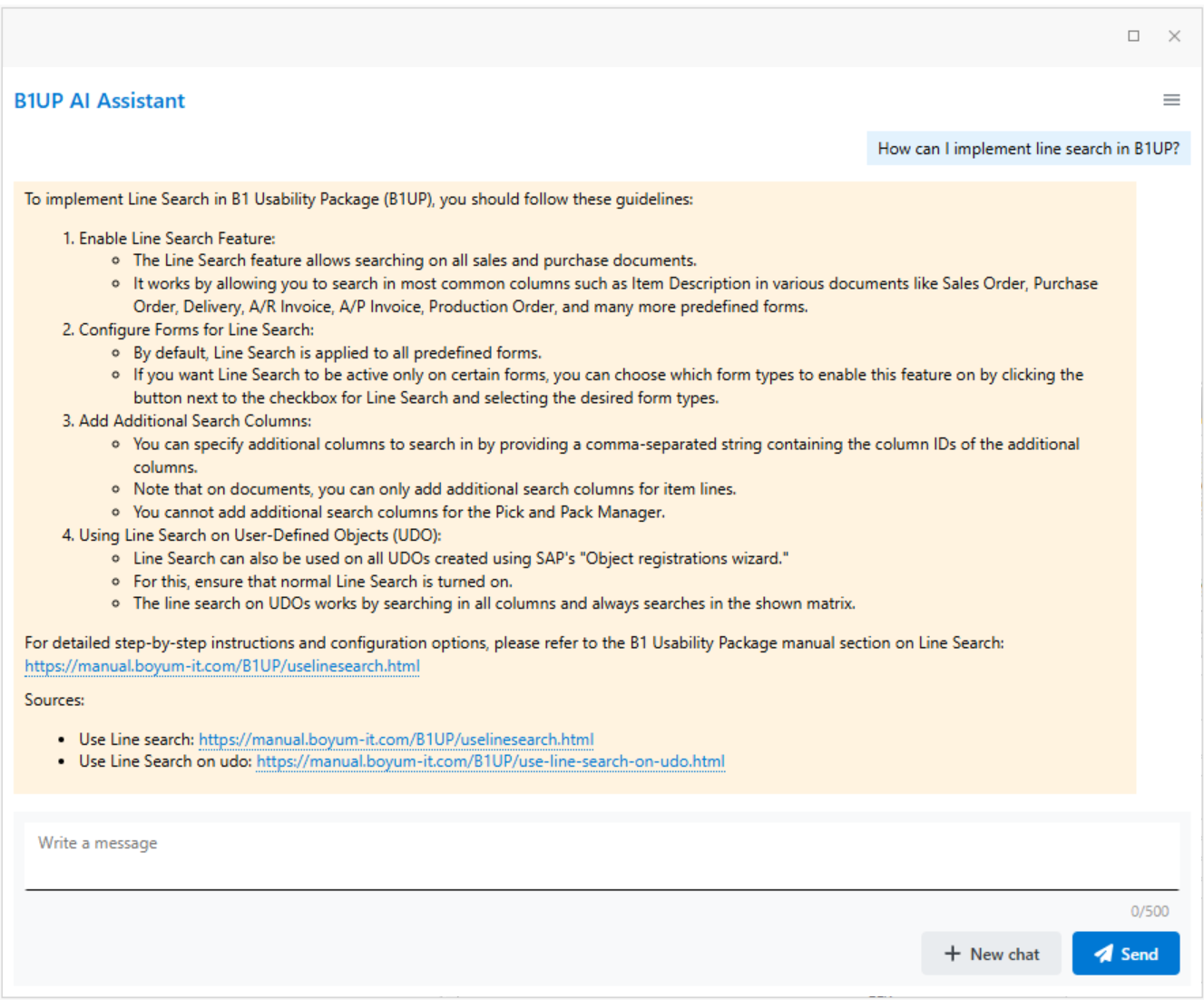
You can ask the AI Assistant questions about B1UP features and functionality. The AI searches through the B1UP manual to find relevant information and provides answers based on the documentation.
Example Questions
Here are some examples of manual queries:
"How do I configure validation rules in b1up?" "Where can I find the mandatory fields settings in b1up?" "What is the Quick Create feature in b1up?" "How do I set up function buttons in b1up?" |
|---|
The AI will provide an answer along with references to the relevant sections of the manual where you can find more detailed information.