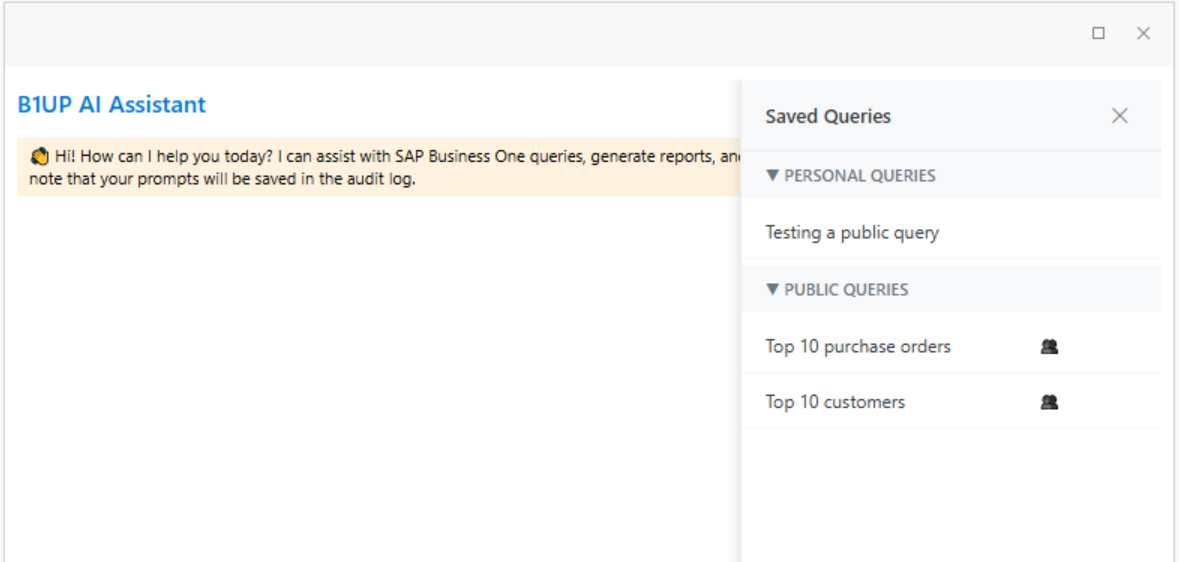
The Saved Queries feature allows you to bookmark SQL queries from reports you use frequently. Saved queries run directly against the database without involving the AI, giving you consistent and fast results every time. You can keep queries private or share(superusers) them with other users.
Saving a Query
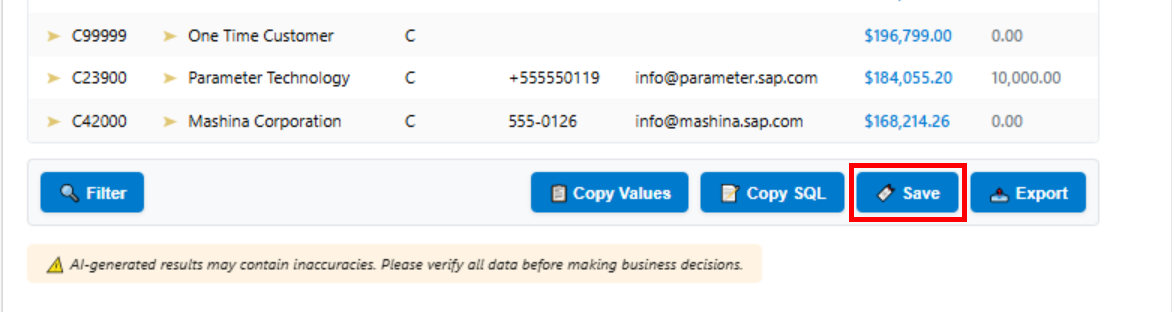
After the AI Assistant generates a report, you will see a bookmark icon in the export buttons row below the results table. To save the query:
1. Click the bookmark (Save) button on any report result.
2. A text field will appear where you can enter a name for your saved query.
3. Type a descriptive name and press Enter or click the checkmark button.
4. The query is saved to your personal list.
Note: The saved query stores the exact SQL that was generated. When you run it later, the same SQL executes directly against the database without involving the AI.
Opening the Saved Queries Panel
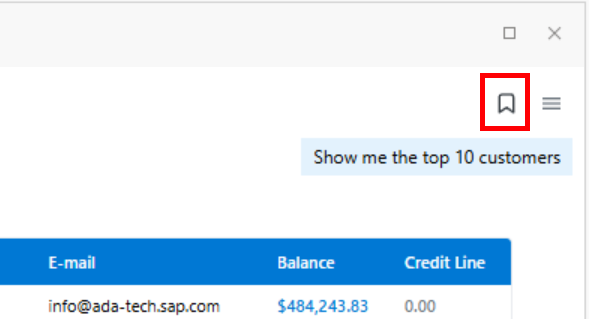
Click the bookmark icon in the top-right corner of the AI Assistant (next to the settings menu) to open the Saved Queries side panel.
The panel displays two sections:
Personal Queries Queries you have saved. Only you can see these. You can delete your own personal queries or, if you are a super user, share them with all users.
Public Queries Queries that have been shared by super users. All users can see and run public queries, but only the user who created a public query can delete it or change its visibility. Please note that the roles permissions are checked even for saved queries. |
|---|
Running a Saved Query
To run a saved query:
1. Open the Saved Queries panel by clicking the bookmark icon.
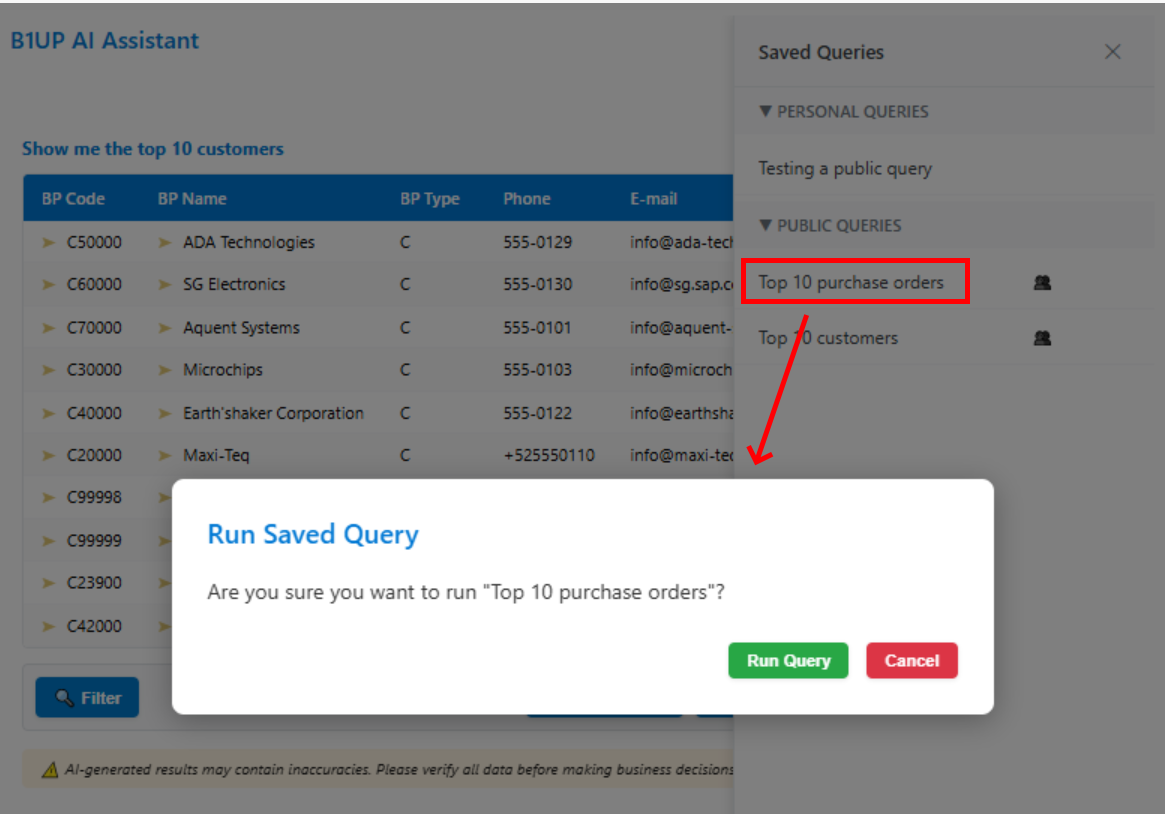
2. Click on any query in the list.
3. A confirmation dialog will ask if you want to run the query.
4. Click "Run Query" to execute it.
The results will appear in the chat area as a normal data table, with all the same export options (CSV, Excel, PDF) and navigation features available.
Managing Saved Queries
When hovering over a saved query in the panel, action buttons appear on the right side:
- Delete (x): Removes the query from your saved list. You can only delete queries you own. Super users can delete all public queries.
- Share (globe icon): Makes the query public so all users can access it. Only available to super users, and only for their own queries.
- Lock (lock icon): Changes a public query back to private. Only available to the query owner.
Permissions
Saved queries respect the same role-based permissions as AI-generated queries. If a user does not have access to a table referenced in a saved query, they will see an "Access Denied" message when attempting to run it, even if the query was shared publicly.
The following table shows which actions are available for each user type:
Action |
Owner |
Super User (not owner) |
Regular User (not owner) |
|---|---|---|---|
Run query |
Yes |
Yes |
Yes |
Delete own query |
Yes |
- |
- |
Delete any public query |
- |
Yes |
No |
Make own query public |
Yes (if super user) |
No |
No |
Make own query private |
Yes (if super user) |
No |
No |
Rename query |
Yes |
No |
No |